



A Dedicated Server is basically what makes it possible to utilize the full 32-player capacity of Palworld. Compared to the usual 4-player co-op mode, a dedicated server is generally a server that keeps the in-game world running independently in continuous mode. Hence, it is not dependent on a player host and can be up 24/7. With this, a gigantic, non-stop multiplayer world will be achievable through the creation of guilds.
Pals are being used for various jobs, and progress at the global level for everyone gets saved. The host, through the use of such a dedicated setup, will get absolute control over game parameters, security settings, and performance optimization. Thus, this changes the game session from being personal into a fully managed community environment.
Trying out a dedicated server is not very complicated, and people with different levels of technical knowledge can also do it with fewer resources than initially thought. Self-hosting can be done on a computer of your choice. Either Windows or Linux is free, provided the computer is powerful enough. You have a good internet connection, and you possess the technical skill of port forwarding. A GSP or Virtual Private Server can be availed, which is a monthly paid service that takes care of the hardware without the user’s intervention; hence, that service will be easier to operate. With high uptimes and good overall performance when a large number of players are considered. Regardless of how the server is set up, its files are accessible through Steam, mostly via the Steam CMD command line interface and there is even an official Docker image for proficient users.
As official cross-play opens, it allows more players to join any given host, with the big update in March 2025. Players of both the Steam and Palworld Xbox/Microsoft Store versions were able to connect to the same dedicated servers. Due to that, the number of potential players that a person can connect with increases drastically. It has never been easier to organize a meet-up with your whole community of friends, regardless of the platforms they use. The only thing you need to be aware of is that the hosting region should be selected in such a way as to offer low latency for the largest part of your players. That is the best guarantee both you and your friends can have of being able to enjoy a smooth, responsive, and lag-free Pal-catching session together.
Key Takeaways
This guide describes the core features and requirements when setting up a Palworld dedicated server. Below are a few points summarizing the value proposition and key technical choices during the launch of your world:
- Increased Player Limit: With a dedicated server, your capability for multiplayer increases with support for as many as 32 players at once. This is a variable cap, meaning you can decrease it if hardware can’t handle it, say, 16 or 24 players. This balances performance and the size of your community.
- Networking Requirement: By default, the server communicates with the game client over UDP Port 8211. To enable players outside your local network to connect, you’ll have to enable port forwarding on the router, and make a firewall exception for this particular port – and optionally the Steam Query Port 27015. The port can be changed via configuration files, in case 8211 is already occupied.
- Diverse platform support: You can host the server software in many ways; it’s up to you to decide which will best fit your technical comfort level. The server tool supports direct installation on Windows and Linux machines via SteamCMD, and there is also official support for deploying it as a Docker container, ideal for advanced users in search of efficiency and streamlined management.
- Choose Your Host: The major choice now is how to host it: Self-Hosting on your own hardware gives full control and doesn’t include monthly fees, but requires maintenance and strong resources. Using a Server Provider (GSP/VPS) offers a simpler way of hosting, professional stability, guaranteed uptime, but also recurring costs.
What is a Palworld Dedicated Server
A Palworld Dedicated Server is a standalone application separate from the game client, which runs the constant simulation of Palworld on a host machine. It’s the only way to support up to 32 players, thus creating a large-scale multiplayer environment.
Key Benefits and Concepts
- Persistence and access 24/7: The world keeps running on the dedicated server and never goes down, even when the original hosting player is not logged in. That means at any time of the day or night, players are joining and leaving, and their progress will stay secure. It’s also much better than the client-hosted co-op world, which goes down the moment a host player leaves the game.
- Community Server Listing: When all is set, your server can either be listed publicly or in private. The publicly listed servers will appear in the in-game list of Community Servers, where anyone can join your world, preferably for community building. Private ones, on their part, use a password or a direct IP to connect and are applicable for personal usage with friends or guilds.
- Superior performance for large groups: Because the server software is specialized, and not simultaneously running the demanding game client graphics and controls, it uses system resources more efficiently for the core simulation. This means smoother performance and lower latency, with better stability, especially when hosting a maximum of 32 players, compared to attempting to host a large group on a standard player’s PC.
Requirements & Setup Basics
Before getting your persistent Palworld environment going, you need to ensure that your hosting machine has the proper hardware requirements and you’ve selected the best way to install the server files.
- Hardware and OS Baseline: The huge, persistent world of Palworld is shockingly resource-intensive, especially at a full 32-player count. Meeting these requirements is critical to avoid lag and server crashes, commonly caused by memory leaks:
- Minimum: The system requires at least a 64-bit operating system-installed machine (Windows 10/11 or Linux distributions such as Ubuntu). You will need at least 4 CPU Cores and 16 GB of RAM just to get started. An SSD is highly recommended to prevent file corruption and ensure fast world save/load times.
- Recommended for 32 Players: To have a smoother, more stable experience with this many players, use a server with at least 8+ CPU Cores and 32 GB of RAM or more. An NVMe SSD is highly preferred for optimal I/O performance. Due to still-ongoing issues with memory leaks, even the most powerful servers should have scheduled restarts every few hours.
Installation Methods
Installation Methods Depending on the hosting environment, there are multiple ways to obtain and manage Palworld server files:
- Steam GUI: The most straightforward approach for Windows users is to install the tool “Palworld Dedicated Server” straight from the Steam client library (under Tools).
- SteamCMD: This command-line interface is the standard and most reliable way to handle both Windows and Linux hosts. It will be used to download the server files and keep those updated with the latest patches via a simple command.
- Official Docker Image: For power users who understand how to work with Docker containerization, Pocketpair has an officially supported Docker image that eases resource management and simplifies deployment.
Network and Port Requirements
To make your server accessible to your friends and the public over the Internet, you’ll first need to allow access through some configuration of firewall and router settings.
- Primary Port: The default Palworld server makes use of UDP Port 8211 for all game traffic. This port should be opened in the software firewall of your host machine, such as Windows Defender, and forwarded through your network router to the local IP address of the server.
- Optional Ports: Some admins also recommend forwarding the Steam Query Port, UDP 27015, which helps the server to reliably appear in the community list. If you use Remote Console – RCON – to manage your server, that port (default $25575$ TCP) will need to be opened as well. If you cannot connect to your server, this may be a worthwhile thing to try for troubleshooting.
Configuration & Admin Flags
With the Palworld Dedicated Server files installed, it’s time to configure the world settings and launch parameters. While most of the gameplay settings are done through the PalWorldSettings.ini file, the initial identification of the server and basic performance tweaks are usually carried out using command-line flags.
Core Launch Parameters
These parameters are added to the command line when starting the server-e.g., in a .bat or shell script-and define some key server limits:
- Maximum Population (-players=32): This critical flag designates how many players can connect to your world at any one time. Even though the maximum is 32, you’ll want to tune this number to $16$ or $24$ if your server hardware – most importantly, RAM and CPU – are struggling to handle a full load. This tuning for stability is important.
- Default Port (-port=8211): This is the primary game connection port. The default of $8211$ is specified, but you must set this flag if you want to run the server on any other port. For example, this is important if you want to have multiple servers running on the same machine. If you do set this flag, remember that your firewall and router port forwarding rules should match this number as well.
Performance Optimization Flags
For servers running on multi-core CPUs, Pocketpair provides launch flags that can help the server process utilize resources more efficiently:
- NoAsyncLoadingThread, and -UseMultithreadForDS to your launch command to instruct the server to use multiple CPU threads for its processes.
- This may lead to a visible boost in performance on modern CPUs with four or more cores, easing the heavy task load of a 32-player world with AI, physics, and saving operations.
- They are especially good at eliminating lag and stutter related to world loading and other background tasks.
Self-Hosting vs Hosting Provider

Self-Hosting vs. Rented Hosting: Choosing the platform of your Palworld dedicated server is among the most important decisions that you’ll make. It defines your level of control, monthly expenditure, and technical overhead.
Self-Hosting
By self-hosting, we mean running the server application on your own machine – be it your main PC, while you play/idle on it, or a spare computer set aside for this purpose. You have complete and full control over the OS, server files, and updates. It is the best option when you already have powerful, capable hardware (e.g., $32\text{ GB}$ of RAM recommended for 32 players) and a stable internet connection with enough upstream bandwidth.
This level of control demands constant vigilance; the host machine operates 24/7 to maintain persistence. It is up to you to exercise proper discipline and apply all updates in a timely manner. You will need to perform security hardening, like port management, to protect your home network.
Hosting Provider
Using a hosting provider to host your server involves paying a monthly fee to a third-party GSP or a VPS company. It’s the path of convenience, offering a quicker start through automated setup panels. Providers usually offer servers in global regions, which will ensure low latency for a widespread community.
They often include essential features like built-in DDoS protection and robust uptime. While you pay monthly, you have the ability to easily scale RAM/CPU on demand for player spikes. The use of professional backups and snapshots makes it a more reliable and simpler solution for a large, long-term community.
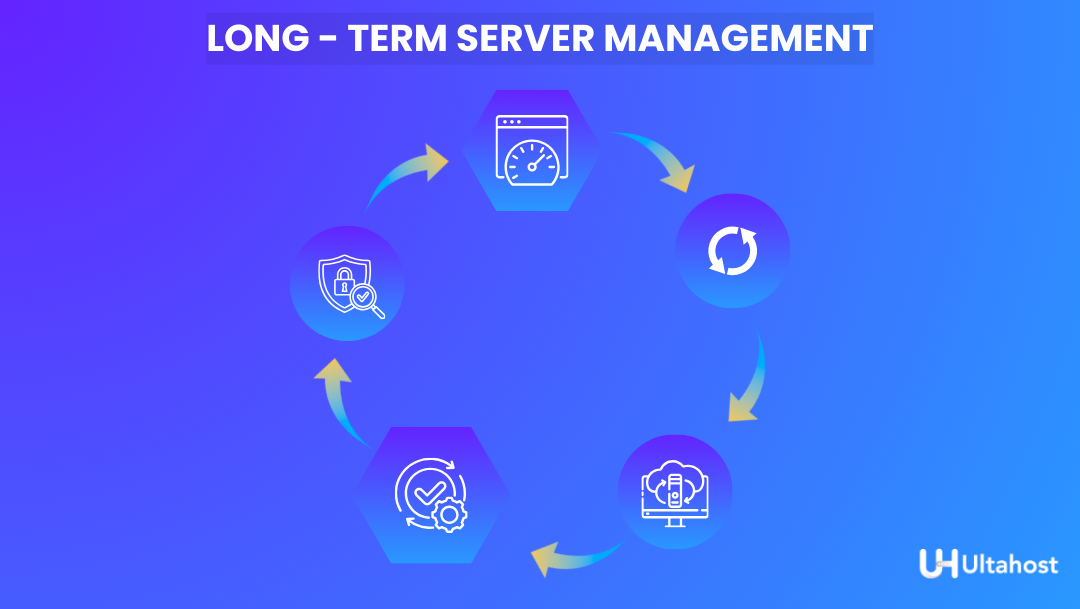
Managing Your Server Long-Term
Running a dedicated Palworld server involves constant, proactive management to ensure stability, especially for a large community of 32 players. A successful experience requires operational reliability; otherwise. The server could gradually deteriorate over time without maintenance.
Operational Reliability
The most important part of maintaining a Palworld server is addressing its rather well-documented memory leak if left running for too long. The server process will consume an inordinate amount of RAM, causing extreme lag, rubberbanding, and crashes.
- Scheduled Restarts: The only reliable fix is to implement scheduled restarts every 4 to 8 hours, or more frequently on less powerful hardware. These restarts clear the memory and reset the performance. Always use the /Save and /Shutdown {Seconds} {MessageText} admin commands to notify players and ensure the world data is saved gracefully before the server shuts down.
- Maintenance Plan: Establish a weekly regimen, which includes taking full backups of your save data and reading official patch notes before applying updates. Using system tools (like Task Manager or htop) to monitor memory and CPU usage for early warning signs of resource exhaustion.
Security and Access Control
Protecting your server and community requires diligent security practices.
- Admin password restriction: Put a strong, unique Admin Password in your configuration file. This password must be shared only with Administrators who are trusted. The in-game Admin login will enable sensitive commands, kicking, banning, saving, and shutting down the server.
- Port Security: Your firewall and router should have only the needed open ports. Primary ones include UDP 8211 for the game data, and optionally. UDP 27015 for Steam query. Keeping the rest of the ports, which are not in use, closed protects your server from external threats.
Cross-Play Community Management
With cross-play added, your server may be hosting players from both Steam and Xbox, which will require some thoughtful community management.
- Region Alignment: If using GSP, select a hosting region that minimizes latency for the greatest number of your Steam and Xbox players.
- Peak Times: Let the community know when your server peaks and when maintenance windows will be. You can use the /Broadcast command for in-game announcements. This will help prepare players for scheduled restarts and will minimize frustration if the unexpected happens, such as downtime or data loss.
Performance Optimization Tips
Optimizing your Palworld dedicated server will make all the difference in ensuring low lag, reducing the possibilities of crashes, and overall stability for up to 32 players. This will involve selecting hardware wisely and making smart configuration tweaks.
Palworld continuously reads and writes a lot on the servers. If you decide to use a low-performance disk, like a traditional HDD or a slow SATA SSD, it will greatly increase your risk of server hang-ups or worse, save file corruption. An NVMe SSD provides the high input/output operations per second necessary to ensure that saving and loading are both fast and reliable.
Configuration Tuning
Actually, server stability is a sort of juggling act between resource allocation and load management.
- Right-Size Player Cap: The maximum is 32, but if your monitoring shows your CPU or RAM is frequently maxed out, you’ll need to reduce the maximum number of players with the -players={N} option to a number that better reflects your available hardware.
- Performance Flags: The use of launch parameters such as -useperfthreads -NoAsyncLoadingThread -UseMultithreadForDS. These flags enhance performance and enable the server to use multi-core CPUs more when extreme CPU spikes are needed to handle AI and physics for several players.
Managing Memory (RAM)
Aggressive management of RAM is necessary for long-term operation, since the dedicated server of Palworld has a memory leak.
- RAM Headroom: As the size of the map grows and players work on building huge bases and taming Pals, the amount of memory the server will use will grow forthwith. Although $16\text{ GB}$ is the minimum to launch, recommended RAM sizes for large, busy, long-running communities of 32 players are $32\text{ GB}$ and even $64\text{ GB}$.
Common Issues & Quick Fixes
Operating a dedicated server mainly for games in evolution, such as Palworld, one expects some technical issues. Understanding common problems and their quick fixes can go a long way in minimizing downtime and frustration within your community.
Palworld Dedicated Server Made Easy
Set up your own Palworld dedicated server in minutes with optimized performance, full control, and smooth multiplayer gameplay—without technical hassle.
“Can’t Connect” or “Connection Timed Out”
This is the most common problem, usually related to the network.
- Confirm Port Forwarding: the server requires UDP Port 8211 open on both the host machine’s firewall and on the router, forwarded to the server’s local IP address. Use an external tool to confirm the port is really open on your public IP address.
- Check the IP Address: Other players will require your Public IP with the port after it (example: 100.200.10.50:8211), while all the players in the same network as the hosting machine will require having the local IP of the server (example: 192.168.1.5:8211).
- Check Visibility: If a player is not able to connect through the in-game list, advise that they try the Direct Connect option at the bottom of the server browser. It bypasses the often-buggy community listing service.
“Random Disconnects” or Lag
These usually point to resource depletion or memory leaks on the server side.
- Scheduled Restarts: Palworld’s server is plagued by a memory leak, meaning performance will degrade over time. The best way to avoid this is to write a script for scheduled restarts in order to clear the RAM every 4-8 hours.
Console players can’t join across platforms.
This would most likely be the case due to a version difference or a configuration error that might prevent the Steam player from reaching an Xbox/Microsoft Store player.
- Latest Client Version: Ensure all clients – Steam, Xbox, and the dedicated server itself are on v0.5.0 or later. That is the version number in which full cross-play was enabled.
- Cross-Play Setting: Make sure that in your PalWorldSettings.ini, the setting for CrossplayPlatforms contains all platforms you’d like to enable, such as: (Steam, Xbox).
Palworld Dedicated Server Cost
In fact, budgeting for a dedicated server for Palworld involves much more than just the price tag. It’s about balancing raw performance with the value of stability, time saved, and professional services.
The monetary barrier to entry is the lowest when self-hosting, since you are using hardware you already own. Your biggest expenses are electricity to keep the host machine running 24/7, the opportunity cost of devoting a machine and bandwidth to the server, and the effort requirement, which, by the way, is the highest hidden cost.
You will have to invest a lot of time in setup, port forwarding, and troubleshooting, as well as do manual backups and continuous monitoring, since there is no professional support or uptime guarantees.
Rented Hosting Tiers
For renting, the cost scales directly with the resources required for your player count:
- VPS Tier: A regular tier of VPS, with 16 GB or 32 GB of RAM, is an excellent server tier to start with for most communities. This tier offers the perfect choice for small and medium-sized communities due to its great balance between cost and performance.
- Dedicated: This means that you rent the whole physical server. Dedicated Palworld hosting is perfect for larger communities, heavy building, and high AI load servers. It’s great for maximum stability. It’s the most expensive out of all options, but it gives predictable, unshared resources.
Value Proposition
The actual value of paid hosting lies far beyond basic CPU and RAM specs. It comes from fundamental services that greatly enhance operational reliability:
- Uptime Guarantees: An SLA assures that the server is up for almost all of the time to reduce frustration among players.
- Security: includes DDoS protection. This prevents malicious traffic from taking down self-managed servers.
- Operational Ease: Automated backups, snapshots, and quality of support save countless hours of troubleshooting and manual recovery efforts. Let’s get you back to playing and managing your community in no time.
Future Notes & Ongoing Server Development
Since Palworld is in early access and changes regularly, its server application sees new updates quite frequently. It’s extremely important that the server administrator keeps up to date with official documentation and community findings, since performance guidance and configuration flags can change at any moment. The Changing Landscape of Dedicated Servers
Affordable Palworld Server Hosting
Enjoy transparent pricing, scalable resources, and lag-free performance. Choose a Palworld dedicated server plan that fits your budget and player count.
- Cross-Play Now Live: The long-anticipated cross-play between the Steam and Xbox/Microsoft Store clients has finally gone live, creating bigger and more diverse communities. While the developers tune cross-platform stability, server administrators should keep an eye out for updates that might slightly change network requirements. These may require adjustment of existing performance flags to maintain optimal latency and stability across all clients.
- Continuous Configuration Change: Most of the launch flags and changes to administrative features are to come with future patches; each week, developers make just a few adjustments to the efficiencies on servers. Add new anti-cheat functions or adjust how commands work. Always follow official Pocket pair documentation and check out the release notes before major server updates. If an older guide were followed, it would probably cause performance bottlenecks or instabilities.
- Memory Management: Even though scheduled restarts are today’s best practice concerning memory leaks, future patches will no doubt include features in them that enhance memory management. Admins should make it a point to read official patch notes relating to server stability and resource usage updates because they may well make current performance tips moot or require new configurations.
FAQs
What's the player cap?
The maximum number of players for a Palworld dedicated server is 32.
Is Linux supported?
Yes, Linux is supported. You’ll be able to download the dedicated server installation files via SteamCMD and then install it on any Linux distribution, such as Ubuntu or Debian.
Is there an official Docker image?
Yes, Pocketpair provides an official Docker image along with example Compose files for deploying the Palworld Dedicated Server, and this is widely used by advanced users since it’s very efficient in resource management.
Which port do I open?
The default port that you need to open and forward on your router is UDP Port 8211.
Does cross-play work now?
Yes, it does. By default, cross-play between players is enabled on dedicated servers between Steam, Xbox Series X|S, Windows PC via Microsoft Store/Game Pass, and PS5. For compatibility to work best, the server will need to be running the latest version.


