



Most ERR_CONNECTION_RESET errors are solved in under 5 minutes once you isolate whether the issue is your browser, your network, or the website itself. It usually occurs within the first few moments of attempting to connect to a website. The connection between your browser and website can be cut off suddenly, which is what causes the error.
Most users encounter this error when the connection is cut off, and a website that was working just fine moments ago is now starting to act up. To fix this issue, let’s learn about ERR_CONNECTION_RESET. This guide will teach you about the most common causes for ERR_CONNECTION_RESET, a quick checklist for all the things that could be causing it, and step-by-step instructions teaching you every step of the way to fix ERR_CONNECTION_RESET once and for all.
Key Takeaways
- The error means the connection was forcibly closed mid-load.
- Most causes are local: browser data, VPN, DNS, firewall, router faults.
- Testing different networks helps pinpoint whether the ISP is involved.
- A structured step sequence prevents unnecessary troubleshooting.
“ERR_CONNECTION_RESET is almost always a transport-layer interruption. Resetting TCP/IP and DNS resolves the majority of real-world cases.” – UltaHost Infrastructure Engineer.
Understanding ERR_CONNECTION_RESET

ERR_CONNECTION_RESET is a relatively simple error. It just occurs when the connection between your browser and the website stops suddenly. Unlike a “timeout”, which occurs due to a slow connection, a “reset” happens when the connection stops abruptly. To be specific, it occurs when the browser expects a normal data exchange, but instead is sent back a TCP reset error, telling it to stop the connection right now.
This error is seen more commonly nowadays because most old browsers were too slow to pick up on the error. Google Chrome and other Chromium-based browsers are more in use now, and they are fast enough to pick up the error quickly, meaning it gets caught more often. This browser connection reset is more common on Chrome.
This error is mostly a local error that occurs due to your browser cache, cookies, VPN/proxy, DNS, firewall, or router. It can, however, also be an external error, like if the website server firewall blocks it, or because of hosting misconfigurations, SSL errors, or routing issues with your ISP, etc.
Overall, it’s straightforward to fix and does not require technical expertise. So without further ado, let’s get into how to fix this error.
Fix Connection Errors Fast
Follow simple, proven steps to resolve the ERR_CONNECTION_RESET issue and get your browser working again.
Quick Fix Checklist
Before going into detail, however, let’s go through a quick checklist covering all the trivial ways to fix ERR_CONNECTION_RESET:
- Clear Cache & Cookies
Corrupted caches and expired session data can cause abrupt issues, leading to resets.
- Restart router + device
Router memory overflow or stale NAT sessions cause TCP resets.
- Test without VPN
MTU mismatches and packet fragmentation can commonly be caused by VPN tunneling, leading to resets.
- Test without the Firewall temporarily
The firewall may filter out some packets, causing the connection to close.
- Flush DNS + reset TCP/IP stack
Use Microsoft’s official reset sequence in CMD (Admin) to flush DNS, reset Winsock, and reset IP.
- Try another browser/device
This helps to confirm whether the issue is with the browser or your system settings.
Now let’s get into step-by-step instructions for each of these steps.
Full Troubleshooting Steps
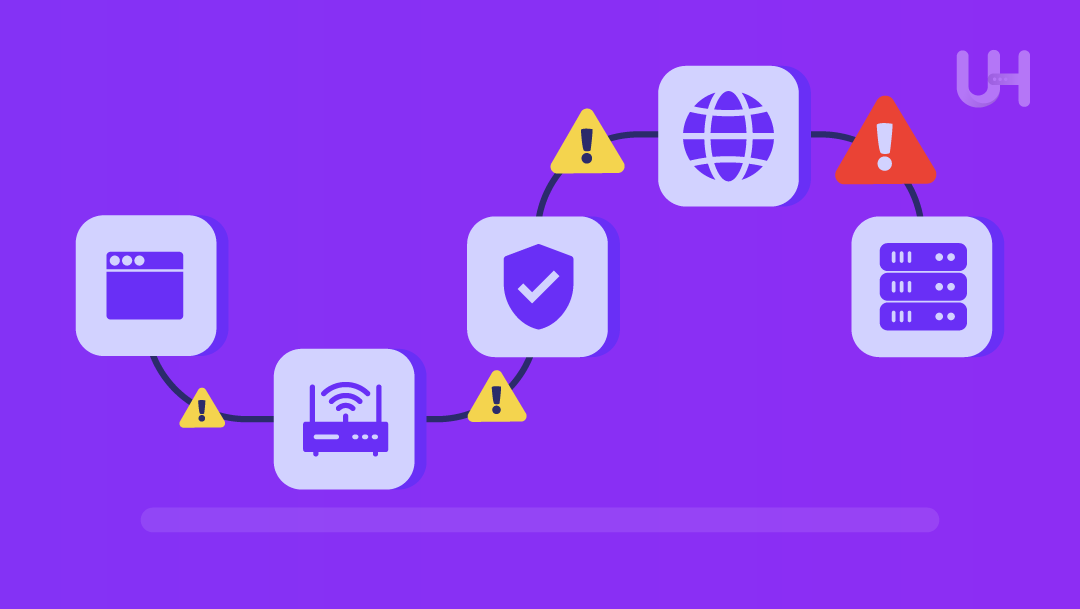
Here are some comprehensive steps to help you troubleshoot network issues on Windows.
Step 1: Clear Browser Data
Stale caches and outdated cookies can cause issues when the site has updated itself and no longer accepts the old data. Some sites completely get rid of the connection when this happens. To fix it, here’s how you can clear your browser data on Chrome:
- Open Chrome.
- Press the three dots at the top right.
- Select Delete browsing data.
- Select a time range (preferably All Time).
- Preferably, check all of the check boxes; otherwise, check the following: “Cookies and other site data”, “Cached images and files,” and “Site settings”.
- Click Delete from this device.
- Restart the browser.
- Try again.
Step 2: Restart Router & Device
Routers can also store some old data within them, and when they overflow (run out of memory) or when firmware bugs occur, they can send reset packets instead of stable responses.
To fix this:
- Turn off your router/modem.
- Wait 15 seconds (Let memory fully clear).
- Turn it back on.
- Restart your computer/phone.
- Try again.
You can also check your firmware manufacturer and make sure that you have the latest update.
Step 3: Disable VPN/Proxy
VPNs trap traffic, and when the packet size becomes too huge (over-sized MTU), the network may reject the packet, causing a reset. Similarly, misconfigured proxies can also break sessions.
Sometimes the VPN can be opened unknowingly in the background. To check this and also to prevent the VPN from causing a reset, follow these steps (On Windows 10/11):
- Open Settings → Network & Internet.
- Click VPN.
- If a connection shows “Connected”, disconnect it.
Similarly, in the same “Network & Internet” menu, click on Proxy to disable the proxies. Afterwards, retry the website.
Step 4: Firewall & Antivirus Testing
Windows Firewall and antivirus software stop any packets that look sketchy. This causes the ERR_CONNECTION_RESET error to occur.
CISA and Microsoft both recommend disabling firewalls only temporarily for short testing, as they are crucial components of a system.
- Open Windows Security.
- Go to Firewall & Network Protection.
- Turn off the following firewalls: Domain, Private, and Public.
- Try loading the website.
Note: Make sure to re-enable everything immediately after testing
If the site works, then you can try enabling one at a time or whitelisting the website.
For anti-virus software, you can simply open the respective anti-virus app and add an exception for the website you are trying to connect to.
Step 5: Flush DNS & Reset Network Stack
Corrupt DNS entries and the Winsock catalog are one of the most frequent causes of ERR_CONNECTION_RESET.
To fix this:
- In the Windows Search bar, type CMD.
- Right-click “Command Prompt” and select “Open as administrator”. Click yes on the pop-up.
- Run each of the following commands:
- ipconfig /flushdns
- netsh winsock reset
- netsh int ip reset
- Restart your PC.
This will completely reset your DNS and Network Stack, and clear the DNS cache on Windows, letting you hopefully connect with the website once again.
Each of the above commands is documented by Microsoft on their official website and is safe to run even under admin mode.
Step 6: Change DNS Providers
DNS is the system that recognizes domain names and leads you to the correct webpage. Some DNS providers can have outdated records or slow connections, which can result in errors. To ensure your DNS provider is trustworthy, we recommend using one of these providers and following the steps given below:
Recommended Providers:
- Google DNS:
- 8.8.8.8
- 8.8.4.4
- Cloudflare DNS:
- 1.1.1.1
- 1.0.0.1
How to change the DNS:
- Open Control Panel → Network and Sharing Center.
- Click your connected internet.
- Open Properties → Internet Protocol Version 4 (TCP/IPv4).
- Choose “Use the following DNS server addresses”.
- Enter one of the DNS providers mentioned above (Google or Cloudflare).
- Save and restart the browser.
Step 7: Check MTU Size (Advanced)
MTU means Maximum Transmission Unit. It determines how large each packet can get, and if it’s set incorrectly, the receiving side can completely drop the packet and cause a reset.
You can think of MTU as the size of a package. If the size of the box is too large for the delivery chute, it gets rejected. This rejection is in the form of the ERR_CONNECTION_RESET error.
To achieve the MTU mismatch fix, follow these steps:
- Search CMD in the Windows search bar and run it as administrator.
- Run this command:
Ping google.com -f -l 1472
- If it says “Packet needs to be fragmented”, lower the number by increments of 10:
ping google.com -f -l 1462
- Keep adjusting this number until you find the largest value that does not fragment.
- Add 28 to that value to get your ideal MTU.
Once the correct MTU is known, simply adjust it on your router or VPN.
Step 8: Test Another Network
This check will identify whether the issue stems from ISP/routing blocks or not.
- Turn on the mobile hotspot on your phone.
- Connect your computer to the hotspot.
- Try loading the site.
If the site works on the hotspot but not on your home wifi, your ISP, router, or local DNS resolver is responsible for the issue.
Step 9: Confirm if the Website is Down
Sometimes the issue lies with the website itself. The website may block your region, misconfigure SSL, or cause other issues. To check this:
- Search “website status checker” or use any standard uptime tool.
- Enter the URL of the website you are experiencing the issue on.
- Compare results:
- If others report downtime, it’s server-side
- If there are no other recent reports, your network is the problem.
Step 10: For Website Owners
If you are the owner of a site that is experiencing this error, check the following things:
- SSL misconfiguration
Incorrect certificate chains or TLS versions cause aborts.
- Firewall rate limiting
If you blocked certain IPs, those might be the ones experiencing the issue.
- Misaligned ports
Ensure your server listens on port 443 and is not redirecting incorrectly.
- Backend timeout
Slow PHP, Node.js, or database issues sometimes trigger resets before the page fully loads.
If the error is happening to a large majority of the users, log analysis can reveal the trigger.
The error can also be easily resolved by simply migrating to a better host, like UltaHost’s Dedicated Hosting packages. They come with 24/7 human support to easily resolve such issues.
Resolve Browser Connection Issues
Learn quick fixes to restore your internet connection and prevent ERR_CONNECTION_RESET errors.
How UltaHost Helps Prevent Connection Reset Errors
UltaHost provides infrastructure designed to minimize errors such as ERR_CONNECTION_RESET. They provide a completely refined setup with optimized server firewalls, correct MTU settings, pre-configured SSL, and more. They also provide completely free migration from one provider to another, which can seamlessly move your webpage and remove all the hidden misconfigurations, especially for WordPress or PHP-heavy sites.
UltaHost has 24/7 human support to help diagnose and resolve all errors, whether client-side or server-side. They offer a high uptime guarantee and stable routing, ensuring resets don’t occur and the ERR_CONNECTION_RESET error is fully resolved.
They provide many different hosting types like Shared Hosting, VPS Hosting, WordPress Hosting, and more, with all of them perfectly configured to ensure a stable server environment, which prevents any and every type of error.
All these benefits allow for a seamless experience while hosting your website. Visit UltaHost to get your hosting server.
FAQs
Does this error mean the website is unsafe?
No, the connection simply terminated unexpectedly. There is no implication of malware or a hacked site.
Why does Chrome show this error more often?
Chrome goes into more depth in checking connection stability and displays more detailed error messages rather than simply saying “Can’t load page”.
Will a network reset delete personal files?
No. Winsock and TCP/IP resets modify network settings. No other data is touched.
What causes repeated resets?
Common causes are VPNs, MTU mismatches, corrupt DNS, router memory overflow, and poorly configured firewalls.
How do I know if the issue is with my ISP?
If the site loads on a mobile hotspot but fails on Wi-Fi, after clearing cache, resetting DNS, and disabling VPN, your ISP is likely responsible.


