
How to Install and Setup WordPress Multisite ...
WordPress Multisite is a powerful feature that allows y...






Save your website from being reduced to a bunch of files on the internet. It is your brand and your revenue and your reputation. Hackers know that well. This WordPress security checklist is not fluffy advice copied from the web echo chamber. It is a layered and effective guide to keeping your WordPress site alive and healthy.
Your WordPress security checklist begins before WordPress even loads. Everything else is cosmetic if your host is weak. Your website can never be more secure than the server it lives on.
Shared hosting looks appealing. It places your site next to strangers. The entire server can become a problem if one site is compromised. Nobody wants to go to jail because of one bad neighbour.
VPS or managed WordPress hosting isolates resources and reduces risk. A secure host should include:
Have hacks made your life a mess?
Ultahost combines top security and doubtless performance to ensure your peace of mind. Welcome to integrated hosting that keeps your site safe from random attacks. Contact us now to make your website secure!
Update as if your life depends on it.
Never run past a check engine light while hoping for vibes. Updates patch known vulnerabilities that hackers exploit. A responsible WordPress security checklist treats updates as mandatory maintenance rather than optional chores.
You can synonymize outdated plugins with digital suicide. Developers patch security flaws through updates. They resolve conflicts and improve performance. Old versions are a car with a known brake failure.
Enable updates where possible. Essential for security plugins. This single habit alone strengthens your WordPress security checklist.
Free does not mean safe. Nulled does mean dangerous.
Did you download a premium theme for free from a sketchy site? Congratulations. You also downloaded malware. These threats do not announce themselves. They damage your site and SEO in silence.
Safe sources have the WordPress.org repository. They also contain verified developers and reputable marketplaces.

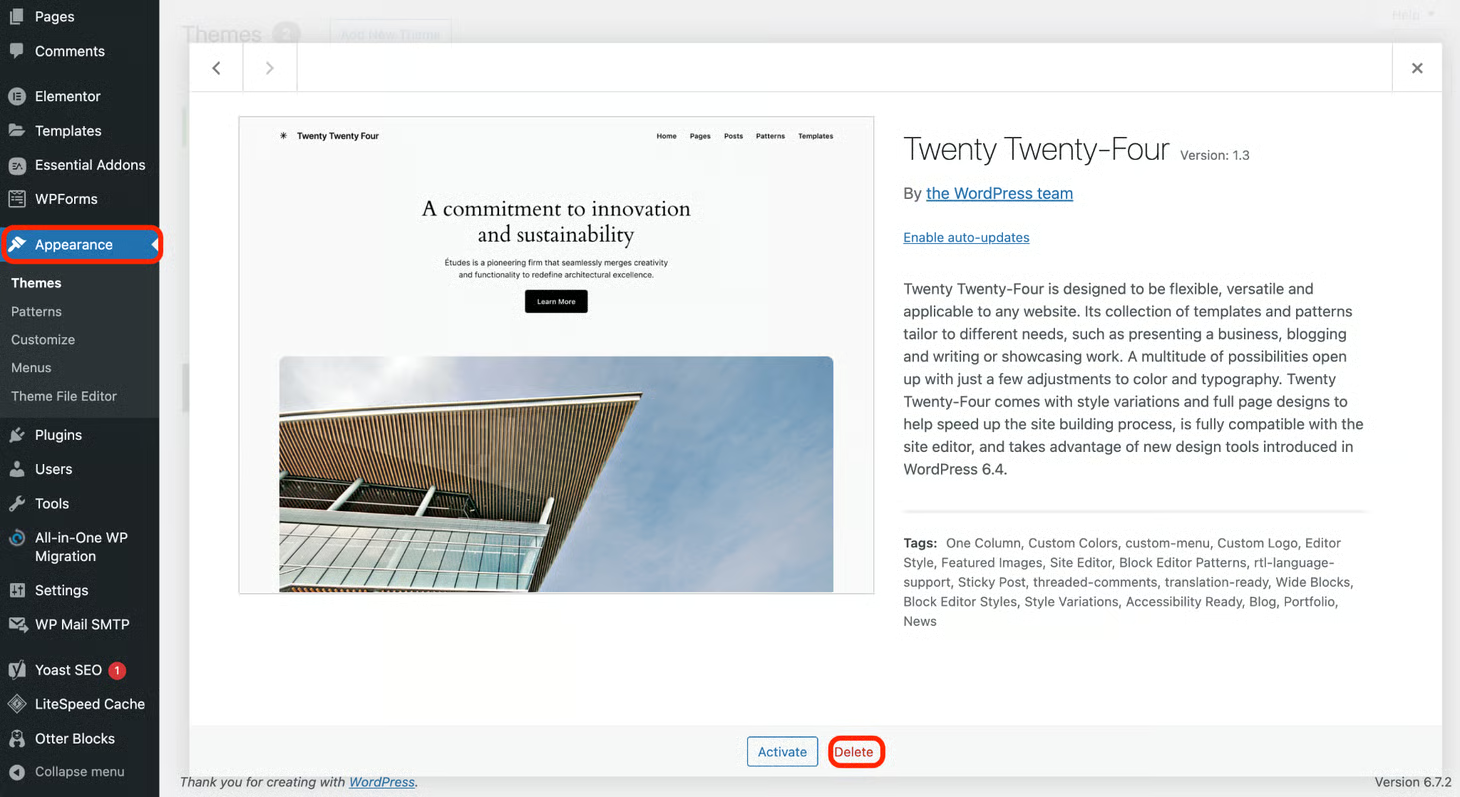
Make sure to remove unnecessary themes and plugins.
Inactivity is bad. Inactive plugins and themes are still vulnerabilities. Removing unnecessary plugins is often neglected. This is a basic cleanup task that should be included in every serious WordPress security guide. Takes minutes, prevents disasters.
Without SSL, data is exposed. Buggy browsers and poor SEO. Bad stuff.
SSL encrypts data. Secures logins and forms. SSL further enhances Google rankings and establishes trust quickly.
Your site needs a bodyguard. A security plugin provides essential additional security. Every serious WordPress security guide includes at least one reputable security plugin installed and set up. This adds an additional layer of security that often prevents attacks even before they reach your login screen.
A good security plugin provides firewall security and malware scans. Login protection and file scanning are a great addition. Popular choices include Wordfence and Sucuri and Solid Security.
Spam comments are ugly. Spam links are toxic. Use Akismet and other tools to remove spam. Less spam means better credibility and better rankings. Fewer headaches are a nice bonus.
Weakest login credentials are an open invitation to attacks. A strong password must be lengthy and complex and never reused. Use specific admin login names.
Incorrect file permissions mean hackers rewrite your site. Incorrect file permissions enable hackers to alter core files or inject malicious code.
| File / Folder | Recommended Permission |
| wpconfig.php | 400 or 440 |
| wpadmin | 755 |
| wpcontent | 755 |
Passwords alone are not enough anymore.
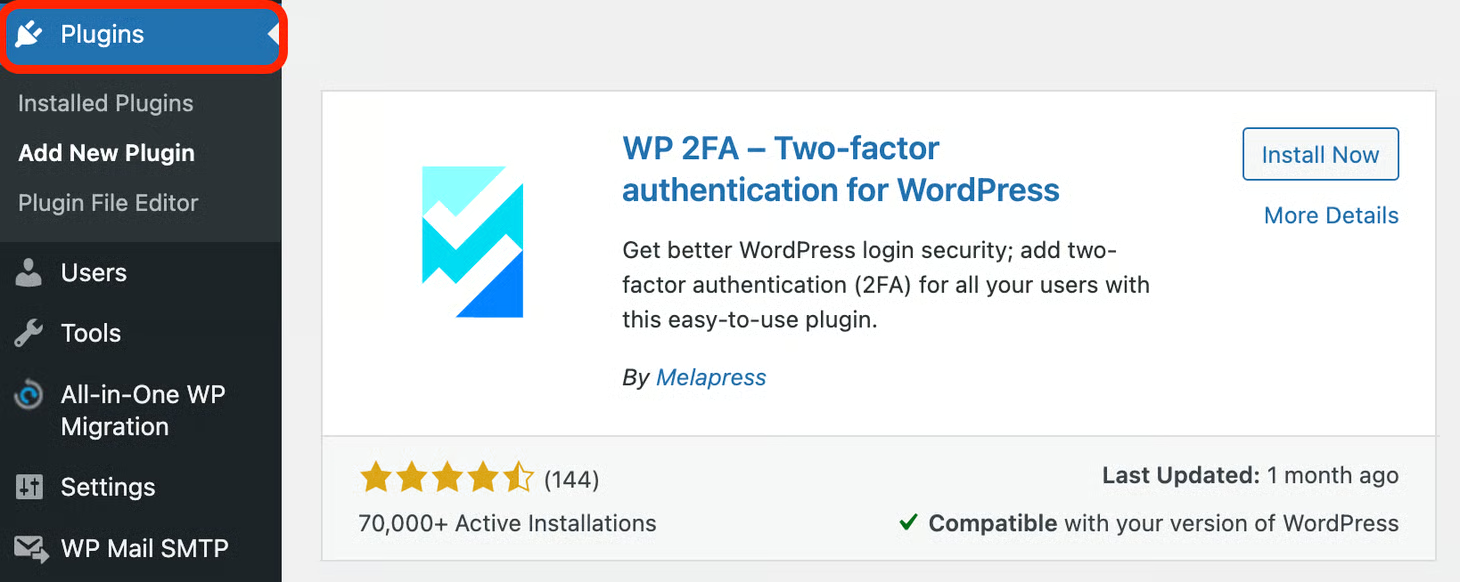
2FA provides a second layer of protection. App or email or SMS verification code. Hackers still encounter a roadblock even if your password gets compromised. Every modern WordPress security guide recommends 2FA for admins. The slight delay in login is well worth the huge security boost.
Security and performance go hand in hand. Therefore, a CDN is a smart addition to any advanced WordPress security checklist.
Backups are your safety net. They are often the only way out when updates fail. Or when servers crash or attackers strike. The frequency of backups should match how often your site changes.
A hosting provider you can trust automates backups. As a result, that removes human error from one of the most critical WordPress security practices.
Run automated scans on a regular basis before they cause real damage.
Remove infections right off and restore clean backups when needed.
A WAF blocks bad traffic before it reaches WordPress.
WAFs based on Cloud (Cloudflare or Sucuri) are powerful. They belong in every advanced WordPress security checklist.
A CDN distributes your site across multiple servers. That improves speed and absorbs traffic spikes. This makes DDoS attacks far less effective.
Security and performance go hand in hand. A CDN is a smart addition to any advanced WordPress security checklist.
Not all users need admin roles. Admin roles on trusted IP addresses should be restricted. It prevents unauthorized login attempts.
This method secures your WordPress site and doesn’t impact regular visitors.
Restrict admin roles on trusted IP addresses. It prevents unauthorized login attempts. The reduction of attack exposure is explicitly stated here.
Unlimited login attempts enable hackers to guess passwords. An endless fight.
Limit attempts to quickly end attacks.
The default WordPress login URL is famous globally. Change it. But don’t consider your site unhackable.
Security is a layered process. This layer provides proper valuable friction.
Never leave logged-in sessions on shared/public devices.
Log out idle users to safeguard accounts from accidental leakage.
Disable it to keep sensitive paths hidden and reduce reconnaissance opportunities.
Advertising your version of WordPress is like giving attackers a target to hit.
The less you advertise, the less chance of being exploited.
Error reporting gives away file paths and system information. This is like giving attackers a goldmine.
Turn off error reporting in production sites. This is a silent but important step.
The built-in file editor is a great feature, but it’s a disaster if an attacker gets admin privileges.
Turn off the file editor to deprive attackers of a potent tool right away.
Use upload directories for storing files only. Avoid code execution. Turn off PHP execution to prevent attackers from executing malicious code even if they upload it.
Your users get to see your directories. Attackers get to map your site. Directory browsing makes your site structure visible to anyone who wants to see it.
XMLRPC is old and exploited. Turn it off unless you need it.
Use it for some integrations. Turn it off to shut down a huge vector attack.
WP is predictable. Predictability is bad. Attacks are easier because of the default database prefix, which leads to SQL injection.
Always know who did what and when. Public WiFi is insecure by design.
Use a VPN to encrypt your internet connection and safeguard login information from being intercepted.
Public WiFi is a hacker’s paradise.
VPNs encrypt your internet connection and safeguard admin logins when you are on the move.
Security is not a one-time job. It has to be ongoing.
Security notifications help you identify problems before they turn into catastrophes.
This WordPress security checklist is not about paranoia. It is about preparation. Stack your defenses. Eliminate weak links. Select a host that cares about WordPress security. Ultahost has your back if you want WordPress hosting that is secure by design.
UltaAI – Smart AI Assistant for Ultahost Clients
UltaAI is your advisor for anything related to domain or hosting. Experience personalized suggestions with our Smart AI!
WordPress Multisite is a powerful feature that allows y...
Permalinks, short for "permanent links" are the URLs us...
WordPress is one of the most popular content management...
Keeping data secure is an essential task for WordPress ...
Managing your WordPress site often requires direct acce...