
How to Fix High CPU Usage on a Linux VPS
A Linux Virtual Private Server (VPS) has serious conseq...






Linux system administration needs to have efficient management of disk space. As systems expand and applications require additional disk storage, administrators frequently need to resize disk partitions. Resize partition lets you reduce or expand the space on any partitions without deleting any existing data.
Before you resize a partition, you should prepare for the task carefully. Check the current partition layout, verify the filesystem type, and make sure there is unallocated disk space available before you make any changes.
This tutorial describes different ways to resize a partition in Linux without losing data. The guide covers verifying disk layout, resizing the partitions with command line tools, and safely expanding your filesystems.
A disk partition divides a physical disk, such as a hard drive or an SSD, into logical sections of storage. Each partition can use its own filesystem, and you can mount it independently in the Linux directory system.
Common partition types include the root partition (/), the home partition (/home), the boot partition (/boot), and the swap partition. Each partition uses a filesystem, such as ext4, xfs, or btrfs, to store and manage data. When you resize a partition, you work with two components: the partition size, which defines the physical disk space allocated to the partition, and the filesystem size, which defines the structure that stores data inside the partition.
Try High-Speed Linux VPS Hosting!
Get high-speed Linux VPS hosting with NVMe-powered servers. Enjoy flexible plans, unlimited bandwidth, and top-tier performance at an affordable price.
Linux provides several utilities that enable you to resize partitions and file systems safely. You can use tools like lsblk, fdisk, parted, resize2fs, and growpart to manage disk partitions without losing the data stored on them. These tools are especially useful when you work with virtual machines, cloud servers, or Linux environments where you may need to adjust storage size over time.
The first thing you need to do before you resize any partition is check your current disk layout. This step also helps make sure you know the disk device, partition numbers, and how much free space is available. The displayed command shows all disks and partitions.
lsblk
The output displays storage devices hierarchically, including disks and their associated partitions.
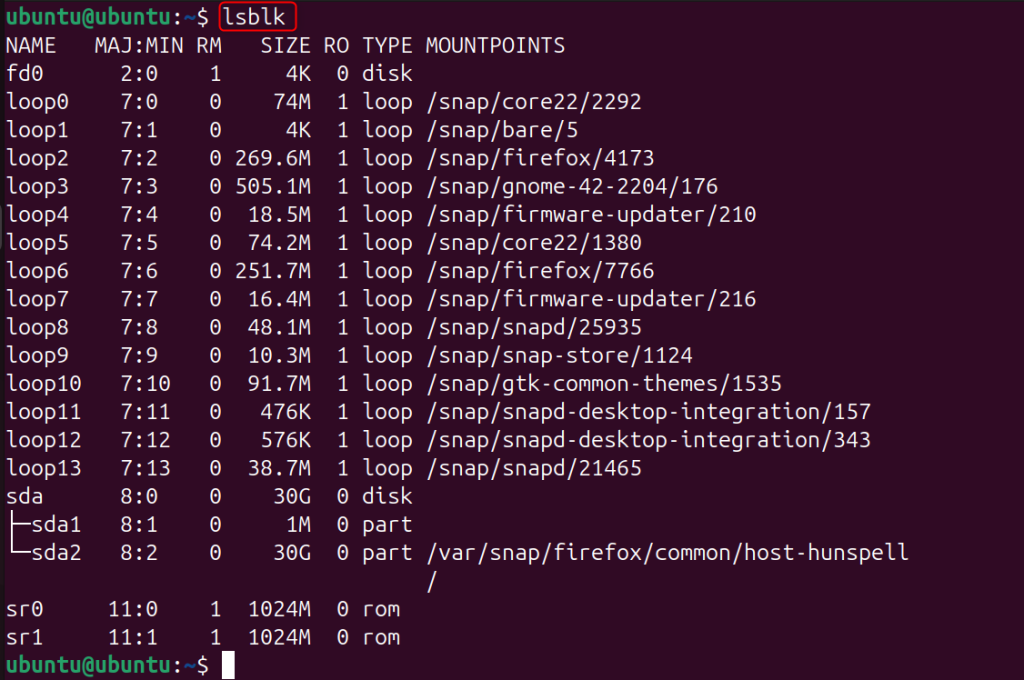
You can use the following commands to list partition details:
sudo fdisk -l
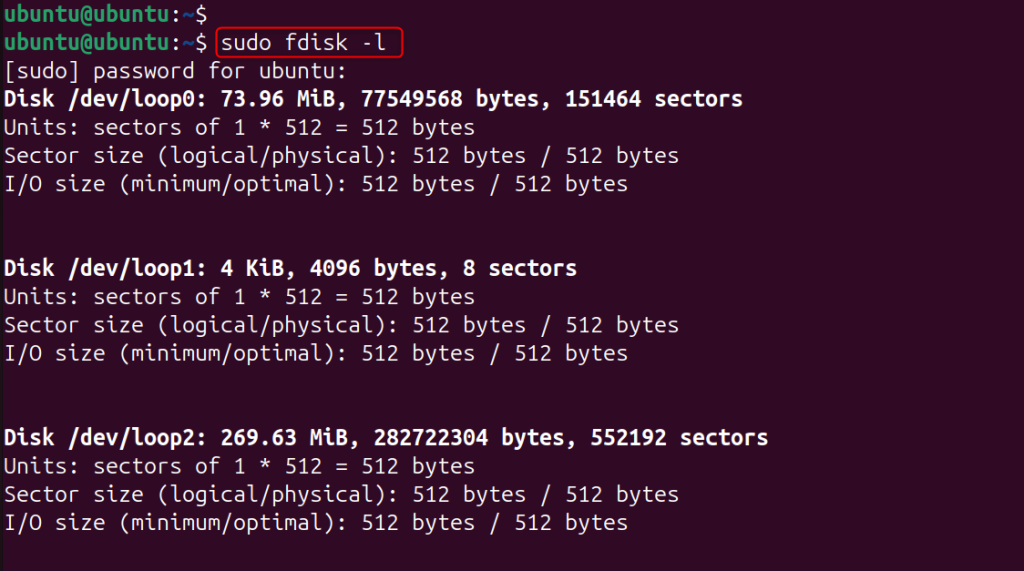
This will show all disk partitions along with their types, sizes, and starting sectors. Proceed with caution and identify a partition to resize.
To expand a partition, you must have unallocated space next to it on the disk. If no free space is available, you cannot extend the partition. You can use the following command to view disk usage and mounted filesystems.
df -h
This command will show the filesystem sizes, used, and available space in human-readable form.
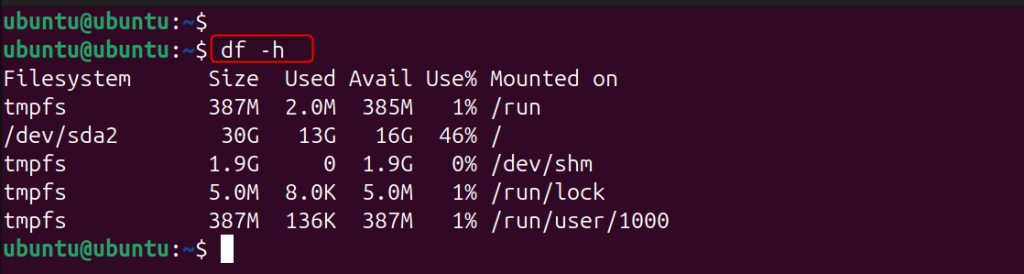
There will be preparation if there are no empty places; you need to reduce another partition before expanding the given.
Administrators widely use the growpart tool on cloud servers such as AWS or other VPS platforms. It allows you to expand a partition after increasing the size of the underlying disk.
If your system does not have growpart you can install it using the command below.
On Ubuntu or Debian systems, run the following command:
sudo apt install cloud-guest-utils
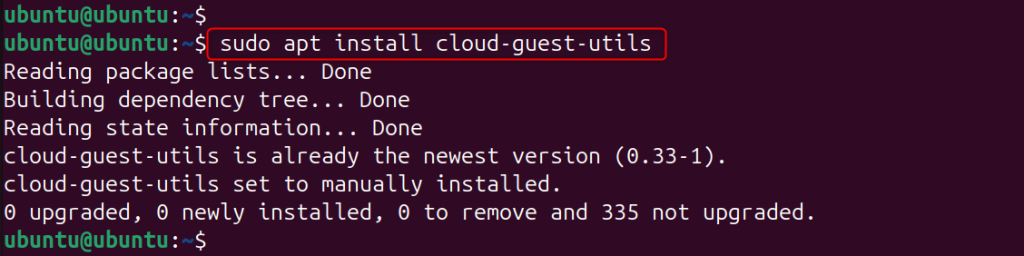
For CentOS or RHEL systems, execute the following command:
sudo yum install cloud-utils-growpart
After you increase the disk size, run the following command to expand the partition.
sudo growpart /dev/sda 2

Here 2 means partition, /dev/sda 2 is a disk device. This will then expand the partition; i.e., this will let it take over the free space on that disk.
After you enlarge the partition, you need to adjust it to use the additional space. For a partition with the ext4 filesystem, run the following command.
sudo resize2fs /dev/sda2

This command resizes the filesystem to fill the new partition.
Another utility to tweak disk partitions is the fdisk tool. But this method is delicate, as it means you have to delete the partition without deleting its data.
Invoke the fdisk utility for the disk and specify the particular disk name. The command below will start up the fdisk utility for the specific disk.
sudo fdisk /dev/sda2

Within the fdisk interface, remove the partition entry with the d command. This step removes the entry for the partition from the table but does not delete data residing on that partition.
Use the n command to recreate your partition once you have deleted it. Use the original partition, but increase its end sector.
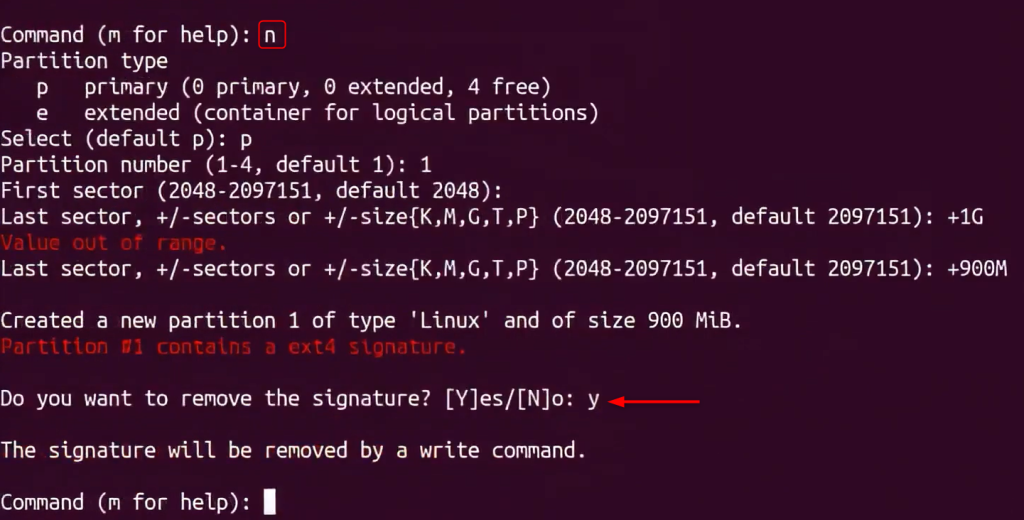
This allows us to format the space without losing the data already located in the partition.
After completing the partition configuration, write the output to the disk.

This will update the partitioning table.
After you resize the partition, run the following command to resize the filesystem.
sudo resize2fs /dev/sda2

This command resizes the filesystem to the new partition size.
The third tool we can use to manage partitions on Linux systems is the parted utility. In this method, we will perform the resizing of the partition via the following steps.
Create a new partition table using the parted utility and specify the partition:
sudo parted /dev/sda
When you run the command, the system drops you into the interactive parted environment.

Now lets print the partition table inside parted.
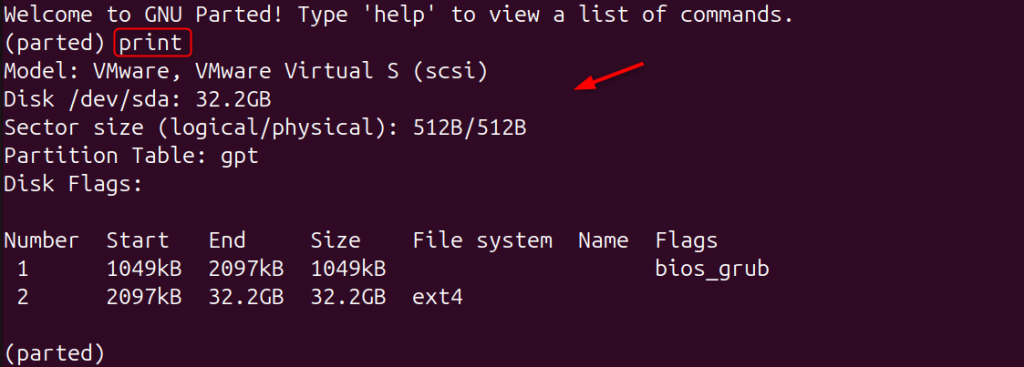
The command lists the partitions on the disk and their start/end sectors.
Next, run the command resizepart followed by the partition number.
resizepart 2
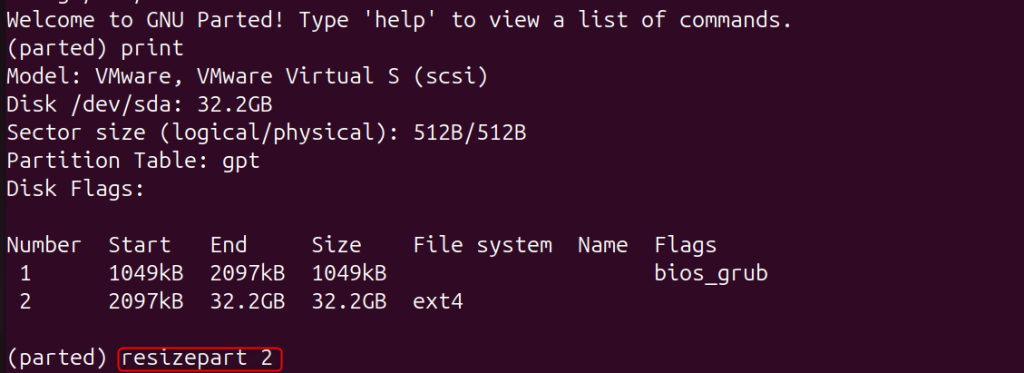
The tool then asks you to specify the new end position for the partition. You could choose the size according to the free space on the disk. After you enter the new size, the system resizes the partition.
Once you resize the partition, you also need to increase the size of the filesystem.
sudo resize2fs /dev/sda2

And this makes sure that we use the extra space in the filesystem.
Before you resize your partition, here are some best practices:
Following these steps greatly reduces the risk of losing your data.
Partition resizing in Linux is a very common task. It allows the administrator to be more efficient with disk space utilization as storage needs change. With the right tools and preparation, you can increase or modify partitions without losing data. There are several utilities in Linux for it, including growpart, parted, and fdisk. In addition to changing the partition size in storage, I need to run filesystem tools such as resize2fs for ext-based filesystems. You will discover how these tools function and can seamlessly resize partitions while ensuring Linux systems continue to operate uninterrupted by following best practices.
Yes, indeed, I could, but Linux has tools like growpart, parted, and resize2fs, which enable resizing partitions and filesystems without deleting existing data. This is recommended, but make a backup before you change it.
You can verify the disk partitions with commands like lsblk, fdisk -l, and parted -l.
Yes, certain filesystems like ext4 support shrinking partitions; you have to shrink the filesystem before shrinking the partition, though. You cannot shrink XFS filesystems.
You commonly use GrowPart in cloud environments to expand a partition after increasing the disk size. It resizes the partition to use the newly available space.
You can then confirm the size of your new partition using disk commands like lsblk or df -h, which should show updated sizes for disk and filesystem.
Partition resizing is usually a safe operation when done correctly, but it can be dangerous and lead you to lose data if things go wrong. Backups and looking at partition details go a long way in avoiding trouble.
Discover Dependable VPS Hosting with UltaHost!
Get full root access with high-performance SSD storage, ideal for backups and file management, all with unlimited bandwidth and fast, reliable speeds.