
How to Install the Windows Subsystem for Li...
Not long ago, the process of installing Linux on a Wind...






This article will cover the basics of the Reseller Module and how to upload and configure the Reseller Module files.
The Reseller module is a WHMCS add-on that assists businesses in operating the reseller business effectively. It enables your clients to be resellers who would sell your products or services to their customers, but they will run their own clients and services. Meanwhile, admins have full access to pricing, access to APIs, and logs. The module is fully compatible with WHMCS billing and provisioning systems and provides an automated management environment with no issues.
The Reseller Module is an easy way to handle the resellers and saves your time, minimizes errors, and enables the smooth growth of your business. The main characteristics and advantages of the reseller module are listed below:
The reseller module is suitable for business organizations that wish to grow via resellers. It suits hosting companies that allow clients to resell hosting packages, software vendors who enable resellers to sell licenses or subscriptions, and service providers looking to reach more customers through resellers without granting full admin access.
The Reseller module allows admins to set up pricing groups based on product or service rates and then create resellers assigned to these groups. Resellers will be able to control their clients, purchase services, and track their funds independently, and WHMCS automates its processes with the help of cron jobs and tracks every action that can be audited. This setup ensures admins have total control, but resellers are allowed to work autonomously.
Download the Reseller module ZIP file and extract it on your local system. You should see a folder named reseller and a file named resellercron.php.
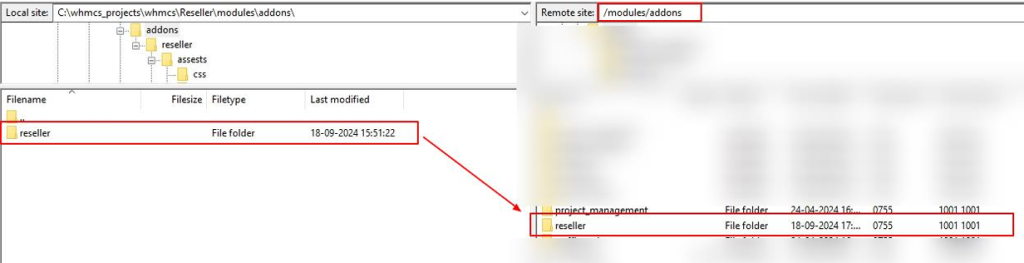
Then, open your WHMCS installation directory and navigate to the “/modules/addons/” directory. Upload the extracted reseller folder to this directory:
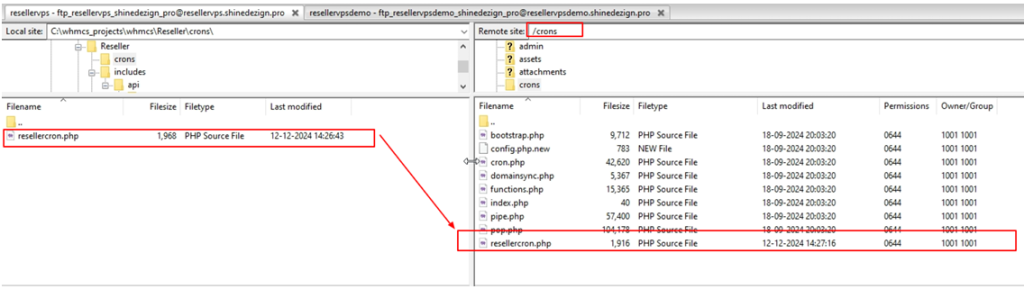
After this, navigate to /crons/ directory in your WHMCS installation directory, and upload the “resellercron.php” file to this folder.
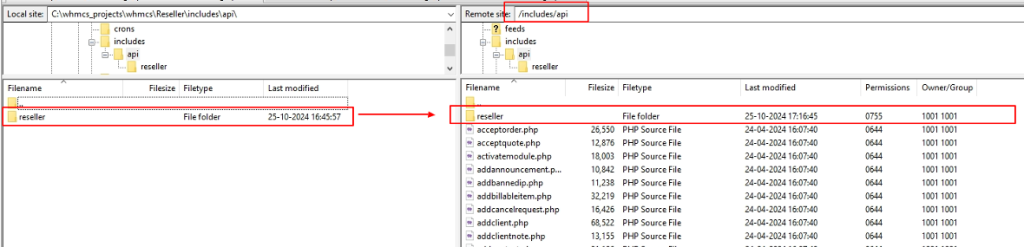
Next, navigate to “/includes/api/” and upload the extracted reseller folder here.
Once all files are uploaded, the Reseller module is ready to be activated from the WHMCS admin panel.
Log in to the WHMCS admin area using an administrator account to access the WHMCS dashboard. Then, go to System Settings, search Addon Modules, and click on it.
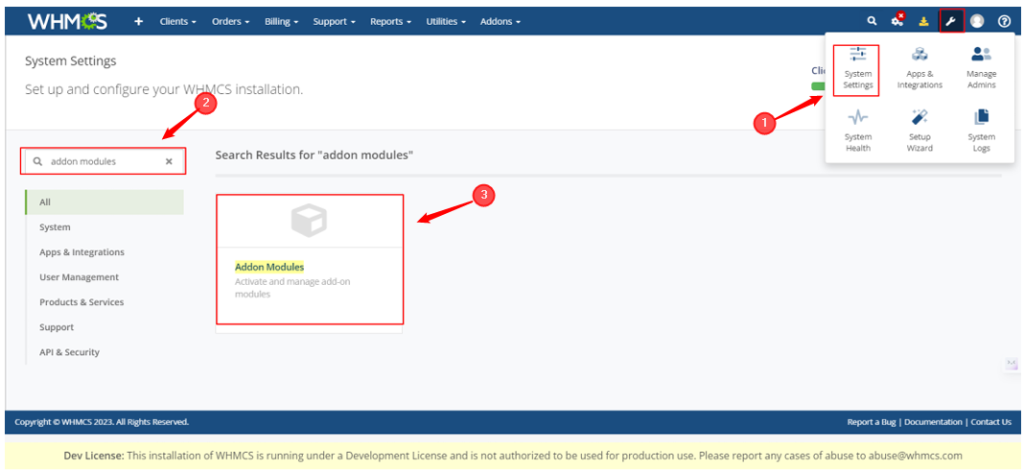
Find the Reseller addon in the addons list and activate it. Then, press the Configure button and tick/check the “Full Administrator” box to provide admins with complete access to the module.
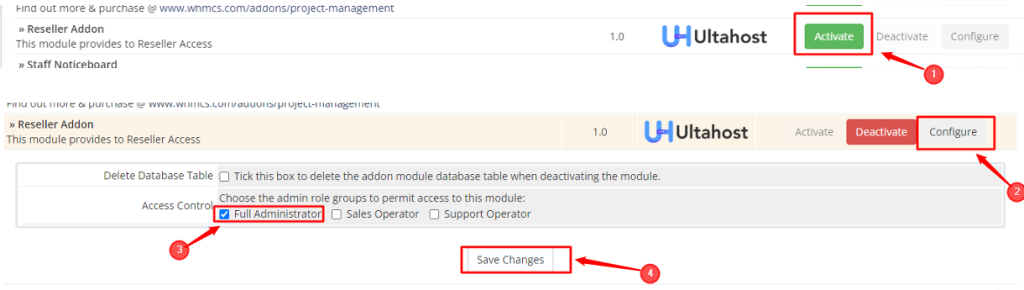
Lastly, click the Save Changes button to complete the configuration.
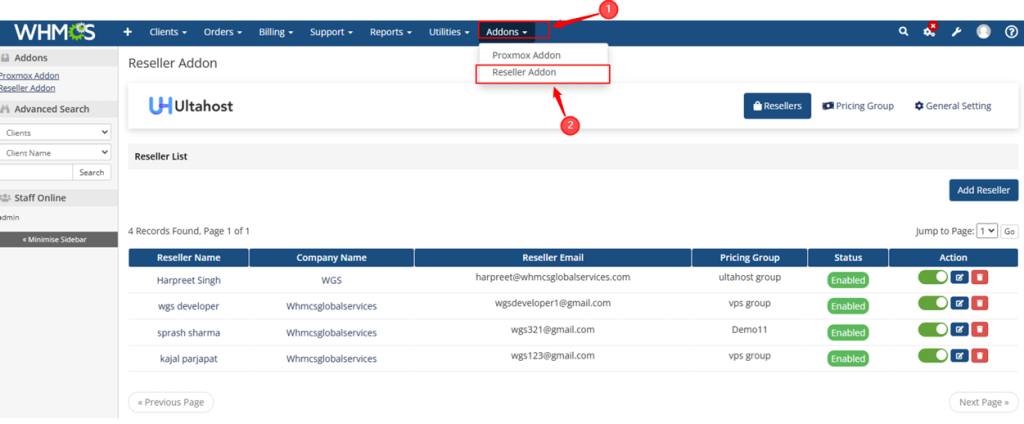
To access the Reseller module in the WHMCS Admin Panel, go to Addons and then Reseller Addon. From there, you can create, manage, and configure resellers.
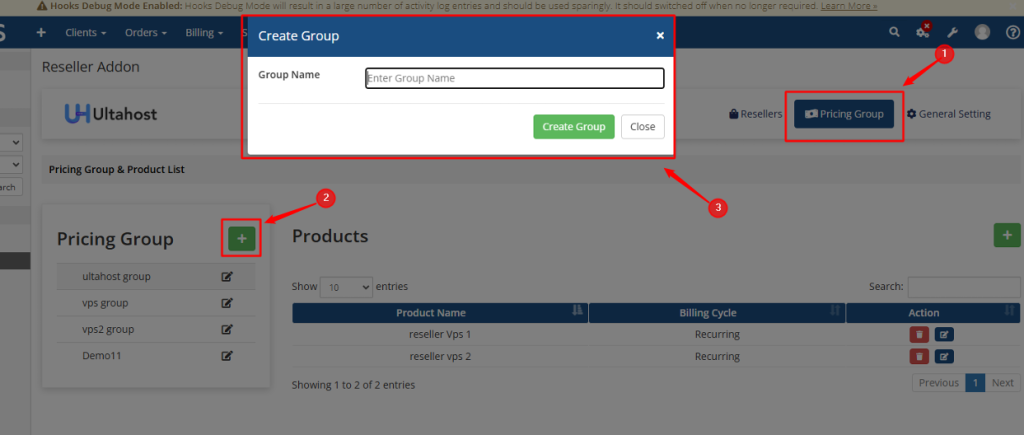
Before creating a reseller, open the Pricing Group tab and click the + button. Enter a group name, then click Create Group to set up a pricing group based on your needs.
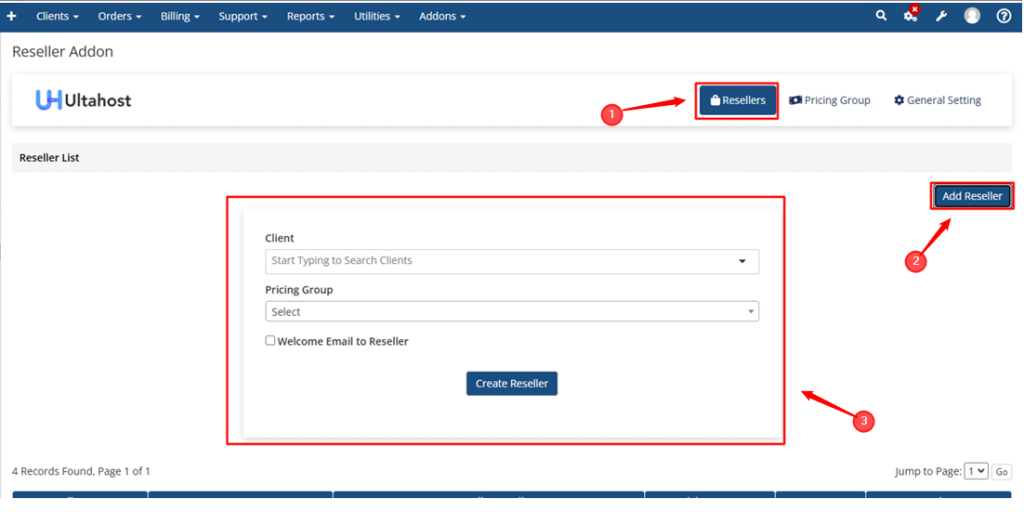
Once you created a pricing group, you can create/add a new reseller through the Reseller module. This is required because resellers should be assigned to a pricing group. For this purpose, go to the Resellers section, press the Add Reseller button, enter the client and respective pricing group, and press the Create Reseller button to add a reseller.
The reseller will be listed in the reseller list, where you can manage or update their information. You can also disable or delete a reseller whenever necessary. It will also remove their API settings.

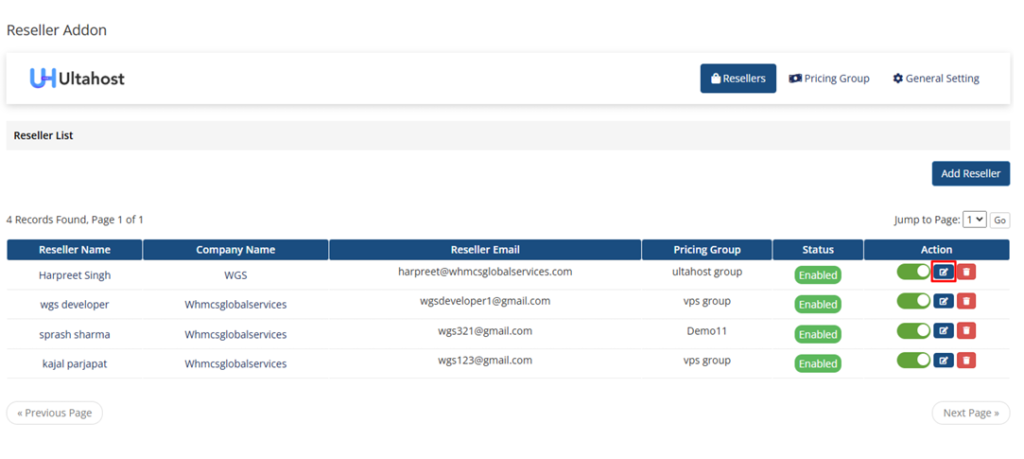
The API and the logs can be managed on the client and by the administrator. On the admin’s panel, you can enable or disable the APIs, manage whitelisted IP addresses, and enable or disable API logs. You can use the edit button on the Action tab to edit a specific reseller.
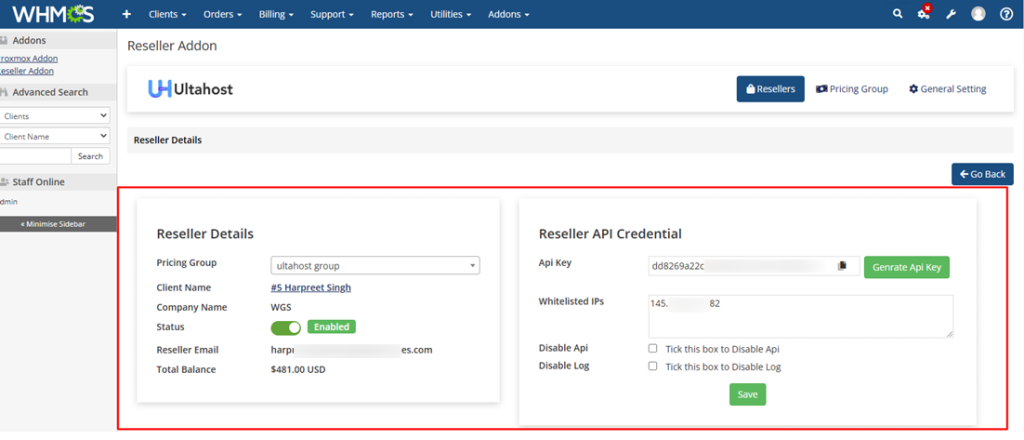
The admin can control the account details of the reseller as well as their API access, like enabling and disabling the API, IP restriction, and logging.
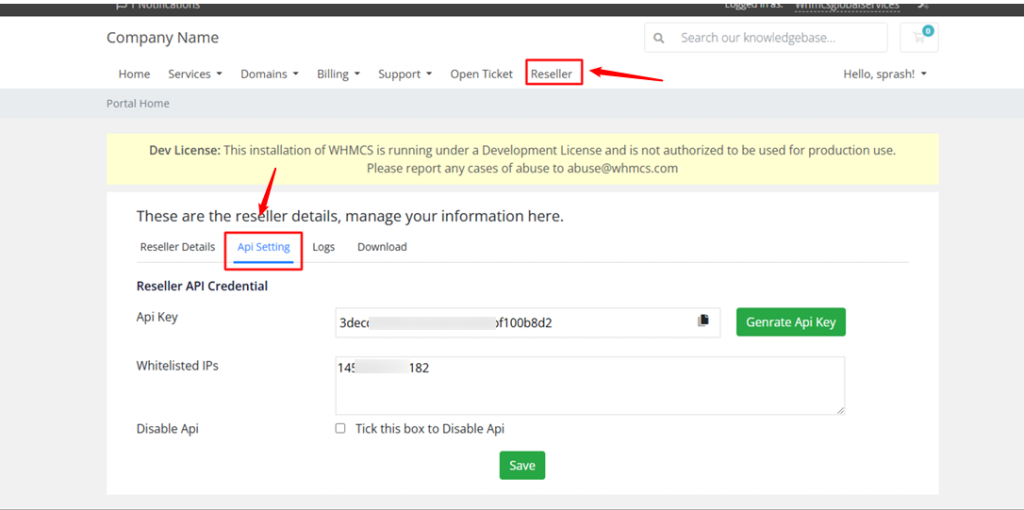
At the client side, resellers can also access the API log and can turn on or off their own API access, but not to advanced API settings.
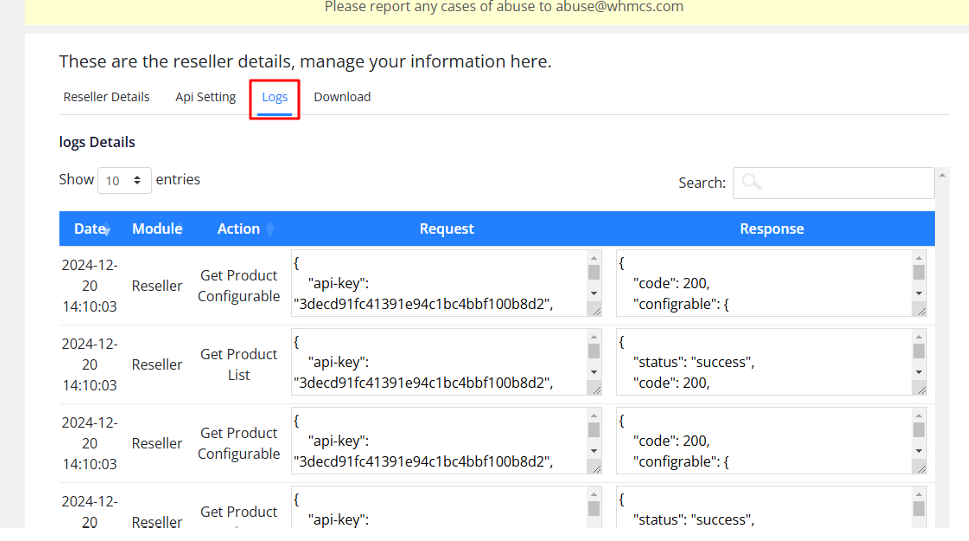
To monitor and troubleshoot API usage, users can visit the Logs tab, which shows a detailed history of API requests and responses.
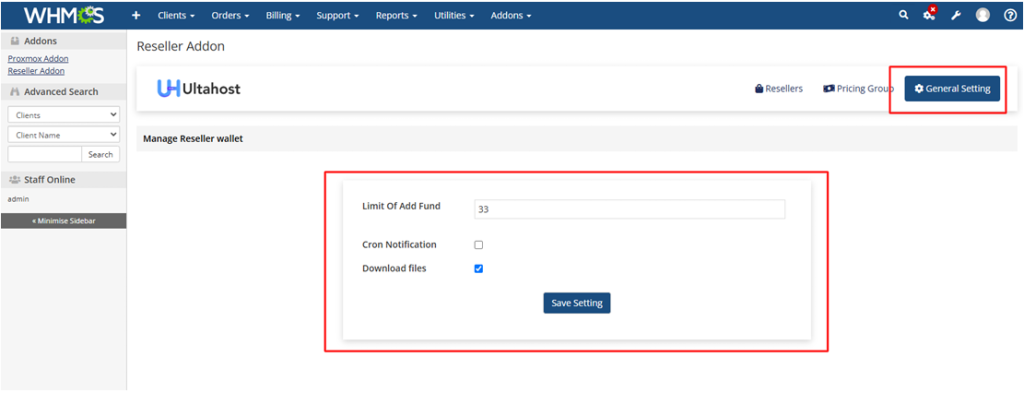
Under the General Settings tab, you can manage some important configurations, including defining a fund limit, cron notifications, and the availability of the download provisioning file.
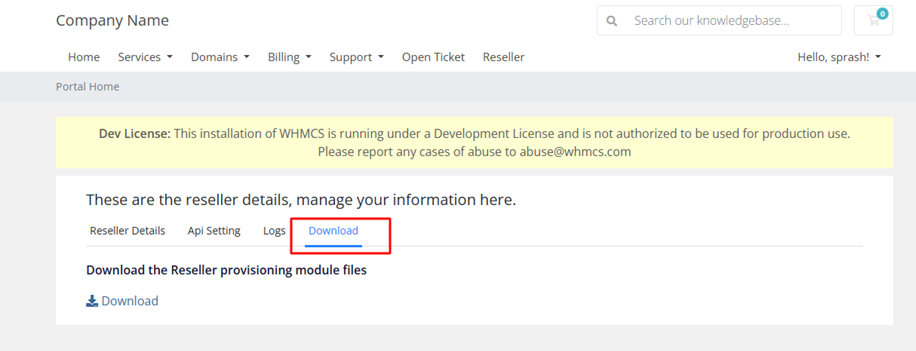
Resellers can also go to the Download section to extract the provisioning module files.
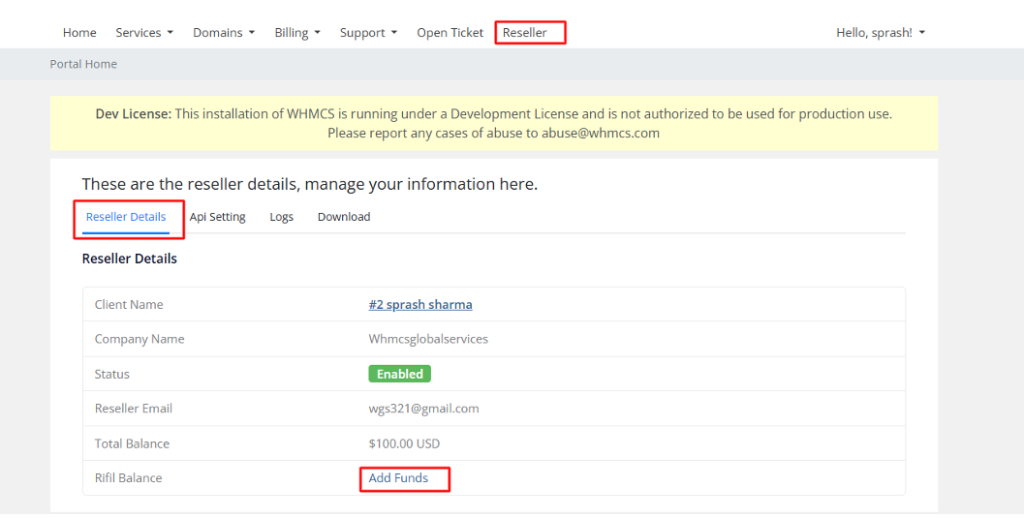
Besides this, the funds can be added by the resellers using the Reseller Details tab in their client area, which makes it easy to manage the account balance directly.
This way, it is easy to manage resellers and have smooth operations within WHMCS.
How do I activate the Reseller Module?
Log in to WHMCS as an admin, go to System Settings, Addon Modules, find the Reseller addon, click Activate, and then Configure. Click Full Administrator and save changes.
First, one has to create a pricing group in the Pricing Group tab. Next, go to Addons > Reseller > Add Reseller, choose the client and pricing group, and click Create Reseller.
You can remove or disable a reseller at any time from the admin panel. Deleting a reseller also removes their API settings.
Admins can allow or deny API access, manage whitelisted IP addresses, and control logging. Resellers can view API logs and enable or disable their API access, but they cannot change advanced administrative settings.
The General Settings allow admins to define fund limits, and the Reseller Details tab of the client area allows resellers to add pricing.
It simplifies reseller management, automates tasks, saves time, reduces errors, and allows resellers to operate independently while administrators maintain full control.