
How to Extract .tar.gz Files in Linux
The "tar.gz" file format is a common archive format use...






Most modern Linux distributions, such as Ubuntu, Debian, CentOS, Rocky Linux, and Fedora, use the service manager systemd by default. It plays a crucial role in setting up the system upon booting and managing background services that maintain the system’s functionality. These services can be anything from a web server, a database server, networking components, a logging service, and many other important processes.
In this tutorial, we will explain how to list systemd services in Linux through different methods. Furthermore, you will find the commands that help you to list running services, check a service status, start and stop services in Linux, enable or disable them at boot time, as well as how to troubleshoot systemd services.
In Linux, a service is a background program that executes a task without user intervention. They are also services that run indefinitely and contribute valuable functionality to the system. Common systemd services are: SSH service for remote connections, Web server like Apache or Nginx services, MySQL or PostgreSQL database services, and Networking and firewall services.
Unit files tell systemd how to start, stop, and what to do with services while the system is running. Each systemd service generally corresponds to a file ending with service extensions found inside catalog paths like: “/etc/systemd/system” and “/usr/lib/systemd/system”.
Getting a clear view of these services and controlling them helps administrators maintain system stability and performance.
Enjoy High-Performance Linux VPS Hosting!
Run your projects on fast NVMe-powered Linux VPS servers. Get flexible plans, generous bandwidth, and reliable performance at budget-friendly prices.
One of the things you need to know as a Linux system administrator is how to check the status and manage systemd services. Depending on system requirements, administrators often have to start, stop, restart, enable, or disable services. For instance, if you install a web server, you would have to manually start the service and configure it for automatic execution at boot time.
Systemd uses the systemctl command as the tool to interact with it. This enables administrators to manage services, query the state of services, view logs, and control whether or not a service starts on boot.
Viewing the services on a system is one of the first things you can do when managing services. The systemctl command offers multiple options for listing systemd services.
To list all the active services on your system, use the following command.
systemctl list-units --type=service
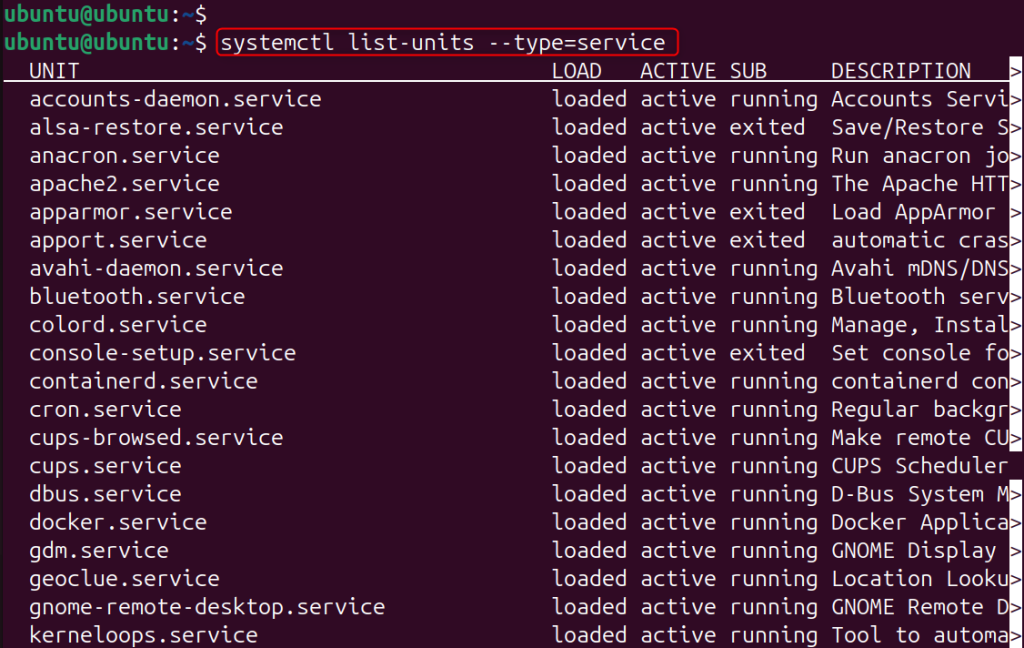
This command shows all currently loaded (active) service units in memory. It prints out critical information, including the service name, whether it is loaded or not, its state (active, inactive, etc.), and a brief description. The first column, LOAD, shows the service configuration loaded successfully, and ACTIVE indicates if it is running or not.
Reading state-of-the-art services on the system occasionally requires administrators to view all services available in the system, including those that are not running. To show all the service unit files, run the command below:
systemctl list-unit-files --type=service
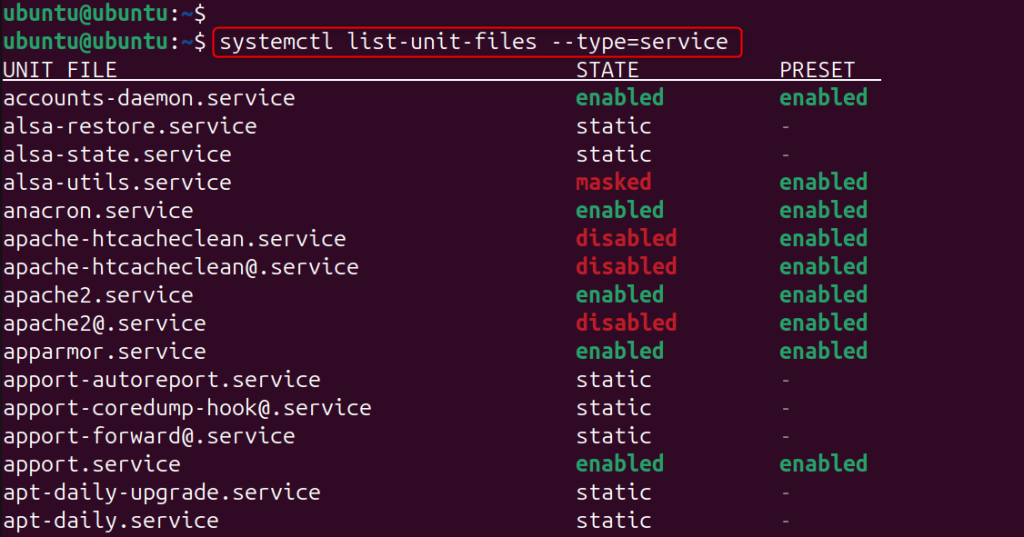
This command will display all services where they are in the state of enabled, disabled, or static. It helps determine what services are set to start by themselves at boot.
When troubleshooting a service or verifying whether it is running, administrators often need to check its current status.
You can replace service-name with an actual service and run to see details about the particular service.
systemctl status service-name
For instance, to check the Apache2 service status, use the command below:
systemctl status apache2.service
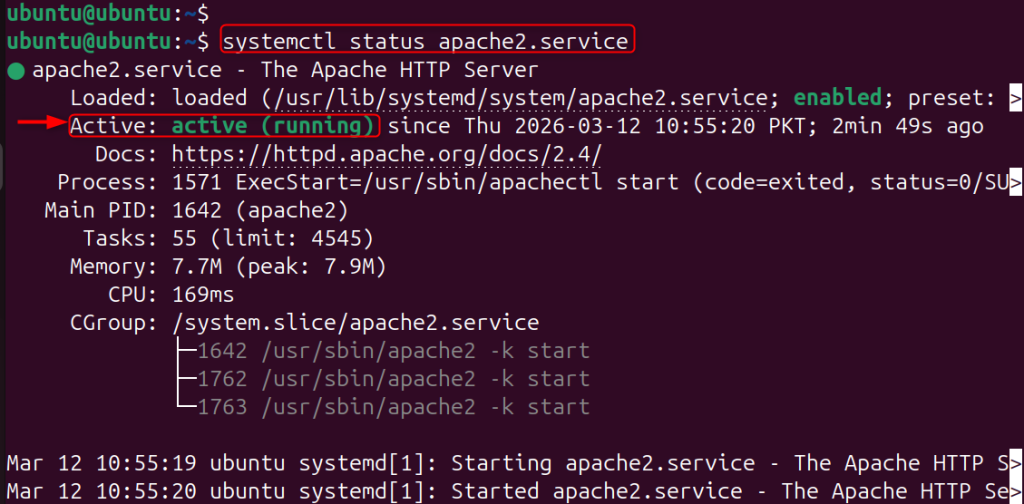
The output will show a couple of key details, such as: status of the service, the main process ID, logs recently related to the service, and the service startup time. This command is one of the most frequently used systemctl commands to troubleshoot services.
Based on system requirements, administrators often need to start or stop services.
If you have a service installed but not running, you can run it manually with the command below.
sudo systemctl start service-name
To start the Apache web server service, run the following command:
sudo systemctl start apache2

Once you run that command, the service will just start running.
To stop a service that is running, you can use the command below:
sudo systemctl stop service-name
To stop the Apache web server service, execute the command below:
sudo systemctl stop apache2

The command kills a service by killing off its processes.
Reloading or restarting services is common practice when applying configuration changes.
You can follow the command to run when configuration updates need a full service restart.
sudo systemctl restart service-name
For instance, to restart the Apache web server service, execute the command below:
sudo systemctl restart apache2

Restart stops the service and then starts it again.
Some services support reloading, where the changes can take effect without a full restart. In such cases, you can reload the service.
sudo systemctl reload service-name
For instance, to restart the Apache web server service, execute the command below:
sudo systemctl reload apache2

That’s a reload of the service, which updates its configuration but does not stop it.
Administrators configure services to run on startup. To do so, admins need to enable or disable the particular services at boot time.
To enable service at system startup, run the following command.
sudo systemctl enable service-name
For instance, enable the Nginx web server service, execute the command below:
sudo systemctl enable nginx

When you enable a service, symbolic links are added to allow systemd to start the service at boot time.
To disable a service from starting at boot, use the following command.
sudo systemctl disable service-name
For example, disable the Nginx web server service, run the command below:
sudo systemctl disable nginx

The service is removed from the system startup sequence when it is disabled.
Misconfiguration or dependency issues sometimes prevent services from starting correctly. In such cases, administrators can quickly locate failed services in systemd. The following command lists all failed services on the system.
systemctl --failed
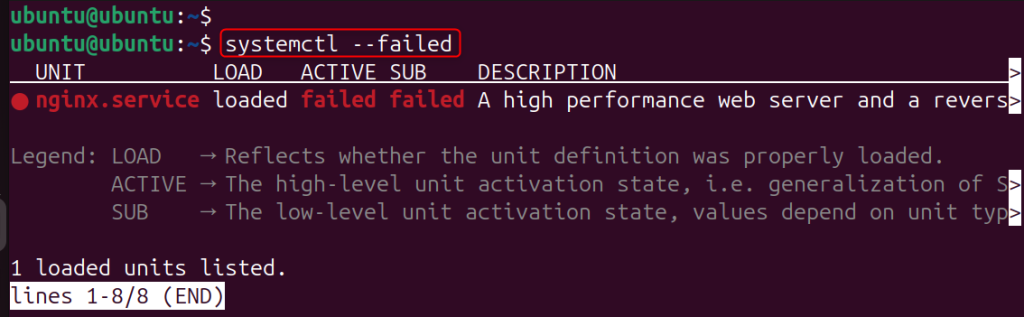
This command shows failed services during startup and their status. If you hit “Enter” and find the failed service, you can see its detailed status with a systemctl status command.
Systemd collects logging data into a journaling system that makes it easy for admins to view log entries about services.
The logs for excluding a specific service can be displayed using the command below.
journalctl -u service-name
For example, view the Apache web server service, execute the command below:
journalctl -u apache2
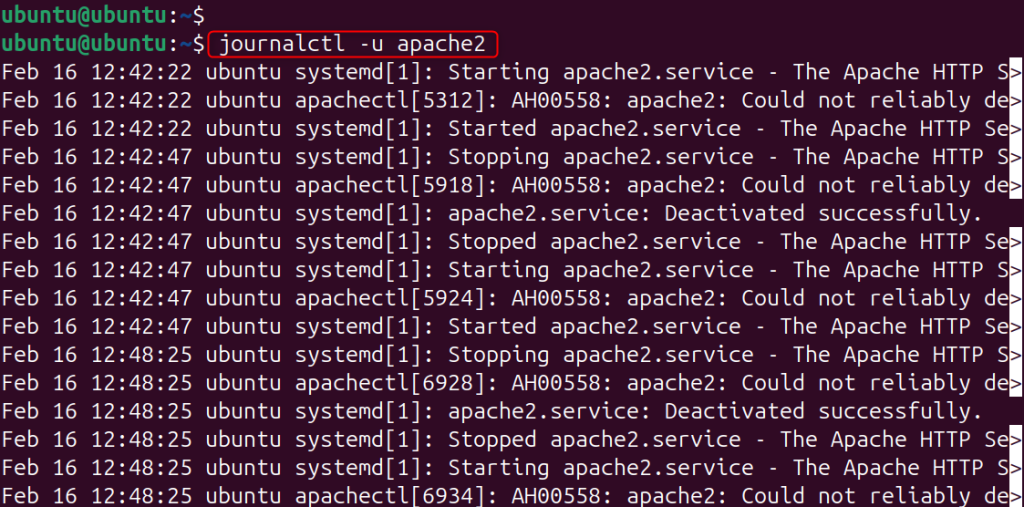
This command will show logs produced by the apache2 service.
Run the following command to see the latest logs for a service. Make sure to specify the service name, such as apache2:
journalctl -u service-name -n 20
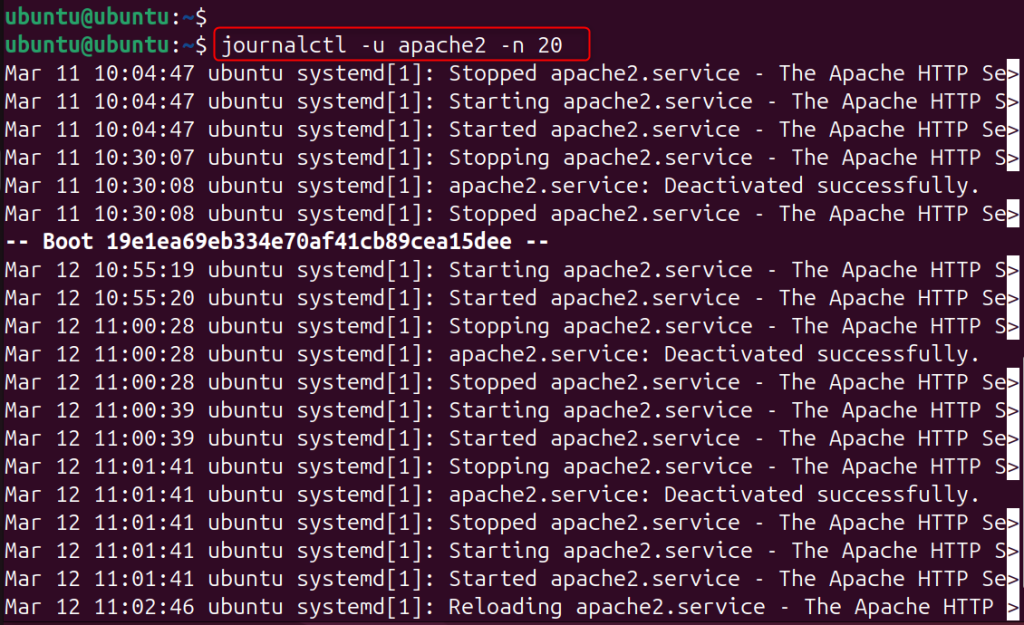
This command displays the last 20 entries from the log related to the service. Logs are very useful for diagnosing service failures and configuration issues.
If a systemd unit file is created or modified, systemd needs to be reloaded so that it can reread its configuration and acknowledge the changes made. You can reload the systemd configuration using the following command.
sudo systemctl daemon-reload

This command reloads all systemd unit files without changing the system.
In this way, you will learn how to use these commands for service management using systemd. So that it can help a system administrator to manage Linux services efficiently while maintaining reliability.
Service management prevents loss of resource efficiency and performance. Follow these best practices when working with systemd services:
By following these practices, we can make sure the system resources are used effectively and securely.
Systemd is a system and service manager used by many modern Linux distributions to manage the lifecycle of system and background processes. Knowing how to view and manage systemd services is key to ensuring system stability, debugging problems, and administering system behavior. With the systemctl command, an administrator can list services, check their status, start or stop them, restart after configuration changes, and enable or disable them at startup. General-purpose tools like journalctl help administrators to explore the logs of services and troubleshoot issues.
Systemd is the init manager that comes with most modern Linux distributions. It controls system processes, services during boot time, and background tasks that the operating system needs to run.
The systemctl command is used to manage systemd services. This can be used by administrators to start, stop, restart, enable, and disable services running on the system, as well as to check their status.
For running services, you can use the command systemctl list-units –type=service. List all the active services running on the system.
You can use sudo systemctl start service-name to start a service, or sudo systemctl stop service-name to stop it. These commands help the administrators to control services manually.
To enable a service at startup of the system, run sudo systemctl enable service-name. This will cause the service to run on each system boot.
To diagnose a failing service, you can check its status (systemctl status service-name) and review logs (journalctl -u service-name). Depending on the framework, some toolsets can help simplify deployments and provide insights into errors and failures.
Try High-Performance Managed VPS Hosting!
Boost your website’s speed and stability with managed VPS hosting built for strong performance, flexible resources, and generous bandwidth at competitive prices.