
How to Change Font in WordPress
Typography plays an important role in the visual appeal...






You update your WordPress site. New text and new images. Perhaps even a new layout. You refresh the page. Nothing happens. You may think this is a WordPress bug. It is the cache doing its job a little too well. Cache stores saved versions of your site to improve speed. An outdated cache can stop new updates from showing on the front end. The solution is simple: you should know how to clear WP cache the right way.
WordPress cache is a temporary storage system that saves static parts of your website. These parts include HTML and CSS alongside JavaScript and images. This is how they do not have to be regenerated every single time someone visits your site.
The browser sends a request to your server asking for content whenever a user opens your webpage. The server then processes that request. Pulls data from the database. Builds the page and finally sends it back. This happens fast but not at the first instant. Caching steps in to speed things up. Protip: It is always good to know how to clear cache in all major browsers.
Caching stores a ready version of your site instead of repeating that entire process on every visit. WordPress serves the cached version the next time someone loads the page. Fewer calculations. Fewer delays. Happier visitors.
Web caching saves static files once and reuses them well. These files do not change often. That is why your server does not need to rebuild them again and again. This reduces server workload and improves page loading times.
Welcome WordPress caching that just works!
Ultahost gets you LiteSpeed-powered hosting and performance optimized right out of the box. Reach out to the support team at Ultahost for any problem your web is facing right now. Get it all resolved well beyond imagination!
Cache remembers your site, so your server does not have to.
Client-side caching stores static files in the visitor’s browser. The browser loads the saved files instead of downloading them again when a user revisits your website. This means faster load times for returning visitors and fewer requests hitting your server. Efficient and lightweight and automatic. Just like how you would want.
Server-side caching stores cached files on the web server itself. The server delivers pre-generated versions of your content rather than rebuilding pages from the database. This type of caching is powerful for websites with high traffic. This type can store content from multiple databases and serve thousands of visitors without breaking a sweat. Hosting providers like Ultahost optimize this process through LiteSpeed server-level caching for superior performance.
Caching reduces the number of requests sent to your server by a lot. Fewer requests mean faster page loads and lower server strain. Better performance during traffic spikes.
Bandwidth usage is also reduced this way. Helpful for websites running on limited resources or shared environments. Less data processed equals smoother performance and often lower hosting costs.
WordPress caching makes your website faster and lighter and more scalable. Essential nowadays, when everyone is obsessed with internet speed.
Caching stories static copies of pages and serves them to visitors to speed up websites. A far better approach than regenerating everything on each visit. This improves performance and reduces server load. Everyone is happy!
WordPress continues serving old files when the cache is not cleared after updates. Clearing the cache forces the server to rebuild pages using the latest content. That ensures visitors see your actual changes and not yesterday’s version.
LiteSpeed Cache is one of the most efficient caching plugins available. More so for LiteSpeed-powered servers like those used by Ultahost. It offers server-level caching as well as automatic purging and fine-grained cache control.
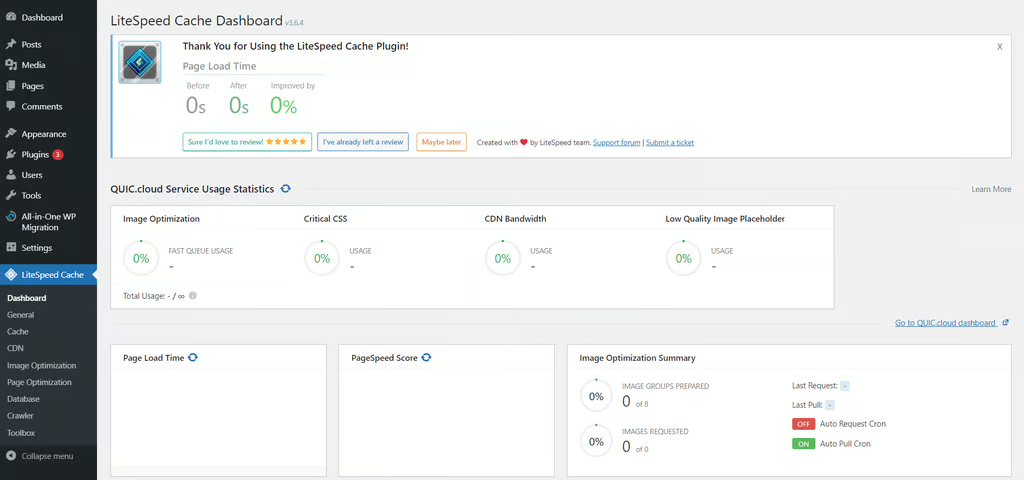
3. Open LiteSpeed Cache.
4. Navigate to the Toolbox section. You will find multiple purge options here.
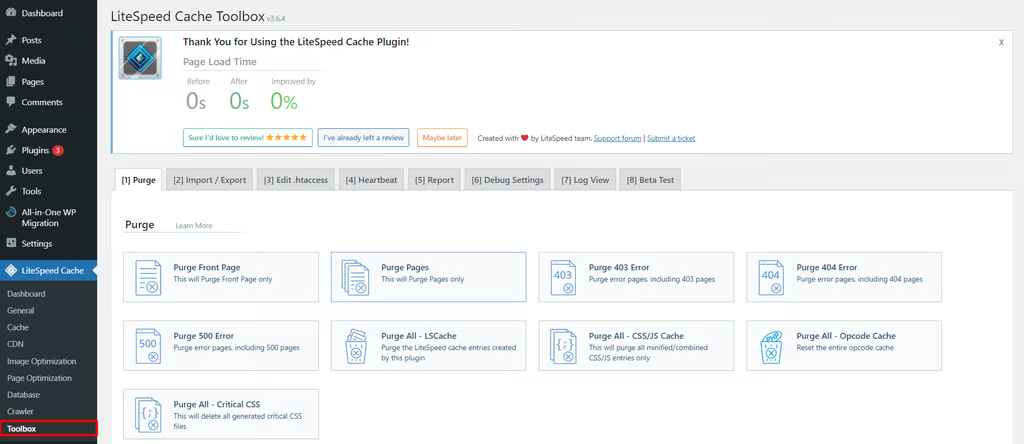
5. Select Purge All if you want to clear everything at once. This removes cached files while your database and critical site data remain unaffected. This is what purge from cache means.
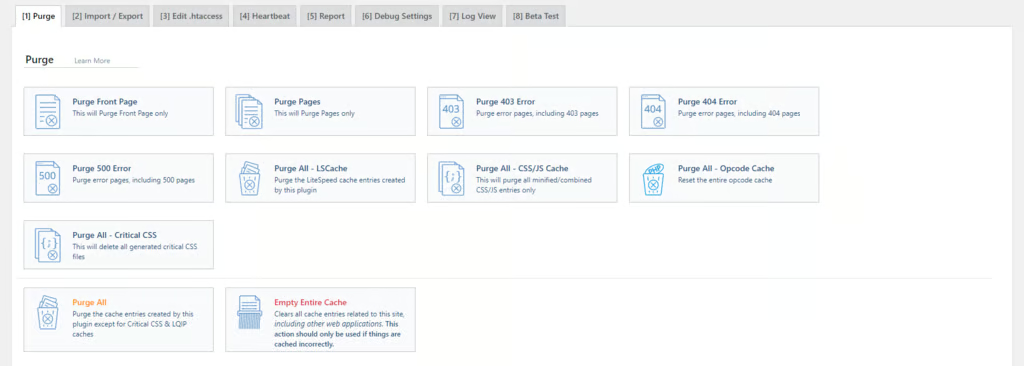
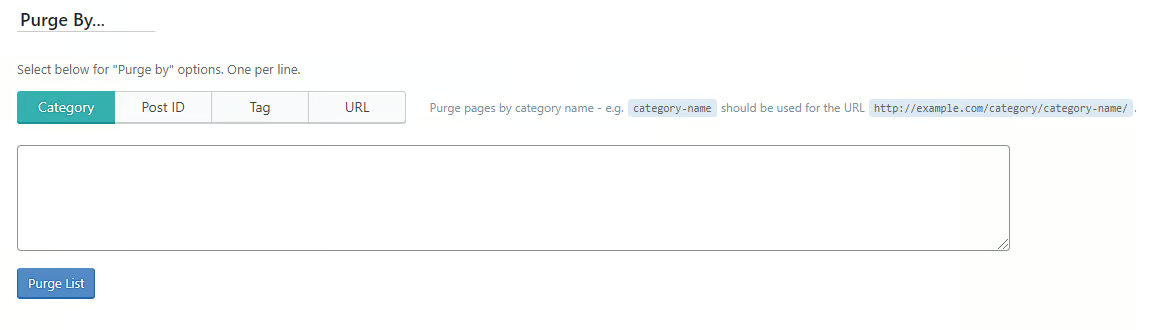
6. The Purge By section allows you to clear the cache by URL for a more precise attempt.
You can also clear the cache for a single page. Just visit the page while logged in as an administrator. Hover over the LiteSpeed icon in the admin bar and choose Purge this page.
WP Super Cache generates static HTML files and serves them to visitors. Ideal for WordPress sites with high traffic.
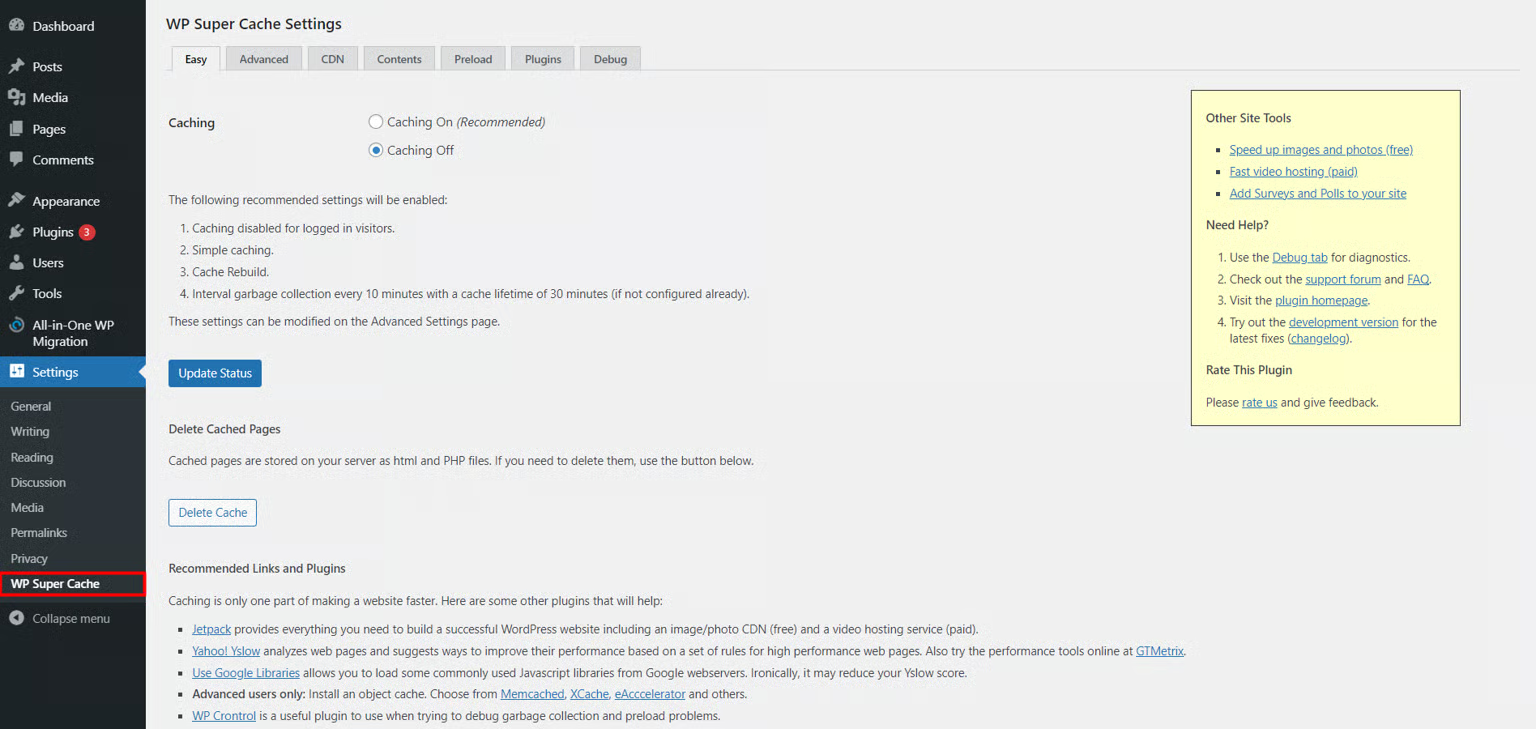
3. Scroll down to the Delete Cached Pages section and click Delete Cache. The plugin will remove stored cache files right away.
WP Super Cache includes a garbage collection system for automation. You can set cache expiration times to instruct WordPress to delete old cache files by default. Sites with frequent updates benefit from shorter cache times. Static sites can use longer expiration intervals.
W3 Total Cache is a strong plugin. Known for its extensive customization options. It supports multiple types of caching and even CDN integration.
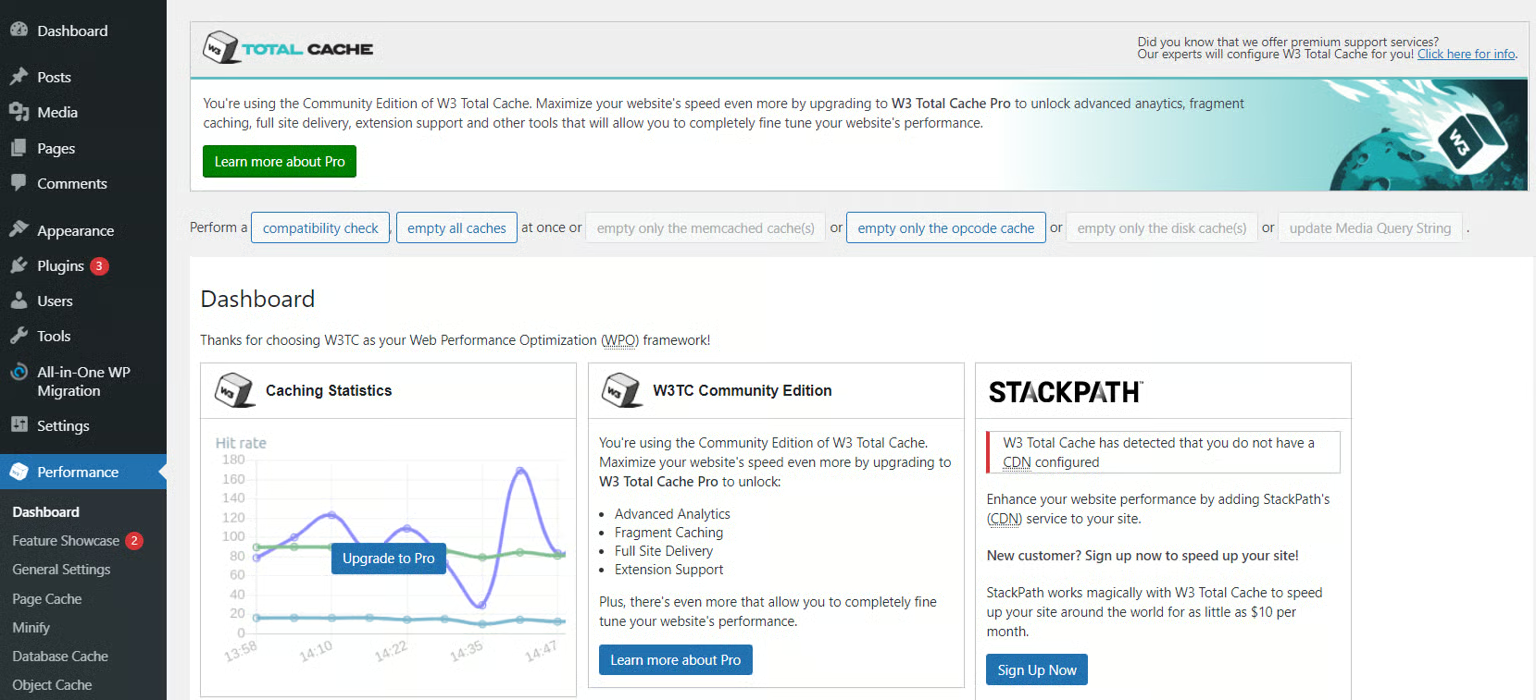
3. Go to Dashboard and click Empty All Caches. This clears every cache layer managed by the plugin in one go.
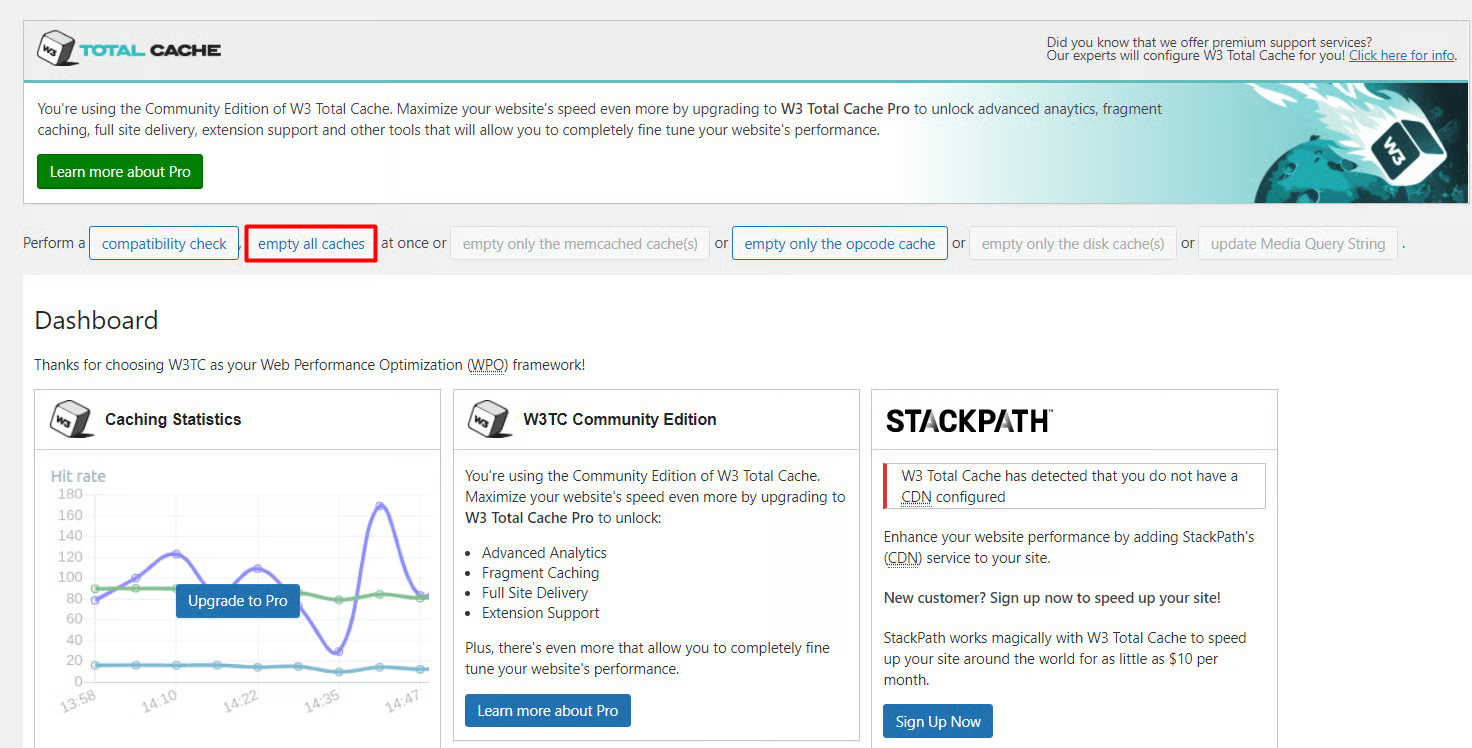
Advanced users can clear specific cache types, such as database or object cache. That makes W3 Total Cache a strong choice for websites that focus on performance.
WP Fastest Cache offers a clean interface and automated options for cache clearing. That makes it friendly without ditching performance.
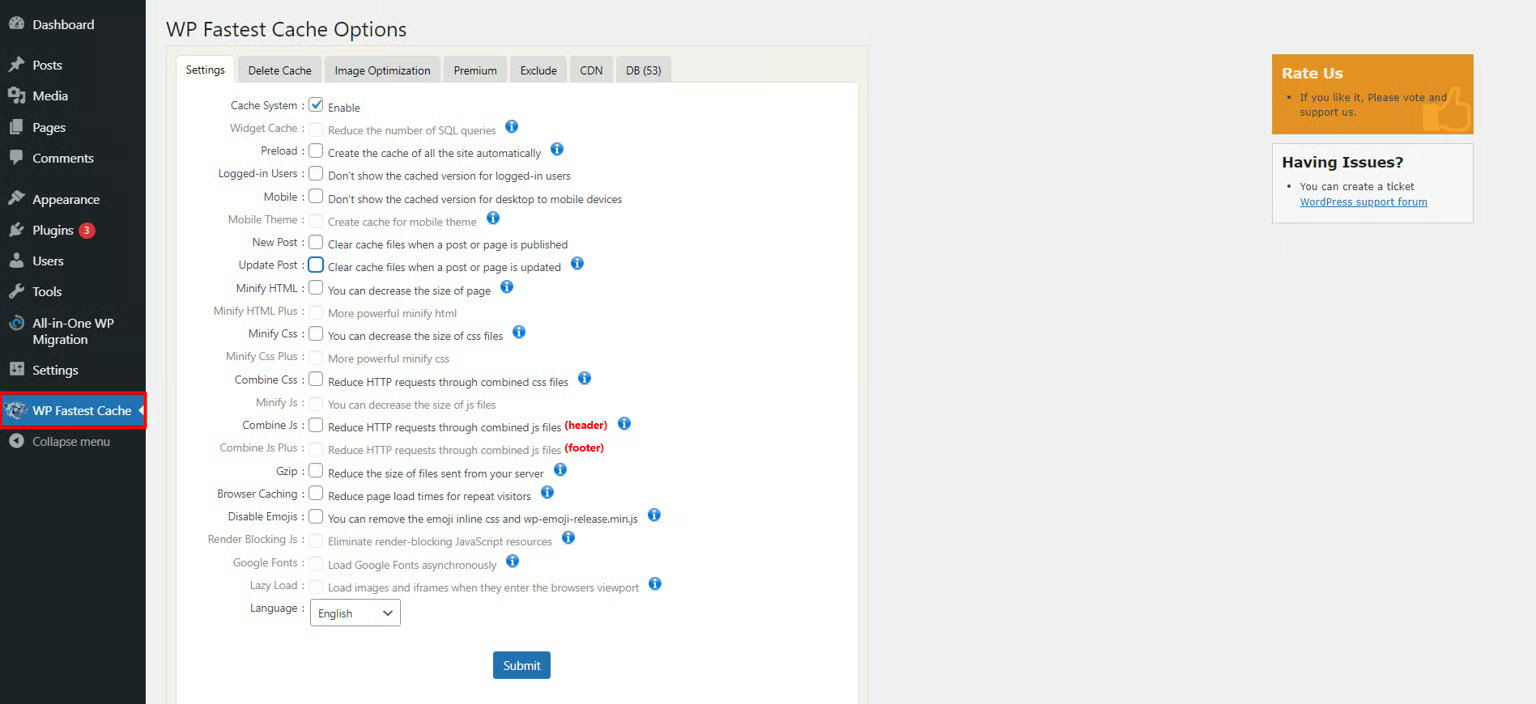
The plugin will manage cache files after it enables the Cache System. You can also configure it to delete cache whenever a new post is published or an existing one is updated. That prevents the appearance of outdated content.
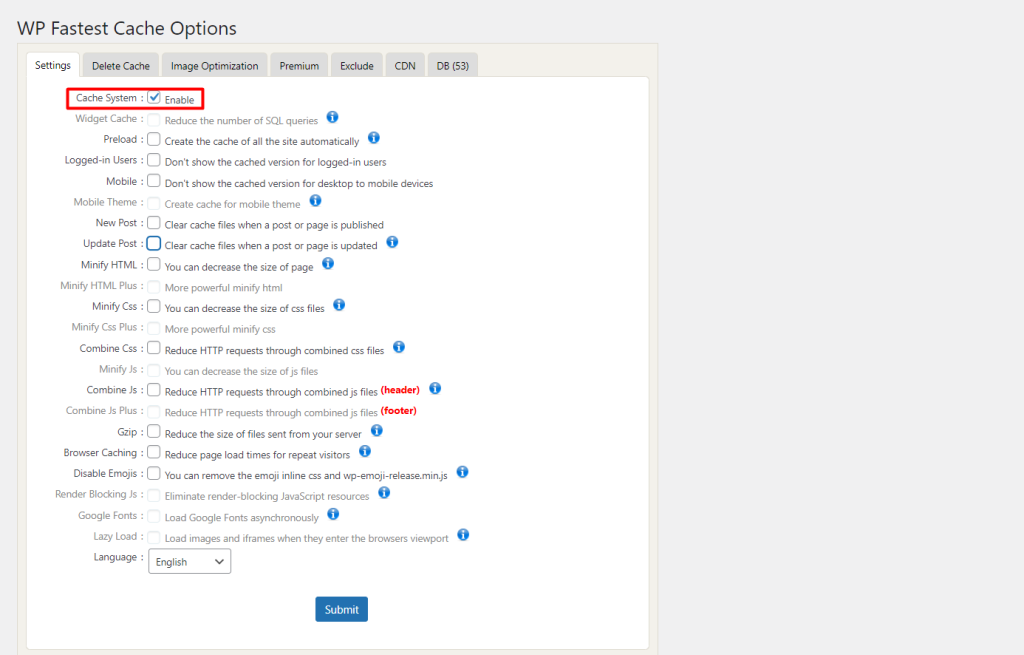
Want manual cache clearing? Go to the Delete Cache tab. Click Delete Cache. Did you recently edit CSS or JavaScript files? Use the option that clears minified files as well.
Cached files may still be served from its global CDN if your site uses Cloudflare even after you clear the WordPress cache.
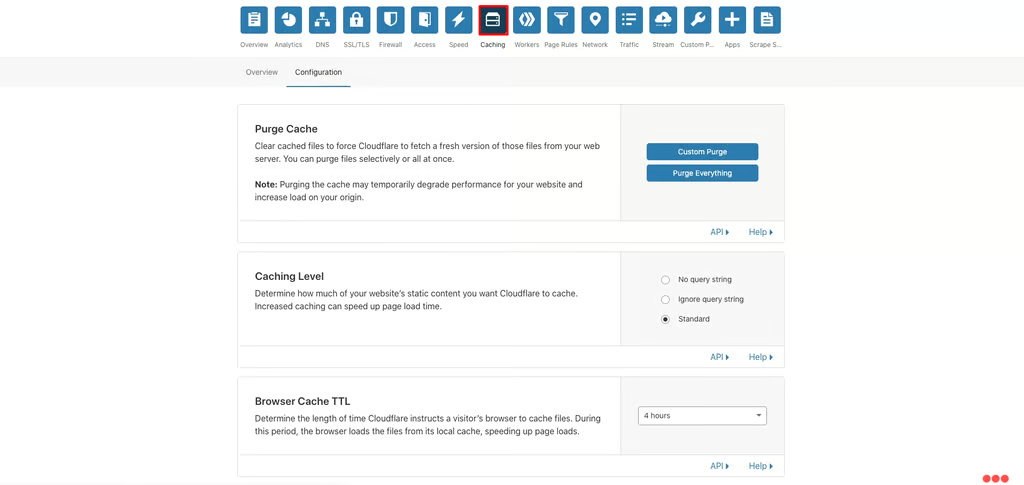
3. You can either purge everything or clear specific URLs using the custom purge option.
The culprit sometimes is not WordPress or the server. It is your browser stuck with old files.
Cache clearance pushes your browser to fetch the latest version of your website.
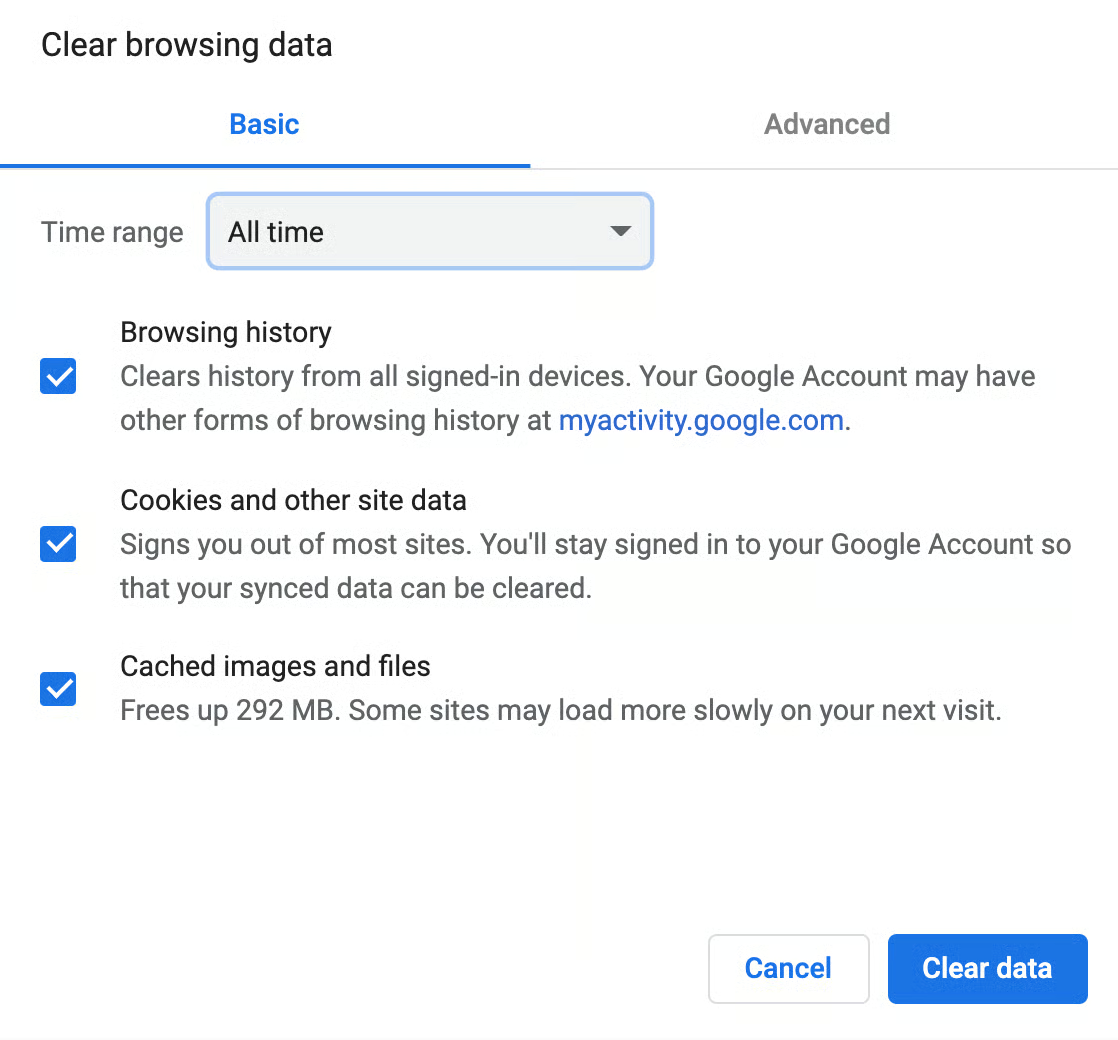
This step is useful when you troubleshoot layout issues or repeated loading errors.
One must know how to clear WP cache. Caching is essential for speed and performance. Outdated cache can block updates and confuse visitors. Clearing WordPress cache ensures your site displays the latest content as intended. Use either of the solution enlisted above or combine all solutions to resolve stubborn issues. Performance optimized hosting from Ultahost makes cache management simpler and far less frustrating.
Want your website to function well without losing anything? Ultahost’s hosting solution is designed to handle caching the right way, making sure all responses work in your favour. This is how you get faster performance and a better experience for both users and search engines.
UltaAI – Smart AI Assistant for Ultahost Clients
UltaAI is your advisor for anything related to domain or hosting. Experience personalized suggestions with our Smart AI!
Typography plays an important role in the visual appeal...

It is frustrating to be sharing a WordPress post or pag...
Search engines like Google cannot index websites hosted...
Docker Compose is an exceptionally powerful tool that a...
The "Sorry, you are not allowed to upload this file typ...