
How to Override ENTRYPOINT Using docker run
Docker containers allow applications to run with no int...






Keeping your containerized applications up to date is a critical requirement. A developer must update a running Docker container to ensure that their applications are taking advantage of all the latest improvements.
Docker containers are not direct with modification unlike traditional software applications. However, the recommended method for updating a Docker container is to update the container image. Finally, redeploy the container after that.
You should know how to update Docker containers where uptime is a requirement. Moreover, you can update your containers smoothly without causing any interruptions to your services. This guide covers the best practices and steps you should use to update a Docker container.
Upgrade your container infrastructure with Ultahost!
Get reliable hosting optimized for Docker workloads. Deploy faster and manage containers now with our VPS hosting!
This can put your system at risk of security and performance problems. However, new container images are often pushed into development environments. Moreover, pushed through new security fixes and dependency updates as well as feature improvements. As a result, it can leave your application susceptible to known security exploits if you do not update a running Docker container.
Another significant reason to keep your container updated is related to container updates as well as their interaction with microservices. Many modern applications are built around multiple services working together. However, one service running on an outdated container image can cause issues with integrating it with other services.
The conventional method of updating Docker containers is quite straightforward. You update the container image. As a result, you may then update the container itself to the new image rather than updating the running container.
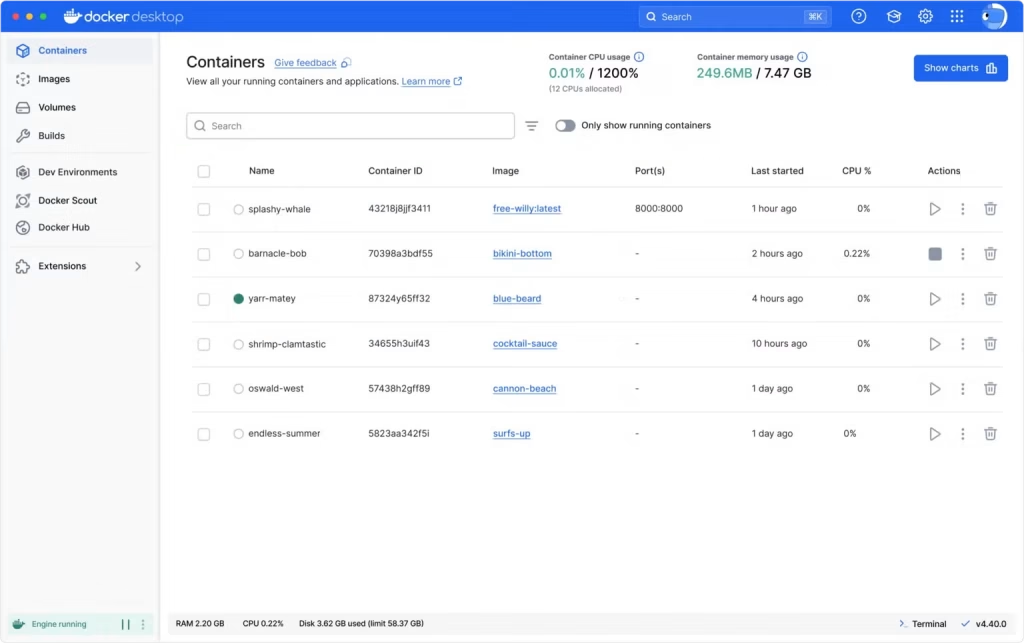
The steps involved in this process are as follows:
This process is pretty clean and maintainable. However, you can always return to the previous version of the image if anything goes wrong.
The steps involved in updating the running Docker container are as follows:
The first step in the process is to download the latest version of the container image from the registry.
Example Command:
docker pull image_name:latest
This command downloads the latest version of the image to the system. It ensures that the update restart process works correctly.
The next step is to stop the running container that is currently running your application.
docker stop container_name
This step is essential in preventing conflicts as you prepare to deploy the updated version of your application.
Once you have successfully stopped the running container… You can remove the container to create space for the new version of the container.
docker rm container_name
This step is essential in ensuring that your environment is well organized and free of duplication.
The final step is to start a new container using the updated version of the container image.
docker run -d --name container_name image_name:latest
This marks the end of the steps required to update a running Docker container. Finally, your application is now running using the latest version of the image.
Docker Compose can help you manage updates well if you are working with multiple container applications. Moreover, you can use Docker Compose to update all containers at once instead of updating and restarting each container.
Pull new images for all services:
docker-compose pull
Restart containers using new images:
docker-compose up -d
Updating containers might seem like an easy process. Best practices must be followed to make sure the process will be much smoother.
The new image for the container should be tested in the staging environment to ensure compatibility. As a result, it should be done before making any changes to the production environment.
The logs and performance metrics should be checked to ensure the new version works as expected. However, do this after the Docker container has been updated.
You can use the automation process to pull the new image and execute the update restart process.
Make sure to properly configure environment variables and volumes so that your data remains intact during container replacement.
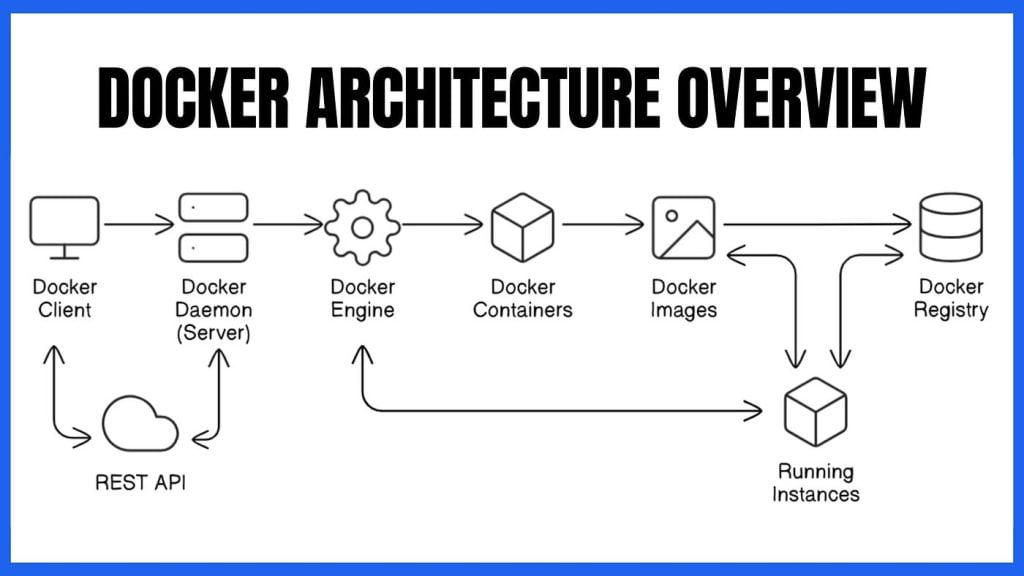
Learning to update a running Docker container is not a skill one should miss out on. Moreover, developers and system administrators should especially be able to master this skill. Docker containers are immutable. That means you should not update them directly. However, you should rather update them by replacing them with new ones using new versions of container images. As a result, that is how you do it.
Use version tags instead of “latest” to track which version of an image you deploy to production. Moreover, this can be very helpful in case there is a need to counter issues during updates.
UltaAI – Smart AI Assistant for Ultahost Clients
UltaAI is your advisor for anything related to domain or hosting. Experience personalised suggestions for a better value.
Docker containers allow applications to run with no int...
Managing logs in Docker Compose is essential for develo...
Deployment of Redis in Docker simplifies managing depen...
Docker is a platform that allows you to build, deploy, ...
Docker allows developers to build, ship and run applica...