
How to Access WordPress Database
Each WordPress website has a MariaDB or MySQL database ...






Comments can be charming. Until they turn into spam jungles. A security nightmare to deal with. WordPress disable comments is self-care if your website does not need conversations. Ultahost hereby shows you how to disable comments in WordPress through clean and tested methods. No fluff. No panic. You will know by the end how to disable comments WordPress-style on everything that does not behave.
Let us be honest. Most site owners disable comments for at least one of these reasons:
| Reason | Reality Check |
| Spam | Bots do not sleep. You do. |
| Security | Every form is a potential attack vector. |
| Speed | Fewer scripts equal faster pages. |
| No engagement | Empty comment boxes are awkward. |
| Business sites | Not every website is a TED Talk. |
Do any of these hit home? Congratulations! You are ready to disable comments well.
Let Ultahost Does the Heavy Work !
Tired of fighting spam and having messy WordPress settings? Host your WordPress site with Ultahost for blazing speed, tight security, and expert support. Let your brand be handled by experts who know WordPress. Less noise. More performance. Zero regrets.
Seven. Because WordPress loves options almost as much as it loves settings pages.
We will walk through them from easy to advanced. You can stop reading the moment your problem is solved. No judgment from our side.
This is your method if you want to nuke comments from orbit.
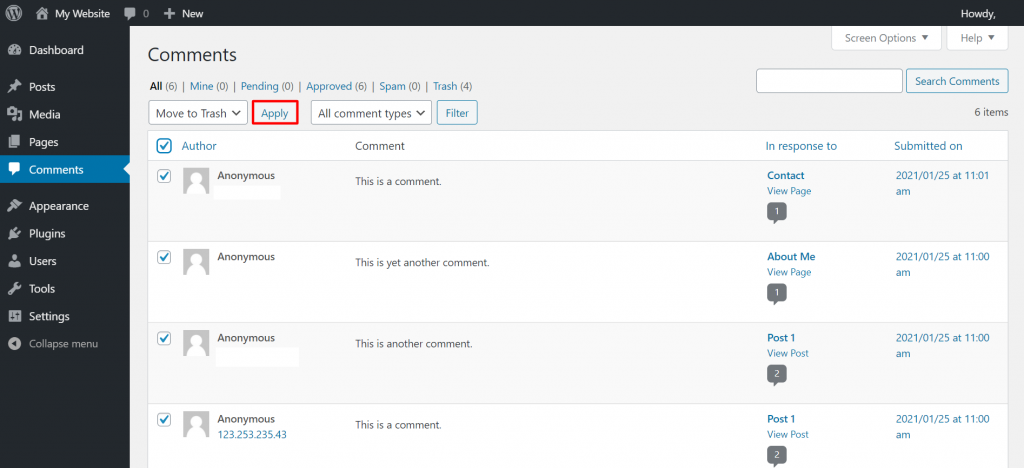
History gone. Nice.
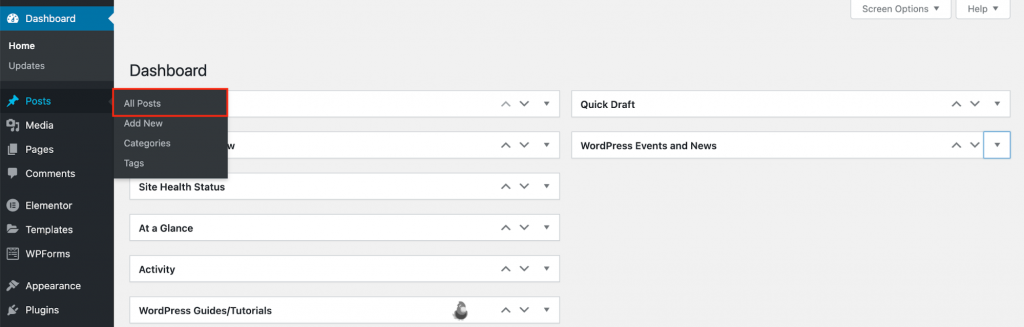
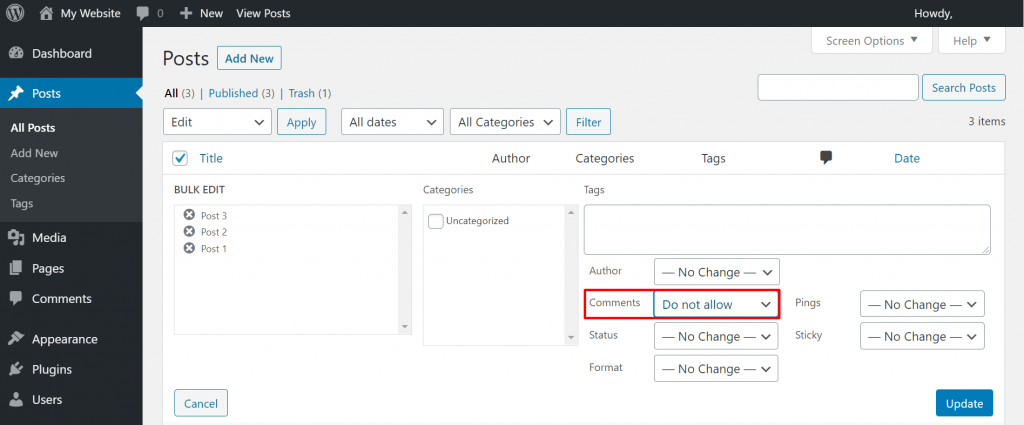
1. Go to Posts → All Posts.
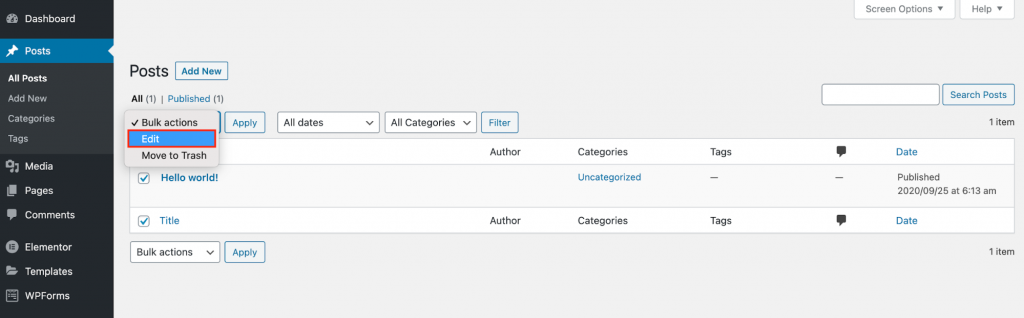
2. Select all → Bulk Edit.
3. Set Comments: Do not allow.
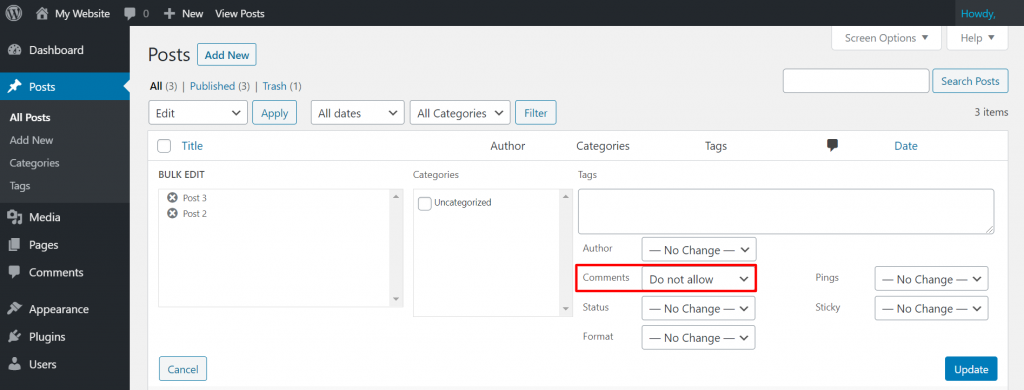
4. Update.
Repeat the same steps for Pages.
This is the cleanest way to disable comments all across the site without plugins.
Past posts handled? Good. Now, let us stop future damage.
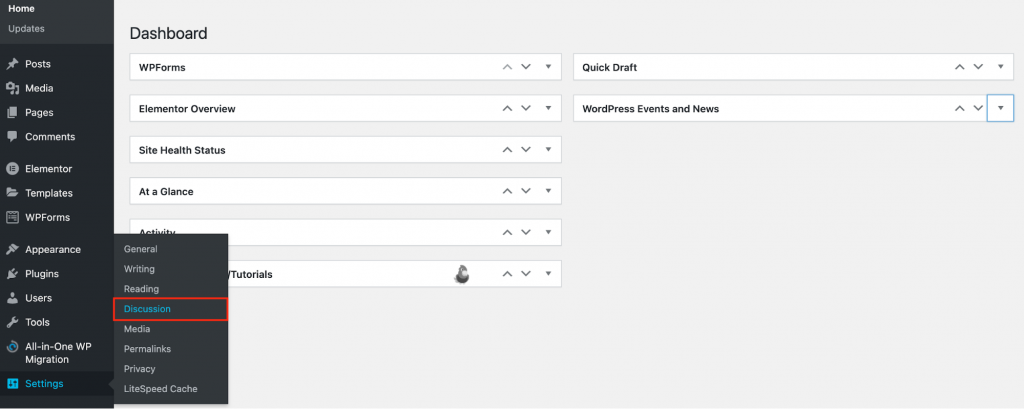
1. Dashboard → Settings → Discussion.
2. Uncheck Allow people to submit comments on new posts.
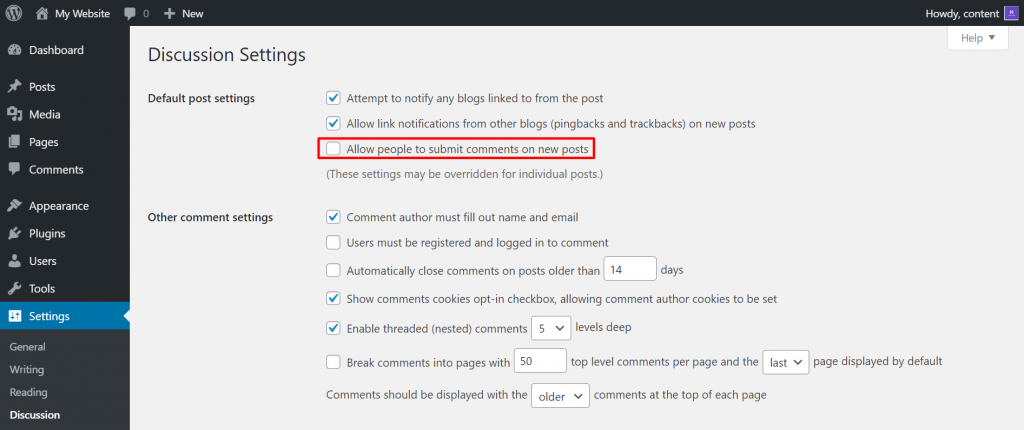
3. Save changes.
Disable comments automatically on anything new from now on. Set it once. Forget it forever.
Want comments sometimes? That is fine. Commitment is scary.
This selective WordPress disable comments approach is perfect for landing pages as well as for announcements or controversial blog posts.
For surgical precision:
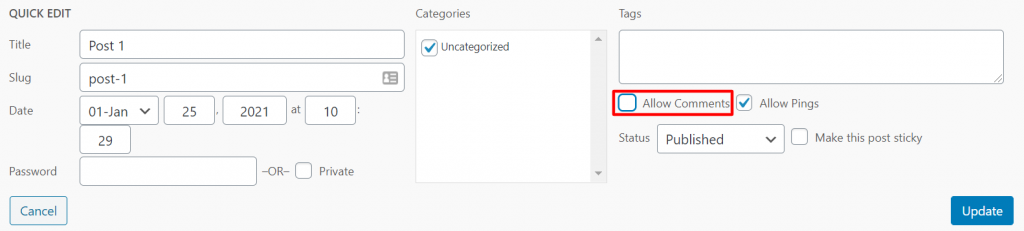
This overrides global settings. WordPress loves giving you power.
Yes. Images can have comment sections. Nobody asked for that.
add_filter('comments_open', function($open, $post_id) {
  return get_post_type($post_id) === 'attachment' ? false : $open;
}, 10, 2);
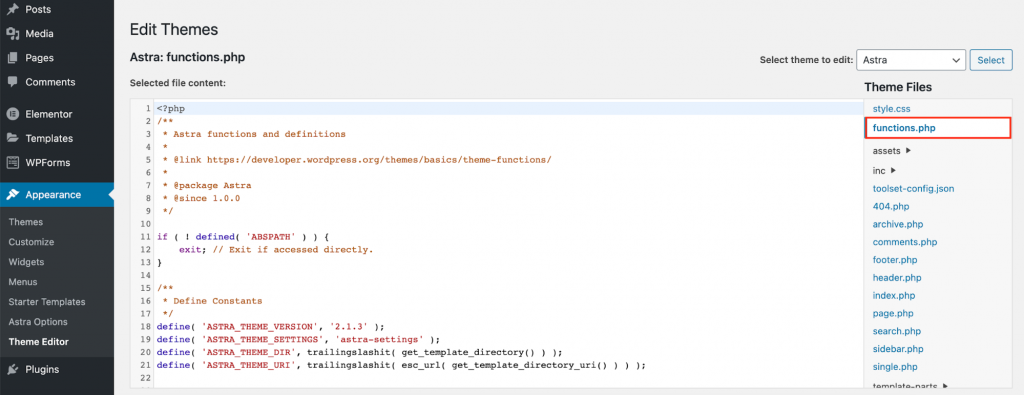
Now you have officially disabled comments on media forever.
Use the Disable Comments plugin if you want results in under 60 seconds.
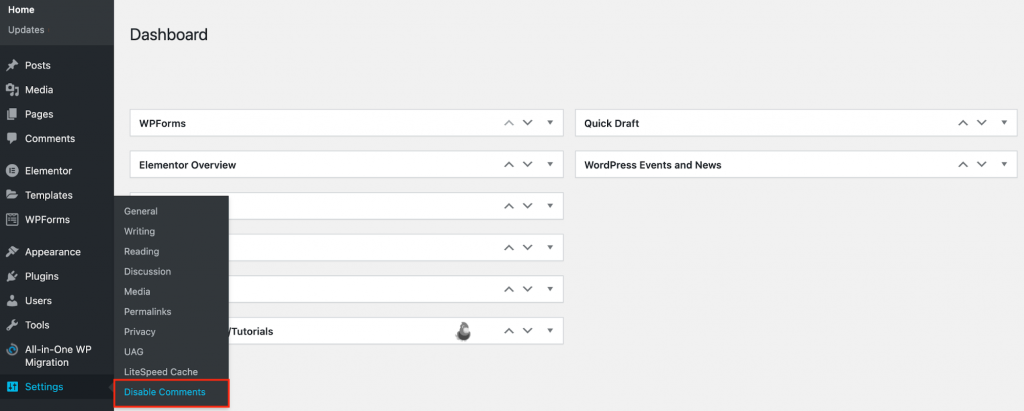
Plugin settings override individual post controls. This is the easiest way to disable comments without touching code.
For developers and minimalists and brave souls.
Edit:
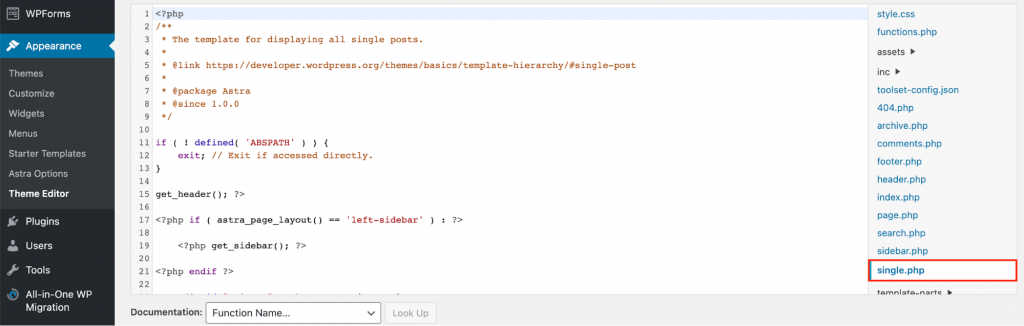
Comment out:
<?php comments_template(); ?>
This codes silence into your theme. Clean. Brutal. Effective.
Do not rush to disable comments in WordPress just yet. Let us answer the obvious question: why bother at all? Aren’t comments the heart of “engagement”? Sometimes yes. All the time? Absolutely not! Comments bring more chaos than conversation. Below are the real and practical reasons people choose to disable comments.
The most common reason people disable comments is spam. Open comment sections are magnets for bots and bad actors. They flood pages with irrelevant messages and shady links. This kind of content can harm your site in search engines.
Moderating spam consumes time. This task goes forever. Which is why many website owners decide that the smartest move is to remove comments altogether rather than fight a losing battle.
Security is another major factor behind the decision to disable comments. Eliminating spam comments is the right move when it comes to malicious links. The links are designed to steal personal data or spread malware or redirect users to harmful websites. Disabling comments is a preventative security measure instead of a reactive one.
Comments are more of a distraction than a benefit. Online shops exist to showcase products and convert visitors into customers. They do not host discussions on every page. Comment sections on product or category pages can pull attention away from purchasing decisions and fill with spam that makes the business appear careless or unprofessional.
Another reason to disable comments is redundancy. Many brands already have dedicated spaces for interaction. Comments on the main website do not add meaningful engagement. They fragment it. Site owners can guide discussions to platforms better suited for moderation and interaction while allowing the website itself to focus on its primary purpose.
There is no single correct way to WordPress disable comments. Just the one that fits your site. Total silence or selective muting: WordPress gives you the tools. Make a choice that suits your website the best and disable comments accordingly. Ultahost gives you the speed and security and stability to make those choices in pure confidence. Should you enable comments on WordPress? Always remember that disabling comments does not kill engagement but rather curates it.
UltaAI – Smart AI Assistant for Ultahost Clients
UltaAI is your advisor for anything related to domain or hosting. Experience personalized suggestions with our Smart AI!

WordPress is renowned for building blogs and websites a...
WordPress relies heavily on plugins and themes to incre...
Have you ever wanted to modify your WordPress theme wit...
Have you ever received the avoided HTTP image upload er...
Have you encountered the "There Has Been a Critical Err...