
How to Install Objective-C on Linux
Objective-C is a powerful programming language often as...






Port scanning on a Linux OS is crucial for system administrators, developers, and users in the security domain. Services and applications on the same network can communicate with each other via open ports, and although they can be essential for allowing services such as web servers, databases, and SSH access. Failing to monitor listening ports routinely can compromise the system’s security, as background active applications may pose a threat.
In this article, you will learn Linux commands to determine open ports, the services listening on those ports, and active (or listening) TCP or UDP connections. Some of the commands in the system are netstat, ss, lsof, and nmap. These commands enable administrators to monitor network activity and also facilitate the exploitation of connections in other ways.
A port acts as a communication channel. Linux services use ports to listen for incoming connections. For example, a web server listens on port 80 (HTTP) or 443 (HTTPS), an SSH server listens on port 22, and a MySQL server listens on port 3306. However, unmonitored ports can also allow unauthorized users to gain access. We can divide ports into two categories:
TCP (Transmission Control Protocol) ensures reliable communication by guaranteeing that packets arrive in the correct order without any omissions.
UDP (User Datagram Protocol) is fast but can be unreliable. For example, streaming services or DNS would prefer to use a UDP port. We can evaluate these active services by checking their TCP and UDP ports.
Optimize Your Website with Ultahost Linux VPS!
Enjoy fast, secure hosting that scales with your website, offering reliable performance and top-notch security at an affordable price.
The section below demonstrates how to determine available ports in the Linux OS and also how to find applications that are using them, along with instructions to analyze the network connections.
The ss command lists open ports and is one of the more modern options to do so. Unlike the previous netstat command, ss provides output much quicker when examining network sockets. ss provides direct output for a command where network connections and listening ports, as well as the processes associated with the ports.
We can use the ss command to view all listening ports. In this command, -t lists TCP ports, -u shows UDP ports, -l displays listening ports, and -n shows only numbers instead of resolving hostnames. Let’s run the command below:
ss -tuln
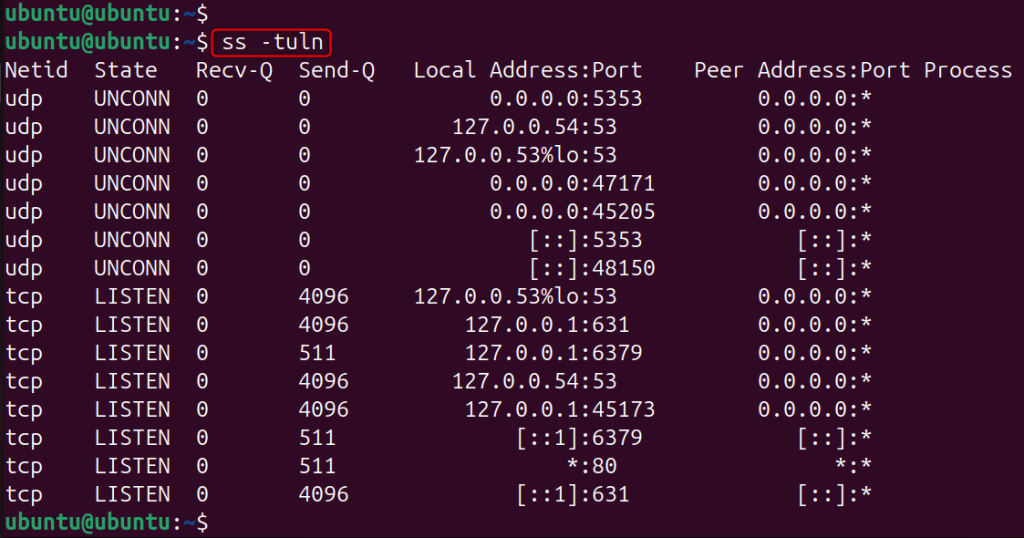
The command provides output for both the TCP and UDP listening ports, without the use of the hostname and service name. The output of the previous command should contain all items (protocol type, address, port number, and state) that compose the aforementioned ports.
Identifying which application is using a specific port can be challenging. We can use the ss command to display the process IDs and names associated with each port. To list the processes tied to open ports, run the following command:
sudo ss -tulnp
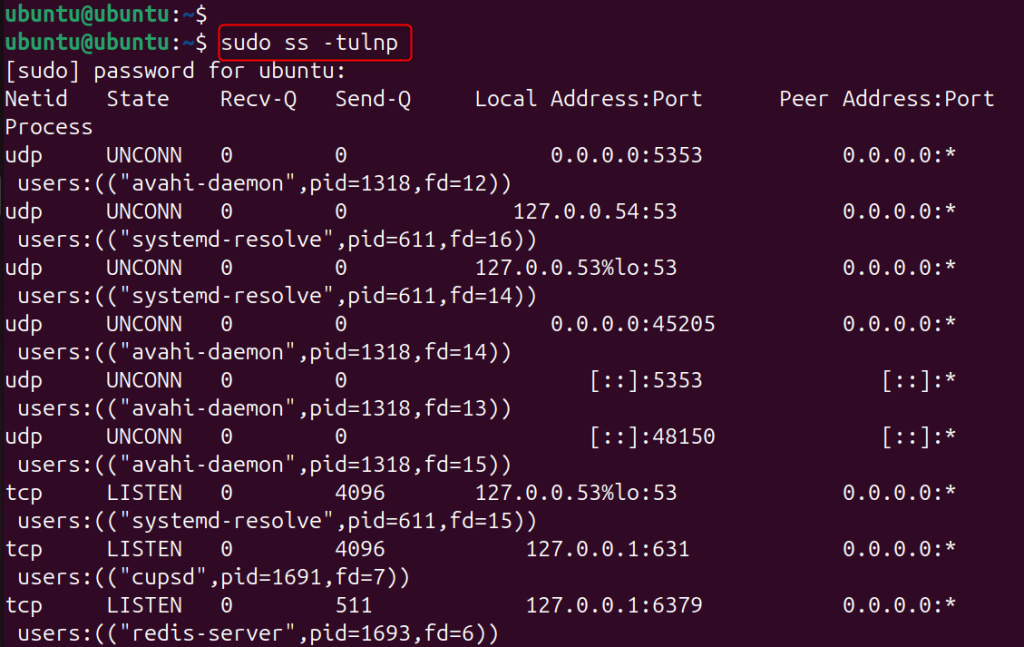
Using -p displays the process using each port. This is useful for admins to see what services are using which open ports. For instance, you may see the systemd-resolve listening on 53.
If you wish to see only TCP ports, you can use the following command:
ss -tln
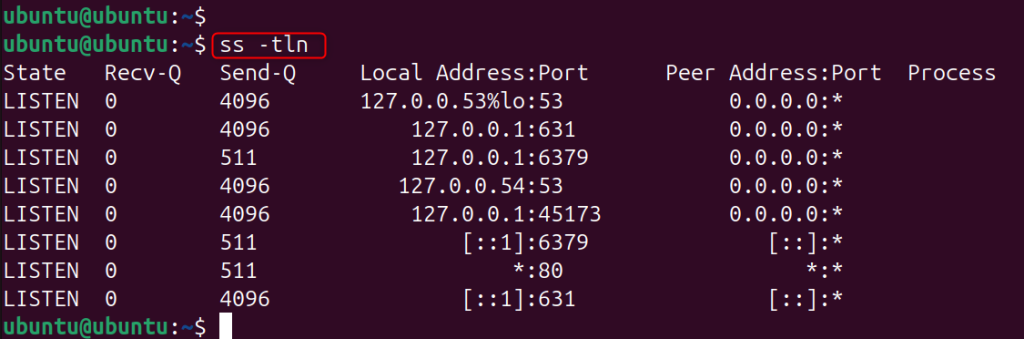
Likewise, for only UDP ports, use the following command:
ss -uln
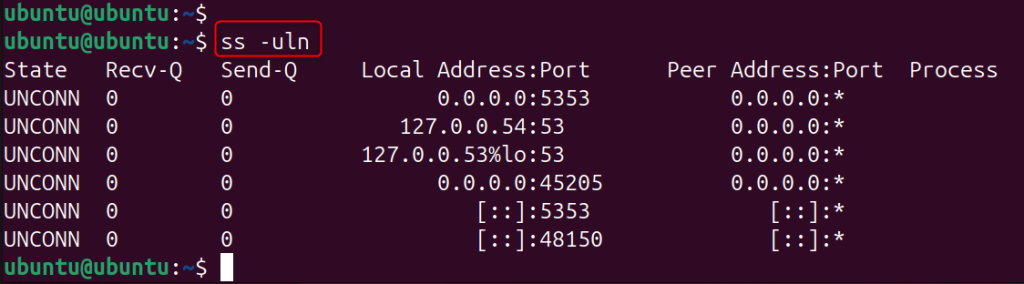
These commands help refine results when troubleshooting particular services.
The lsof command also lets administrators see the owner of listening ports. While lsof lists all open files, it can show network connections too, since Linux treats them as socket files. Administrators can use lsof to quickly identify the process using a port.
To show all listening network ports via lsof, you can use the following command. Here, -i enlists files related to the network, -P shows port numbers rather than service names, and -n disables hostname resolution.
sudo lsof -i -P -n
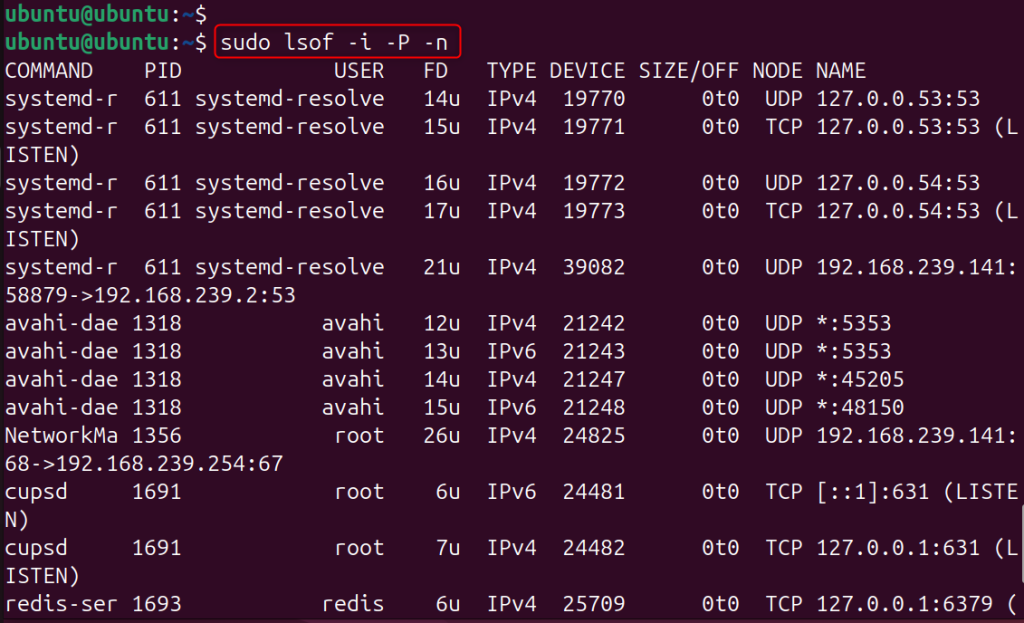
This command shows all the active connections and listening ports. The output shows the process name, user, protocol, and port number.
We can run the following command to check whether a particular port is open.
sudo lsof -i :22

This command determines whether an application is using port 22. To check other ports, you can substitute 22 with the port number of interest.
/proc File SystemLinux also provides network details through the /proc file system, where the system stores data from the running kernel. We can use the following commands to view network socket data. For example, we can obtain TCP port information as follows:
cat /proc/net/tcp
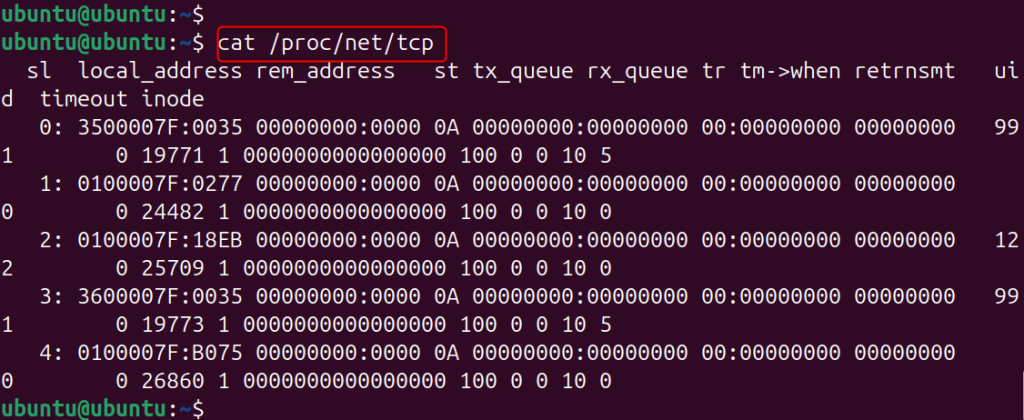
If you want to obtain the information on UDP ports, execute the command below:
cat /proc/net/udp
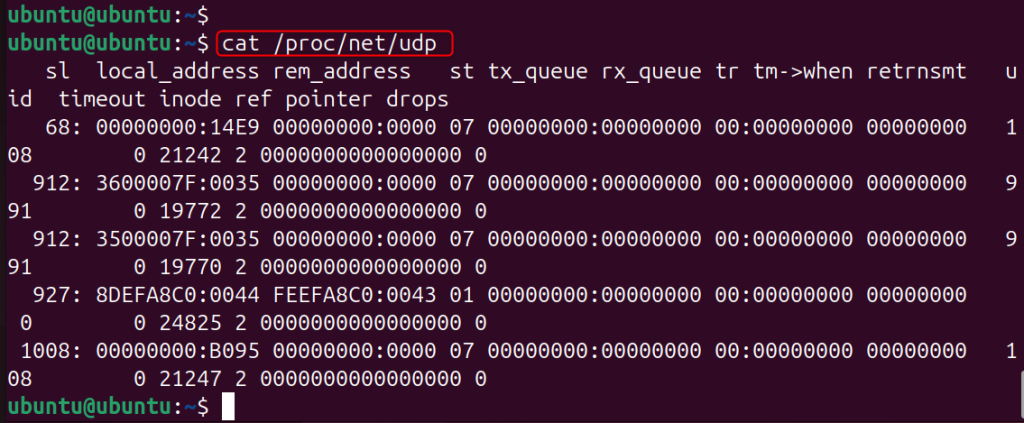
The files above contain the details on the networks in use and the ports available for listening.
While this method is not very user-friendly, it’s good for advanced troubleshooting.
Linux administrators also use the netstat command to check open ports and active network connections. Although many modern systems recommend ss, administrators still use netstat for network troubleshooting. The netstat command displays active connections, listening ports, routing tables, and interface statistics.
We can check open ports with the netstat command. In this command, -t shows TCP connections, -u shows UDP connections, -l lists listening ports, and -n displays numerical addresses and port numbers.
netstat -tuln
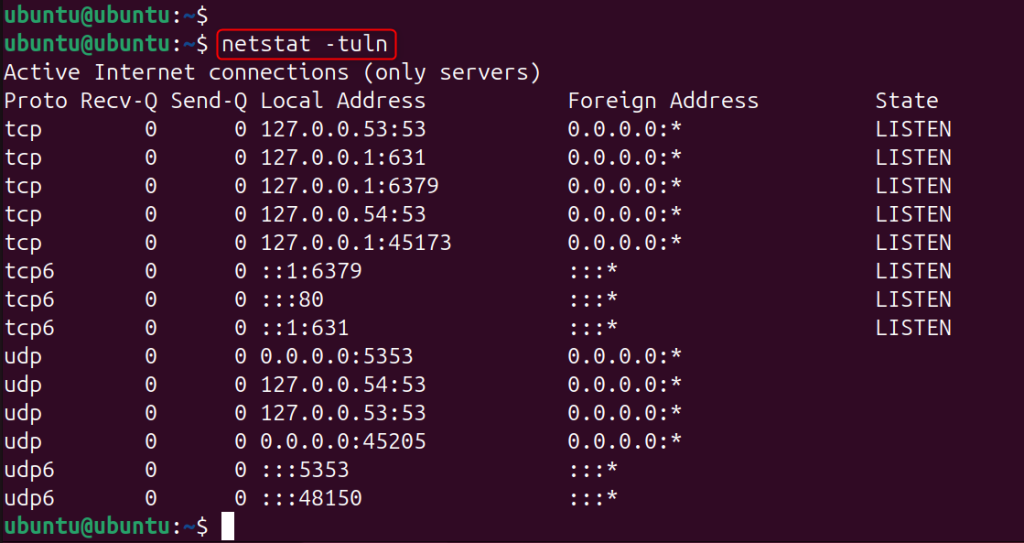
This will show all listening ports on the system in both TCP and UDP formats. The output shows protocol, local address, port number, and status.
To see which process is using any port, use root privileges to execute the command.
sudo netstat -tulnp
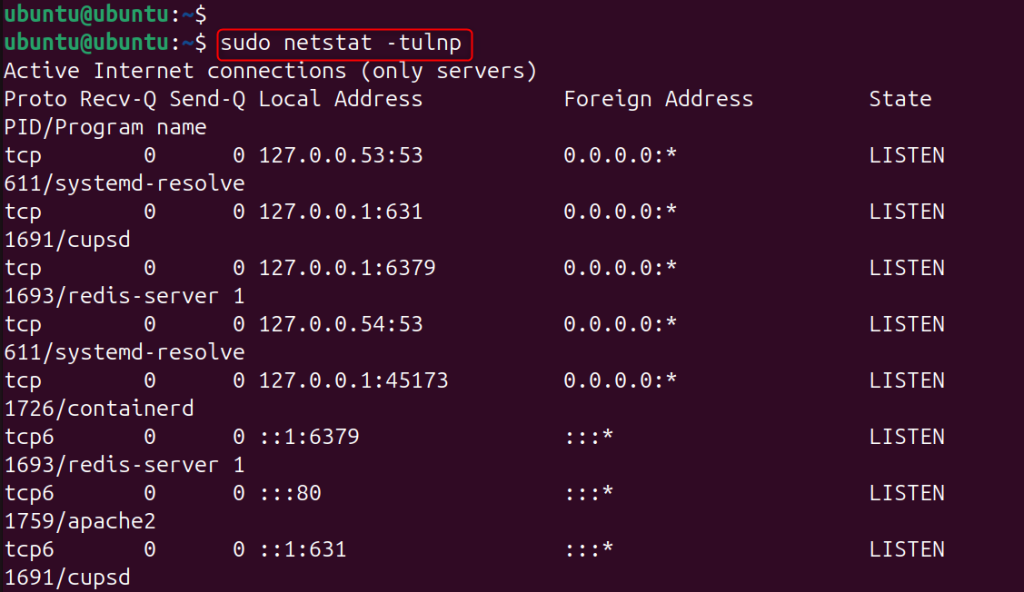
The output shows the process ID and the program name using that port. For instance, you could see that the Apache web server is listening at port 631.
As a network scanning utility, Nmap can identify open ports within a network, whether on a local system or a remote one. It is a popular tool for system administrators and network security experts to assess network services.
You can install Nmap using the following command if it is not already on your system. For Ubuntu or Debian systems:
sudo apt install nmap
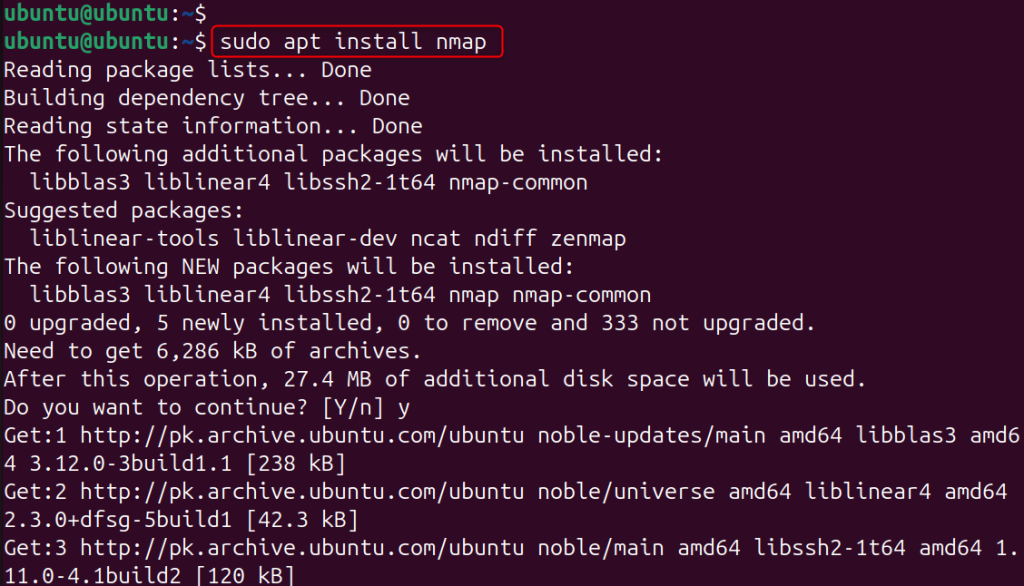
For the installation in CentOS or RHEL systems, use the following command:
sudo yum install nmap
If you want to scan all of the ports on your system, execute the command below:
nmap localhost
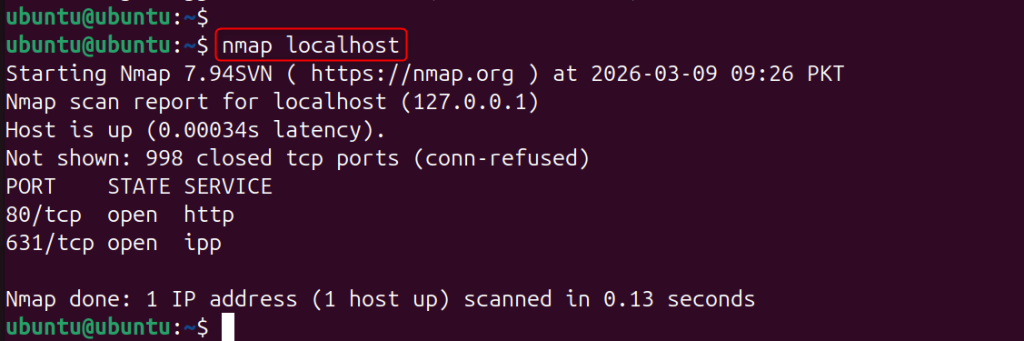
The command facilitates the scanning of the local machine and shows the services and their running state on the detected open ports.
To scan a specific range of ports, use the following command. Here, we specify the port range from 1 to 1000.
nmap -p 1-1000 localhost
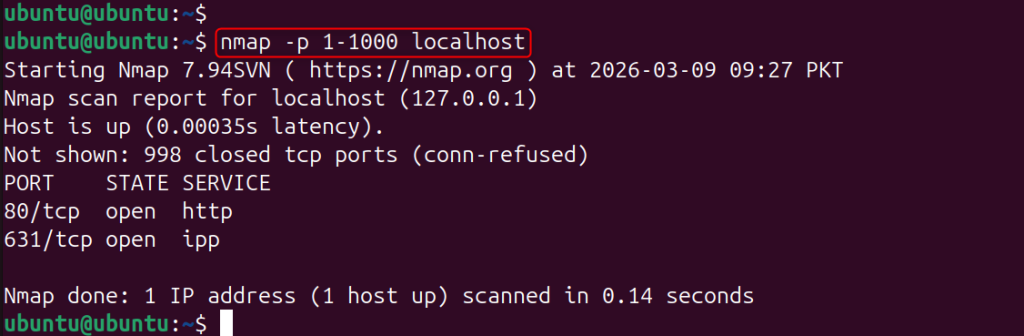
The command reports the status of the ports in the range of 1 and 1000, and specifies the open ones.
Managing network services and maintaining system security play an important role in Linux systems. Applications use open ports to connect with other systems; however, administrators must check them regularly to prevent unauthorized access or poorly configured services.
Linux administrators use several tools to monitor ports and network activity. The ss command provides the most up-to-date information about listening services and helps troubleshoot TCP and UDP ports. Other helpful tools include netstat, lsof, and nmap, which allows administrators to examine the system’s network usage. Monitoring ports effectively requires some skill and experience, but it helps administrators configure services properly and maintain system security.
Commands available for checking ports include ss, netstat, lsof, and nmap. The most frequently used command for checking open ports is ss -tuln.
The ss command in Linux shows statistics about sockets and network connections. Many administrators prefer ss over the older netstat command because it lists ports and connections faster.
TCP ports provide reliable communication because they use error-checking mechanisms and send data in the correct sequence. For this reason, systems use them for services such as web servers and SSH. In contrast, UDP ports transmit data faster but do not guarantee reliability. Therefore, applications such as streaming services and DNS commonly use UDP.
We can find the processes using a specific port by running ss -tulnp or sudo lsof -i :port. The lsof command shows the program name, the port, and the process ID.
Listening ports in Linux are where programs wait to receive connections, like a web server on ports 80 or 443.
Open ports help monitor security, identify unnecessary services, and troubleshoot connectivity, but unexpected open ports can pose a risk.
Yes, other systems can scan open ports, and Nmap provides a well-known and legitimate tool for performing open port scans. Nmap provides system admins with a means to troubleshoot or conduct security audits by determining running services and open ports on other systems.
Enhance Your Site Performance with Our Ubuntu VPS!
Discover reliable and flexible hosting with Ubuntu VPS, a robust solution designed to meet your website’s unique needs.