



A 500 Internal Server Error means WordPress or the server could not complete a request. The message alone does not identify the cause. Start with recent changes and the error logs before changing plugins, PHP settings or server configuration.
The failure may come from WordPress, a plugin or theme, PHP, or the web server. Production sites should hide detailed errors from visitors; use private logs to investigate them.
This guide covers WordPress on a Linux VPS. Commands use example paths and systemd service names; substitute your installation details. Take a backup and use staging where possible. Change one thing at a time and keep a rollback path.
Key Takeaways
- The 500 internal server error is a generic server failure.
- Plugin conflicts may lead to PHP errors resulting in 500 errors.
- Errors in the theme may prevent WordPress from performing the request.
- .htaccess file errors may disable Apache’s rewrite capabilities.
- Memory limits in PHP may cause scripts to fail to load before WordPress.
- Debug mode in WordPress can help detect errors hidden by browsers.
What Does a 500 Internal Server Error in WordPress Mean?
Status code 500 informs the browser about an inability to fulfil the request. This status does not indicate the part which is failing. This may be caused by a PHP error, application failure, or configuration issue.
A normal WordPress VPS request goes through various components. Nginx or Apache handles the incoming request. PHP or PHP-FPM interprets the PHP code. WordPress loads its core. WordPress then loads the plugins and active theme. Any of these components might run into an unexpected situation.
Different failures can produce different statuses. For example, an unavailable PHP-FPM upstream often produces 502 rather than 500. Record the actual response and match it to the server log.
A 500 Internal Server Error in WordPress needs diagnosis. Check for recent changes. Try to think of what you did just prior to getting the 500 error message. It could be installing a new plugin, updating a theme, changing PHP settings, or modifying the web server configuration.
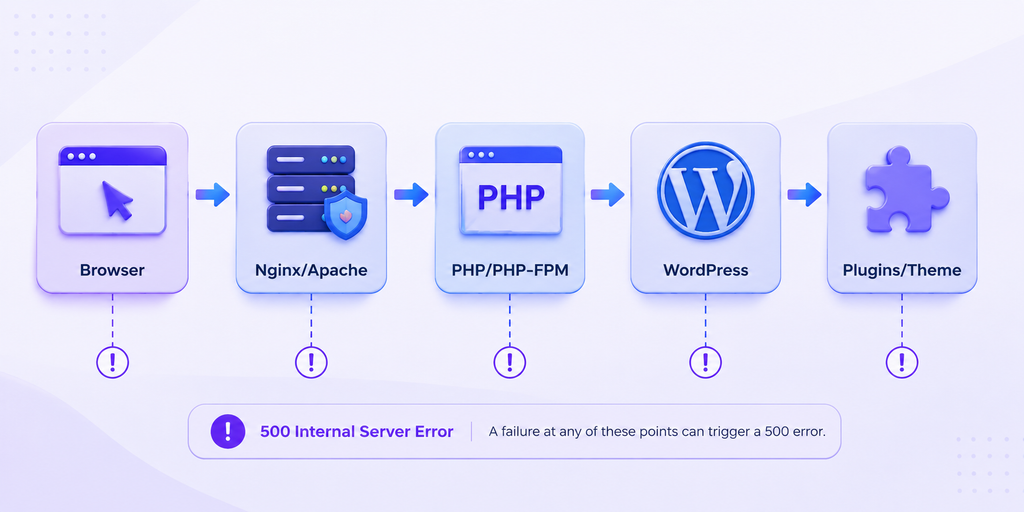
Common Causes of a 500 Internal Server Error in WordPress
A WordPress 500 internal server error typically falls into one of two categories. WordPress errors have to do with issues with plugins and application settings. Errors related to the server include PHP, PHP FPM, Apache, Nginx, and permissions.
| Cause | What happens | What to check |
|---|---|---|
| Plugin conflict | A plugin triggers a PHP failure | Disable plugins |
| Theme problem | Theme code causes a fatal error | Switch themes |
| Corrupt .htaccess | Apache cannot process rewrite rules | Regenerate the file |
| PHP memory limit | PHP cannot allocate enough memory | Check memory_limit |
| PHP fatal error | PHP stops execution | Review PHP logs |
| File permissions | The server cannot access files | Check ownership |
| PHP-FPM failure | PHP requests cannot reach workers | Check service status |
| Nginx problem | Server configuration rejects requests | Run nginx -t |
| Apache problem | Apache configuration fails | Run apachectl configtest |
Recent changes make an excellent point of departure. Investigate the plug-in in case the site worked fine before the plug-in update. In case the error appeared after a PHP version update, look at the PHP compatibility and PHP logs.
Do not change five things at once. You can fix the error without knowing the cause. Controlled testing will help you identify the cause and prevent making the same error in future.
Enable WordPress Debug Mode
WordPress Debug Mode helps in identifying PHP errors that are not displayed by the browser. You need to use WP_DEBUG and WP_DEBUG_LOG in wp-config.php for that purpose.
Back up wp-config.php. Update existing definitions rather than adding duplicates. Add the three settings together before the stop-editing comment near the end of the file, as described in the WordPress debugging guide:
define( 'WP_DEBUG', true );
define( 'WP_DEBUG_LOG', true );
define( 'WP_DEBUG_DISPLAY', false );
The WP_DEBUG constant allows debugging for WordPress. The WP_DEBUG_LOG constant makes WordPress log errors. The WP_DEBUG_DISPLAY constant ensures that errors are not visible to visitors.
Then load the affected page and view the debug log.
tail -n 100 /var/www/html/wp-content/debug.logYour WordPress installation might have a different path.
Messages that reference a plugin or a theme should be considered possible causes. A message like Allowed memory size exhausted would indicate a PHP memory issue. The message that references a plugin file should be considered a plugin issue. The message that references an active theme should be considered a theme issue.
Prefer staging. If brief production diagnosis is necessary, keep display disabled, restrict access to the log and turn debugging off afterward. Remove or protect diagnostic logs because they may contain sensitive paths or data.
WordPress Error Log Files
Logs can sometimes be the quickest way to pinpoint the cause of a 500 Internal Server Error in WordPress. Application errors can be logged by WordPress. Execution errors can be logged by PHP. Server errors can be logged by Apache and Nginx.
Apache Error Log File
sudo tail -n 100 /var/log/apache2/error.logCheck the error log for Nginx:
sudo tail -n 100 /var/log/nginx/error.logYou can track the log file while reproducing the issue.
sudo tail -f /var/log/nginx/error.logUse Ctrl+C to exit the command.
It is possible to look into log files for typical PHP errors.
sudo grep -i "php" /var/log/nginx/error.logThe path may vary depending on your OS and server settings. Check your actual configuration if you don’t find the file.
You need to find mentions of PHP Fatal error, Allowed memory size exhausted, Permission denied, upstream timed out, and connect() failed. The timestamp of the error matters. You can compare the timestamp to the time you were loading the page with issues. In this case, you will be able to filter out old errors and focus on the actual one.
Disable Plugins and Themes
Plugins can be considered the most frequent reason why you experience a WordPress internal server error 500. The plugin can be incompatible with your PHP version. There can be conflicts between plugins. Updates can break the code.
With an authorized shell account, run WP-CLI from the actual WordPress directory. Record active plugins first; disabling them can interrupt payments, security features or other functions:
cd /var/www/html
wp plugin deactivate --all
If deactivating plugins restores the site, reactivate only the previously active plugins one at a time and test after each change:
wp plugin activate plugin-nameCheck if the website is working each time. You have found the source of the problem. You can also use SFTP or Hosting File Manager to disable plugins.
Rename the plugin folder:
wp-content/pluginsRename it to:
wp-content/plugins.disabledPlugins will not be loaded by WordPress from that folder. Check your theme if plugins do not cause problems. It may have the same effect on your server.
If the active theme is implicated, first list installed themes with wp theme list. Activate an installed compatible default theme; the slug below is only an example:
wp theme activate installed-theme-slugUse the default theme that you have on your server.
Do not delete your plugins or themes. Instead, try disabling them. After you determine the source of the problem, you can switch back.
Recreate .htaccess File
Corruption of the .htaccess file can lead to the display of the WordPress 500 Internal Server Error message. The .htaccess file is used for handling rewrites and other Apache configurations.
For Apache only, back up .htaccess before renaming it. It may contain security rules or redirects beyond WordPress rewrites; retain those for review:
cd /var/www/html
cp .htaccess .htaccess.backup
Then rename the original file:
mv .htaccess .htaccess.oldAnd now open WordPress. Go to Settings. Permalinks and save the current permalink structure without any extra changes.
On a single-site Apache installation where WordPress can write .htaccess, saving Permalinks normally regenerates the WordPress rules. WP-CLI can also request a hard flush; inspect the result and restore any required non-WordPress rules:
wp rewrite flush --hardThe standard root-directory, single-site WordPress rewrite block is shown below. Subdirectory and Multisite installations differ; do not replace their configuration with this example:
# BEGIN WordPress
<IfModule mod_rewrite.c>
RewriteEngine On
RewriteRule .* - [E=HTTP_AUTHORIZATION:%{HTTP:Authorization}]
RewriteBase /
RewriteRule ^index\.php$ - [L]
RewriteCond %{REQUEST_FILENAME} !-f
RewriteCond %{REQUEST_FILENAME} !-d
RewriteRule . /index.php [L]
</IfModule>
# END WordPress
Do not use instructions for .htaccess from Apache on Nginx because Nginx doesn’t understand .htaccess. Nginx uses the settings of the server block. It is necessary to check this solution first among other possibilities in case there was an appearance of a problem appears after .htaccess modifications.
Back up the site or use staging before enabling debugging. Keep error details out of the public page and turn debugging off after diagnosis.
Increase the PHP Memory Limit
PHP limits the total memory allowed for the scripts to run. The need to increase the memory limit grows as the website scales up.
This command reports the command-line PHP setting only. PHP-FPM may load a different configuration; confirm the value used by the site through private administration or its pool configuration:
php -i | grep memory_limitYou can increase the WordPress memory limit using wp-config.php:
define( 'WP_MEMORY_LIMIT', '256M' );You can configure PHP directly too:
memory_limit = 256MThe right configuration file will depend on the PHP installation that you have. PHP-FPM configuration can differ from that of a command-line PHP installation.
Restart PHP-FPM after modification:
sudo systemctl restart php8.3-fpmReplace php8.3-fpm with the actual name of PHP-FPM on your server.
A memory increase does not always represent the real fix. Increasing the limit only delays the failure if one plugin consumes excessive memory. Check the logs to identify the process that consumes the available memory.
Check File Permissions
Incorrect permissions can be the source of a 500 Internal Server Error in WordPress if the web server is unable to read necessary files.
WordPress files typically have 644 permission. Directories have 755 permission.
Check the existing permissions:
find /var/www/html -type f -printf '%m %p\n' | head
find /var/www/html -type d -printf '%m %p\n' | head
After confirming the deployment requirements, these are common baseline permissions for WordPress files and directories. Apply only to the correct site path; some sensitive files, such as wp-config.php, may need stricter access:
sudo find /var/www/html -type f -exec chmod 644 {} \;
sudo find /var/www/html -type d -exec chmod 755 {} \;
Also consider the owner of these files:
ls -la /var/www/htmlThe www-data user is used by the web server in many cases on Ubuntu-based servers. You might use another user.
Identify the PHP-FPM pool user and the deployment owner before changing ownership. A blanket recursive change can break the deployment model or give the web process excessive write access. If ownership is wrong, have the administrator correct only the affected files.
Never apply the ownership commands directly from another server. Make sure you know who is running your Apache or PHP-FPM process.
Never apply chmod 777 as a general solution.
Restart the Services of PHP and the Web Server
Valid configuration changes might need service restarts. Test configurations before service restart.
For Nginx
sudo nginx -tRestart Nginx if successful:
sudo systemctl restart nginxFor Apache
sudo apachectl configtestThen restart Apache:
sudo systemctl restart apache2Check PHP-FPM status
sudo systemctl status php8.3-fpmAnd then restart it when needed:
sudo systemctl restart php8.3-fpmBe sure to use the PHP version installed on your VPS. A list of PHP versions can be found using:
php -vA stopped PHP-FPM service can prevent Nginx from reaching its upstream and often causes 502. Confirm the exact status and log message rather than assuming every upstream failure is 500.
Best Practices to Prevent Future 500 Errors
Preventive measures include controlled updates. Do not update everything all at once.
Follow this checklist:
- Maintain regular WordPress backups.
- Maintain an off-server backup.
- Test any major updates on the staging version.
- Keep WordPress core up to date.
- Delete all non-working plugins.
- Keep your theme up to date.
- Make sure PHP is compatible before an update.
- Monitor memory usage on the server.
- Look into the error logs after updating.
- Document VPS configuration if it was changed.
- Test Apache/Nginx configuration prior to reloading.
- Do not use unsafe file permissions.
- Keep the server software updated.
A staging environment helps uncover any potential plugin conflict before it affects the live site. Regular backups help recover from any troubleshooting process gone wrong.
A dependable VPS allows you more control over PHP version, server resources, error logs, and server configuration. UltaHost VPS technology supports WordPress sites requiring such controls without imposing every configuration decision onto a shared hosting environment.
Conclusion
A 500 error identifies a failed request, not its cause. Match it to recent changes and private logs, then test the relevant plugin, theme, PHP setting or web-server configuration.
Start with the most recent changes that you made to the website. Check the WordPress Debug Mode and the server logs. Test the plug-ins and themes. Make sure that the .htaccess file is regenerated if the website runs on an Apache server.
Verify that the affected page and important site functions work after the change. Restore temporary settings, disable debugging and document the cause and fix.
FAQs
How can I increase PHP memory limit?
The WP_MEMORY_LIMIT option in wp-config.php can be used to increase the PHP memory limit. The PHP configuration file can also be modified.
What should be done if the .htaccess file is corrupt?
Copy the corrupt .htaccess file and give it another name. Navigate to WordPress Permalinks and click on the Save button. The rewrite rules will be generated by WordPress automatically.
Where can I see my WordPress errors?
WordPress allows writing debug information into wp-content/debug.log. PHP, Apache, and Nginx have their own logs.
How do I turn on Debug Mode on WordPress?
You need to change wp-config.php to set WP_DEBUG and WP_DEBUG_LOG = true. But remember to leave WP_DEBUG_DISPLAY = false on live sites.
What are some common reasons for a 500 Internal Server Error WordPress response?
A problem with plugins. Problems with themes. PHP fatal errors. Memory out. A corrupt .htaccess file. Incorrect file permissions. PHP FPM errors. Configuration problems with the web server. These are the possible reasons behind the 500 Internal Server Error WordPress.


