



A 502 Bad Gateway error occurs when NGINX (acting as a reverse proxy) cannot get a valid response from the upstream server (such as PHP-FPM or Node.js). Since this error prevents users from accessing your site, it is very important to troubleshoot and fix this error promptly.
On a self-managed VPS, start with the Nginx error log and the upstream service. This guide covers PHP-FPM status, socket or port mismatches, resource pressure and a separate WordPress troubleshooting branch.
Key Takeaways
- Read the Nginx error log before changing settings.
- Check the actual PHP-FPM or application service and listener.
- Match the upstream socket or TCP port in both configurations.
- Investigate resource pressure and application errors before increasing limits.
- Validate configuration and verify a real request after each change.
What Is a 502 Bad Gateway Error in NGINX? (Meaning & Causes)
Nginx returns a 502 Bad Gateway response when it cannot obtain a valid upstream response. A refused upstream connection, an unavailable socket or an invalid response can cause it. An upstream timeout commonly produces 504 instead; use the log message to identify the actual failure.
Nginx forwards a request to the configured application through a Unix socket or TCP connection. Check that endpoint and the application service before changing timeout values or WordPress settings.
Common Causes of 502 Bad Gateway Error in NGINX
When dealing with bad gateway issues in a VPS, a better understanding of the causes of the errors will improve the overall remediation process. Some of the more common issues include the following:
PHP-FPM Not Running (Common Cause of 502 Error): A common cause of bad gateway issues is that the PHP-FPM process is stopped or is unresponsive. Any issues with PHP-FPM are likely to cause Nginx to trigger a 502 response because Nginx is dependent on the PHP-FPM process to resolve PHP files.
- Stopped Service or Service Crash: There are a multitude of causes as to why a service may stop. A few include a lack of memory in the WordPress site, a configuration issue, or an unexpected service issue.
- A PHP-FPM pool configuration has an issue: Several pool settings can cause requests not to be handled correctly, such as
pm.max_children.
A slow upstream can time out. This commonly results in a 504 response, so check the exact status and log message rather than treating every timeout as a 502.
- Slow PHP Backend: Delays in response can be caused by PHP scripts that have not been optimized or processed excessively.
- Nginx Timeout: PHP scripts may cause delays in response, leading to timeouts if the values set for the configurations are too low. For PHP-FPM backends, the main directive to adjust is fastcgi_read_timeout in your Nginx configuration.
Wrong Socket Path or Port: Communication between upstream servers may exhibit strange behavior due to minor misconfiguration.
- The
fastcgi_passconfiguration is incorrect: If the expected socket or port differs from the PHP-FPM config, the requests will go unfulfilled. - The socket file is lost or relocated: After an update, a socket file may or may not exist.
Resource Exhaustion: The VPS is more likely to become overloaded if its allocated resources include a limited CPU, RAM, and bandwidth.
- High CPU or RAM usage: Resource exhaustion can either crash upstream servers or significantly slow them down.
- Traffic spikes: A sudden increase in the number of visitors can overwhelm the server.
- Insufficient resources: Low-tier VPS plans cannot effectively accommodate an increasing workload.
Repairing Issues on a VPS Server
To deal with a problem in a VPS, you have to deal with them one by one. This is how you can identify the issue and how to tackle it.
Step 1: Troubleshoot Nginx Error Logs
Your first step should be to locate the Nginx error log. Then, you should try to see what the error is.
You can usually find the logs in:
/var/log/nginx/error.log(If this file does not exist, check the error_log directive in your nginx.conf for the exact path.)
For a quick look at the latest errors, run:
sudo tail -n 50 /var/log/nginx/error.logIf error logs show "connect() failed (111: Connection refused)”, it could mean that the upstream server (could be PHP-FPM) is currently down.
If the log reports “upstream timed out”, inspect application latency, dependencies and resource pressure. Compare the existing timeout with the workload before changing it.
Step 2: Check the status of PHP-FPM
PHP-FPM is responsible for processing PHP requests. Therefore, you want to make sure it is running.
You can run the command (replace 8.2 with your PHP version)
sudo systemctl status php8.2-fpmUse the PHP-FPM service name that matches your version, for example php8.1-fpm or php8.3-fpm
sudo php-fpm8.2 -t && sudo systemctl restart php8.2-fpmYou can view the PHP-FPM logs with:
sudo tail -n 50 /var/log/php8.2-fpm.logAdjust the filename to your PHP version, for example /var/log/php8.3-fpm.log.
To resolve the issue:
If there are too many busy processes, increase the limits.
Correct any issues with the internal setup.
If the processes are being stuck, you may have to kill them.
Step 3: Make Sure the Connection to the Upstream Server is Working.
Make sure that Nginx can reach the upstream server.
Let’s see if the connection works now:
telnet 127.0.0.1 9000You might have some problems like these:
A failed connection can mean a stopped service, a wrong port or filtering. A successful TCP connection only proves that a listener accepted it; it does not prove PHP-FPM is healthy.
For an end-to-end check, request an existing application page through Nginx. Replace the example hostname below with your own domain; do not create a public phpinfo page for this check.
curl -I https://example.com/Step 4: Fix Socket or Port Mismatch
502 errors happen a lot when the port or socket is not right.
You should check the fastcgi_pass setting in the Nginx config:
fastcgi_pass unix:/run/php/php8.2-fpm.sock;Replace 8.2 with your installed PHP version.
Check to see that it matches the PHP-FPM configuration.
Change to TCP/IP if you need to:
fastcgi_pass 127.0.0.1:9000;Now let’s talk about the permissions:
The socket file needs to be accessible to the Nginx user (like www-data).
After changing your Nginx configuration, always test it and reload the service:
sudo nginx -t && sudo systemctl reload nginxWhy this matters: the Nginx fastcgi_pass target must match the PHP-FPM pool’s listen value. Keep the existing socket or TCP design unless there is a reason to change it. Back up configuration, validate it and reload only after validation succeeds.
“Defines a timeout for reading a response from the FastCGI server.”
Troubleshooting 502 Bad Gateway Errors in WordPress
Use the following checks only if the affected upstream serves WordPress. First complete the service, listener and log checks above; browser refreshes and plugin changes cannot repair an unavailable PHP-FPM socket.
Initial Refresh Attempts
The initial fixes can be simple. Start by simply refreshing the browser a few times. If the error is persistent, consider other solutions, such as clearing your browser cache. This can be fixed by clearing the cache in your browser or trying a different web browser to see if the error persists. This error may be specific to how your device interacts with the site and not an actual server error.
Hosting Server Solution Check
Inspect the service and application logs before restarting anything. A restart interrupts requests and can hide useful evidence. If resource pressure is confirmed, investigate its source before changing the VPS allocation.
If the workload has outgrown its current allocation, compare measured usage with the resources and management options in an UltaHost VPS plan.
Evaluate the Installed WordPress Theme and Plugins
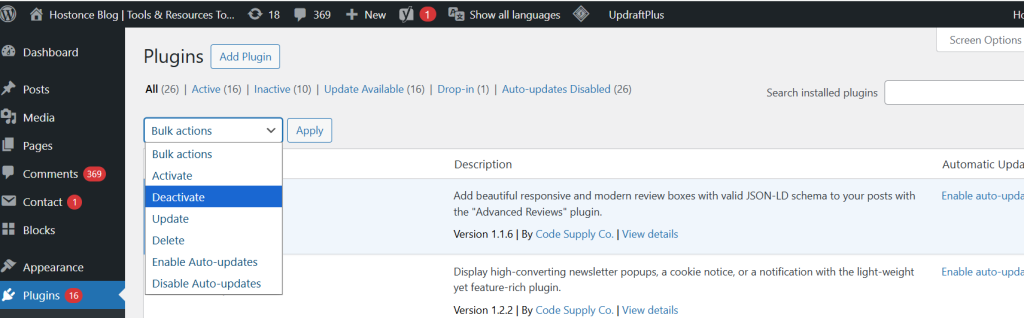
If there are conflict issues with recently installed updates for WordPress hosting themes or plugins, this may be the source of the 502 error. To remedy this, consider easy fixes like changing to a default WordPress theme or turning off the activated plugins. This deadlock situation is remedied by simply deactivating the plugins on the WordPress site.
Fix WordPress PHP Memory Limit
On busy WordPress sites, a low PHP memory limit can cause PHP-FPM to run out of memory and stop responding, which triggers 502 errors. To fix this on a VPS:
- Back up
wp-config.php. If a logged memory failure justifies it, an example WordPress request isdefine( 'WP_MEMORY_LIMIT', '256M' );, placed before the stop-editing comment. The PHP configuration must permit the chosen limit. - Check the PHP-FPM configuration actually used by the site. An example is
memory_limit = 256M; choose a value supported by the VPS memory budget and pool concurrency. - Validate the installed PHP-FPM configuration before a controlled restart. For PHP 8.2, an example is
sudo php-fpm8.2 -t && sudo systemctl restart php8.2-fpm. Substitute the real version and expect a brief interruption.
The values above are examples, not universal recommendations. Check PHP-FPM pool limits and total available RAM before increasing a per-process memory limit.
Inspect Server Resources (VPS Limits)
On low-resource VPS plans, PHP-FPM can exhaust memory or process limits, causing it to stop responding and triggering 502 errors. When the resources are maxed, PHP-FPM can stop responding, and your site will go down.
While the issue is happening, log in to your VPS over SSH and watch resource usage with:
topor, if installed:
htopThis helps confirm whether CPU or RAM is maxed out when 502 errors occur.
Analyze WordPress and Server Setup
If the issues still continue, then it is likely a configuration issue. Errors in PHP configurations, old server software, and faulty pathways in communication through Nginx and PHP can cause 502 errors. Having an updated WordPress core and plugins will help with these issues, as well as updating your server software regularly.
Conclusion
To investigate a 502 Bad Gateway error in Nginx, match the failing request to the error log, inspect the upstream service and verify its socket or port. Check resource pressure and application failures before making one controlled change, then test the request again.
FAQ
What causes a 502 Bad Gateway error in Nginx?
A 502 error occurs when Nginx cannot get a valid response from the backend server. Common causes include PHP-FPM not running, slow backend scripts, incorrect socket paths, server overload, or misconfigured backend services.
How do I restart PHP-FPM to fix a 502 error?
Restarting PHP-FPM can often resolve the error. Check the service status to ensure it’s running, review PHP-FPM logs for errors, and then restart the service to restore communication between Nginx and the backend.
Can high traffic cause a 502 Bad Gateway error on VPS?
Yes. If your VPS does not have enough CPU or memory to handle traffic spikes, backend services can slow down or crash, triggering 502 errors.
How do I fix upstream timeout issues in Nginx?
Upstream timeouts happen when the backend server takes too long to respond. Check the application, database and resource usage first. Change a timeout only when the logs and expected workload justify it.
What is the difference between 502 and 504 errors in Nginx?
A 502 Bad Gateway occurs when Nginx receives an invalid response from the backend, while a 504 Gateway Timeout happens when Nginx does not receive any response from the backend within the set time.


