
How to Fix render-blocking JavaScript CSS in ...
When a web page loads the browser interprets its HTML c...






Every domain redirect is a digital change of address. Say goodbye to headaches. Domain redirects are not that serious to lose your mind over. The process is that someone types your old domain. They are escorted to the new one as a result. No dead ends in addition. Smooth transfers through proper HTTP signals like 301 or 302. Ultahost believes a redirect should feel invisible to users and obvious to search engines despite every shortcoming.
Redirecting a domain is no magic. Just precision. Clean domain redirects follow a simple logic:
Redirects can prevent duplicate content and eliminate broken links. It can ensure users land where they should every single time.
Ready to set up a domain redirect without any issues?
Ultahost is where redirects are fast and SEO is safe. Redirects here are backed by humans who know what they are doing. Contact our support team now and seek comfort in smooth transfer of redirects.
Time to clear a myth. Redirects are not SEO killers. Bad redirects are.
Good redirects pass link equity and ranking signals from the old domain to the new one. This is why domain redirect is also less about whether you redirect and more about how you do it. Furthermore, domain redirect when done right:
Do not unleash your redirect yet. Make sure you have got:
Clean domain redirects can be performed through multiple methods. The level of control you want as well as the involvement of hosting finalize the best method for you. Below are four proven approaches to help you out.
Editing the .htaccess file suits advanced redirect needs. This method gives full control over how traffic moves between domains. It works well for full site migrations. Works like a charm for complex rules and where many URLs must follow one clear structure.
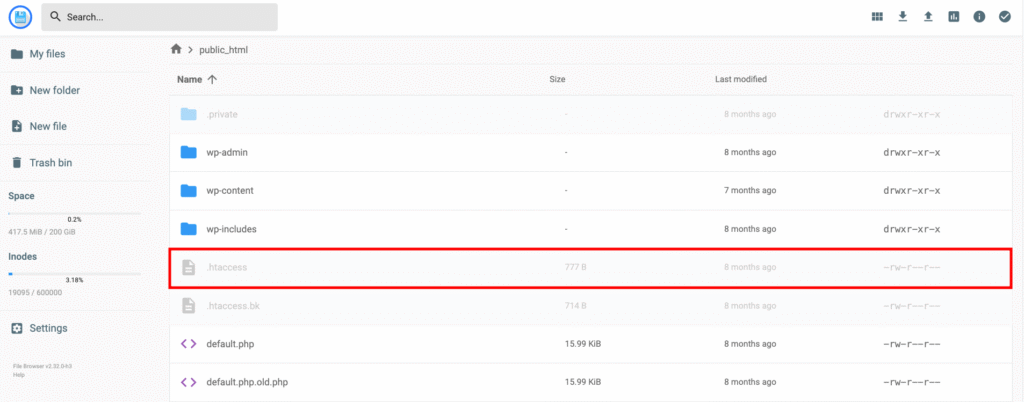
Use a 301 redirect for permanent moves. Also 302 redirect for temporary changes. Open the old domain in a browser to confirm that the redirect works as intended.
This method works best for users who want a clean setup. You do not have to touch server files. Most users choose this option. Why? Because it keeps everything inside the control panel and reduces risk as a result.
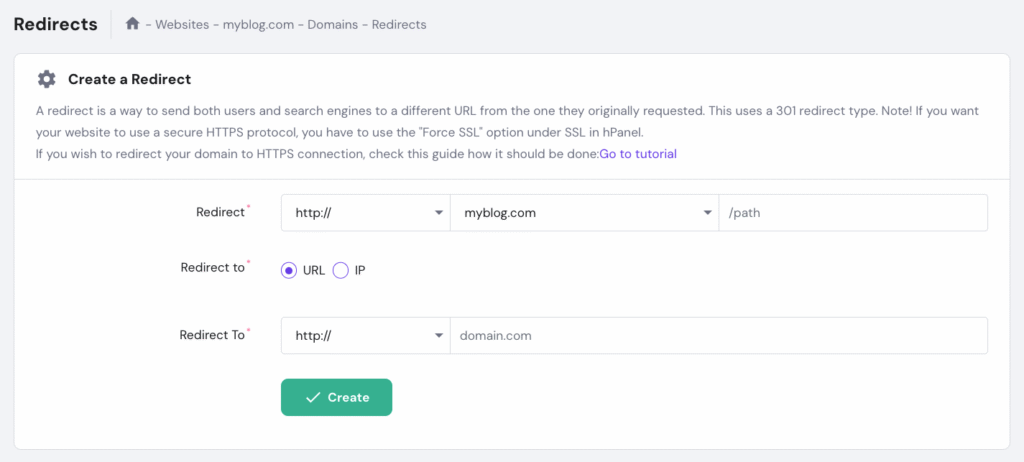
You may add a specific path if only part of the site should redirect. Save the changes. Allow some time for the system to apply them. Visit the old domain to test the redirect.
Hosting plans are not required to create a domain redirect. You can still send visitors to another site through the registrar tools. This option works well for parked domains or for domains that serve branding purposes.
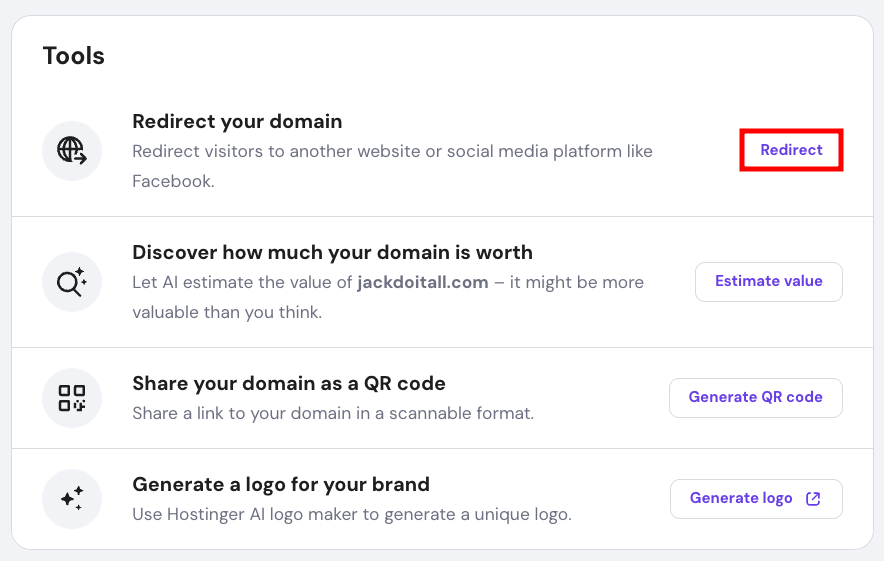
Save the settings now. Wait for DNS changes to be in effect. The domain redirect becomes active as a result once propagation finishes for this reason.
Redirects based on DNS also rely on records. These records indeed point one domain to another destination. This method provides strong control. It also demands careful input to avoid conflicts.
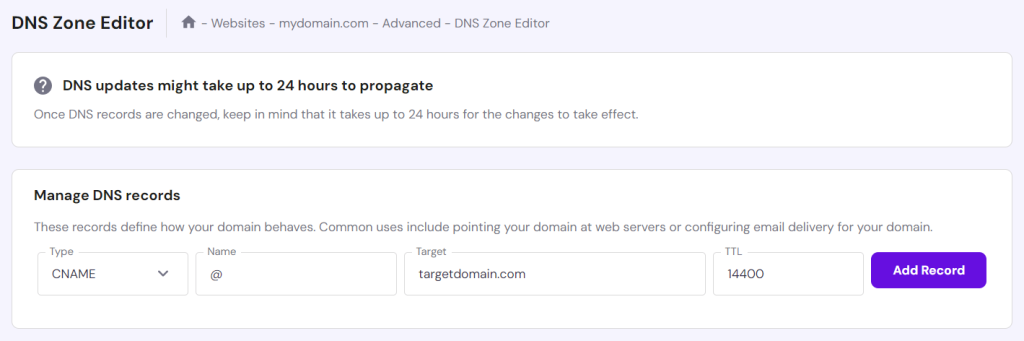
Wait around 24 hours for DNS propagation to complete. Also test the redirect afterwards. This should confirm correct behaviour as a result after propagation.
The worth of a domain redirect is far more than that of a technical tweak. The right domain redirect ensures visitors land well and hence increases its value. No broken links or ranking losses on the other hand. There is also a method for every skill level. Do it right once so you can leave stress way behind as a result. Test it well in addition. Your redirect will do its job in the background just like how it should. The best part? You will never guess with Ultahost but rather redirect with confidence. Reach out to us for a seamless experience!
UltaAI – Smart AI Assistant for Ultahost Clients
UltaAI is your advisor for anything related to domain or hosting. Experience personalized suggestions with our Smart AI!