
How to Install and Setup WordPress Multisite ...
WordPress Multisite is a powerful feature that allows y...






The error message ERR_CONNECTION_TIMED_OUT signifies that a connection cannot be made to a website’s server within a specified time frame. While the timeout error is most commonly seen in Google Chrome, it can also be found in Mozilla Firefox and Microsoft Edge.
In simple terms, your browser sends a request to a server, and that server needs time to respond. Various issues can cause this error, including unresolved network problems, DNS errors, firewall blocks, server malfunctions, and hosting problems. However, regardless of the cause, an end user may encounter connection timeout errors.
In this guide, we will discuss the various causes of the ERR_CONNECTION_TIMED_OUT error and the potential solutions to fix this issue.
Timeout errors occur when there is a significant interruption in the communication between a web browser and a web server. Some of the most common causes of timeout errors are related to network connectivity, issues with the DNS cache, the presence of a proxy, a VPN, or a firewall, as well as issues with server overload. Website owners risk misconfiguring their servers or providing insufficient resources, which can cause the problem.
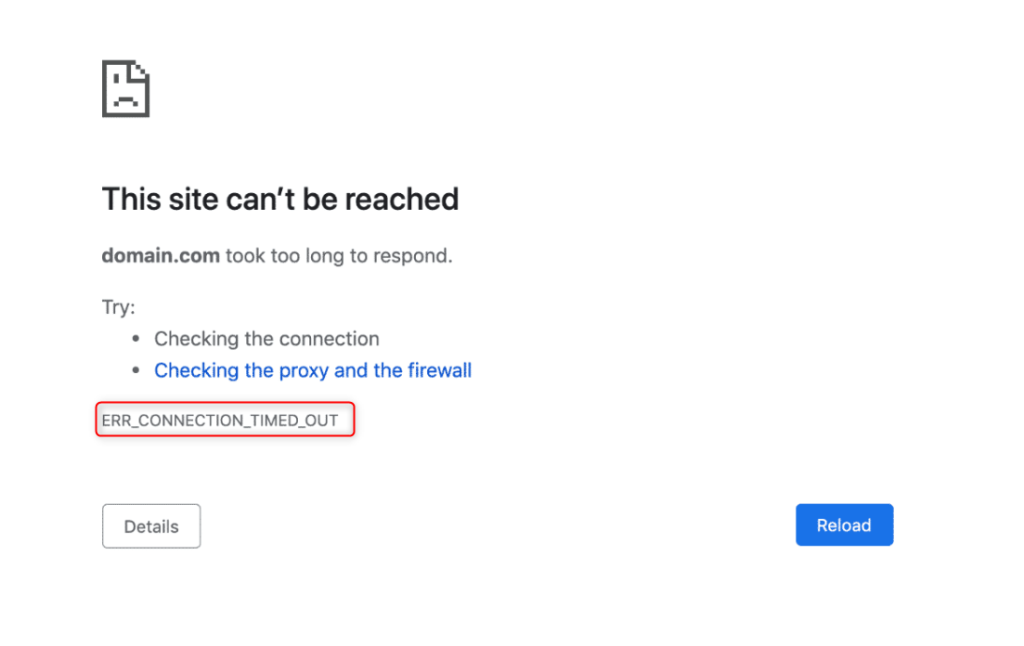
Understanding the ERR_CONNECTION_TIMED_OUT error is key to troubleshooting it. The solutions below address both client-side and server-side issues.
Improve Your WordPress Performance with Ultahost!
Enjoy lightning-fast performance with LiteSpeed WordPress Hosting. Our plans deliver up to 5× faster loading times, optimized for speed, reliability, and a seamless user experience.
Your connection to the Internet may simply be weak or unstable, which is a common reason for timeout errors. Without the stability, in terms of establishing a connection with the server, there is simply poor or intermittent disconnection in the Network Anomalies. Restarting the router or switching to a different network often solves most temporary connectivity problems. Making sure the Internet connection is strong and uninterrupted is the primary step for troubleshooting any technology problem.
Temporary system glitches or memory conflicts can interrupt active network sessions. Background errors or corrupt temporary files can also cause a browser to fail to finish a request. Rebooting the browser or the system clears up unused system resources and gets rid of the conflicts. Many times, this action solves the problem without any further troubleshooting.
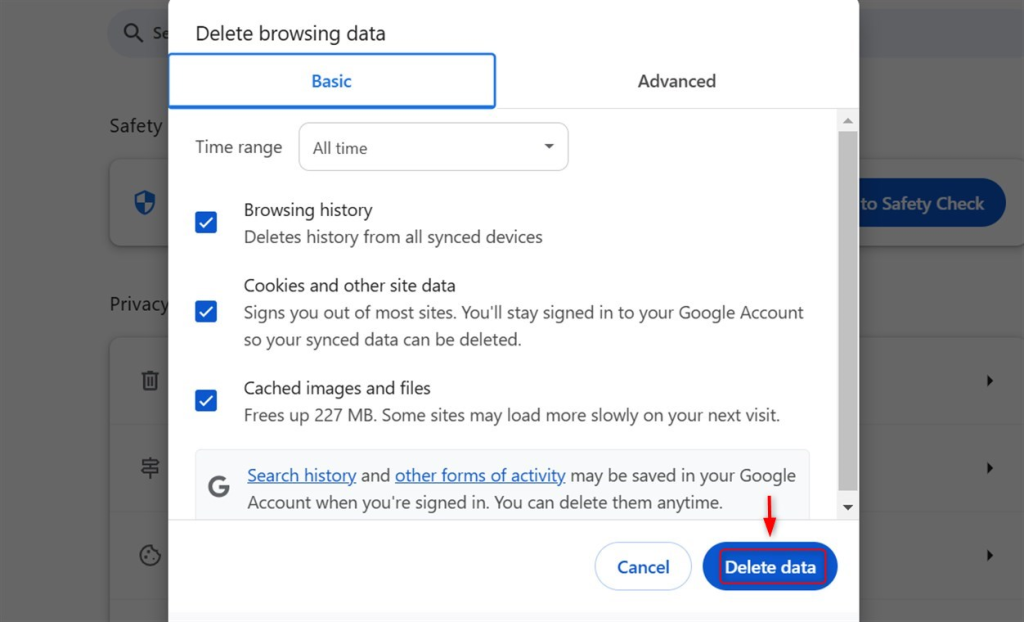
Web browsers cache resources and store cookies as another method to improve load times for websites. Corrupted or outdated cache resources can prevent the browser from communicating properly with the web server. Clearing the cache forces the browser to retrieve content directly from the server instead of using the stored cache. This, most often, fixes the timeout issues due to outdated DNS records or corrupted session data.
Steps to Delete Cache:
Your computer’s operating system uses a local storage method for DNS information. This storage method improves the load time of websites that the user has previously visited. Corrupted or outdated local DNS storage can make your browser try connecting to an invalid IP address. Clearing the local DNS cache forces the system to retrieve fresh DNS information. This procedure almost always resolves problems such as endless connection delays.
Steps to Flush DNS Cache:
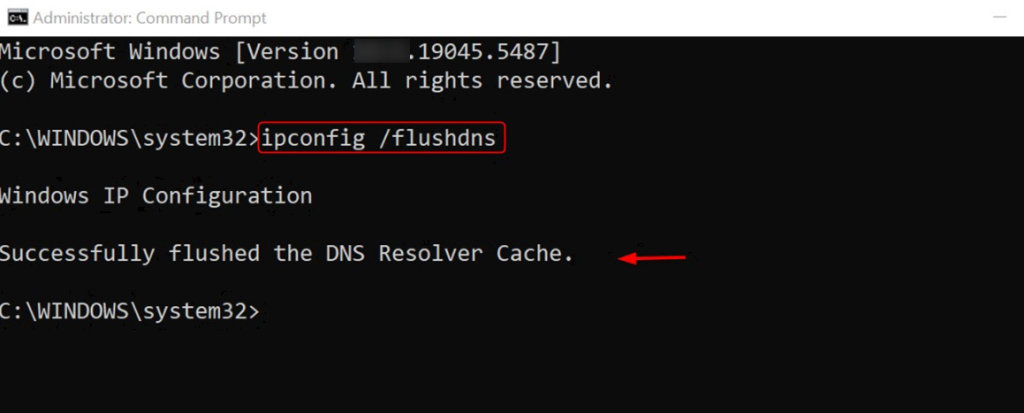
To flush your DNS Cache on Mac, you will enter the command sudo dscacheutil -flushcache and then hit Enter.
The DNS servers offered by your ISP may be slow, congested, or unreliable. Using a public DNS service such as Google Public DNS or Cloudflare DNS can help. DNS services that are faster than your ISP could help to reduce delays and enhance your overall browsing experience. Many users experience fewer timeout issues with this solution.
Steps to Change DNS Server in Windows:
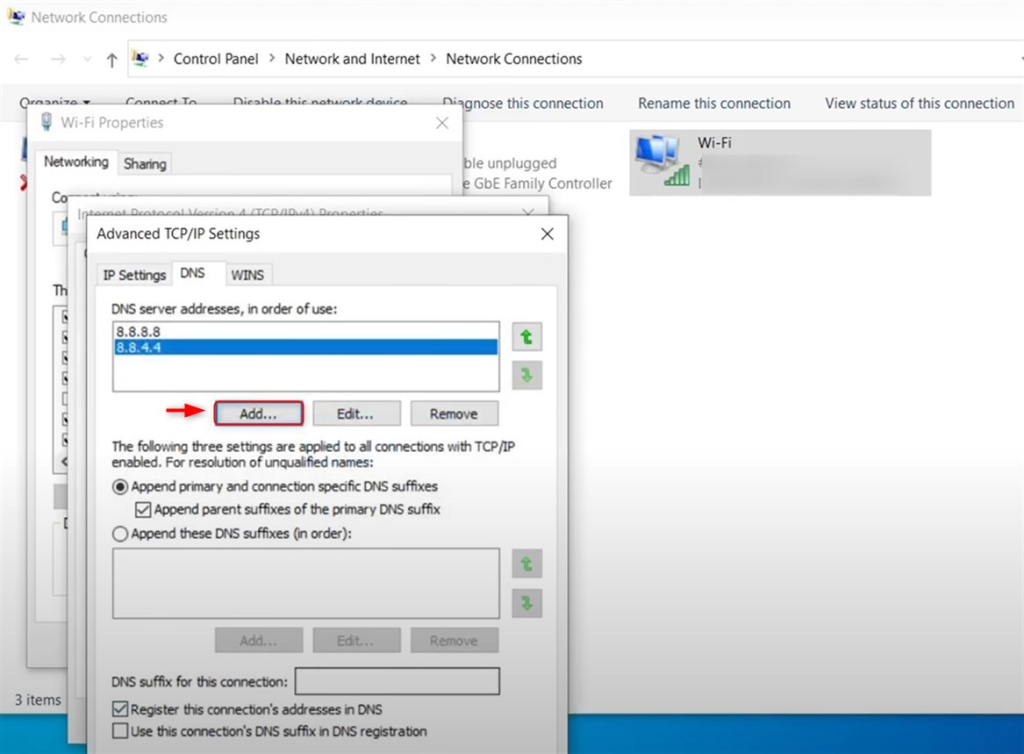
On a Mac, the same DNS options are within System Preferences > Network > active network > DNS, then Advanced.
Although website blockers and security tools are meant to help, they can accidentally affect the server. An active firewall or antivirus on Google or Windows servers may cause the issue. To see if this is a factor in the problem, turn off the website blocker and security tool. If it contributes to the issue, adjusting the software settings can resolve the problem permanently.
Steps to Disable Firewall on Windows:
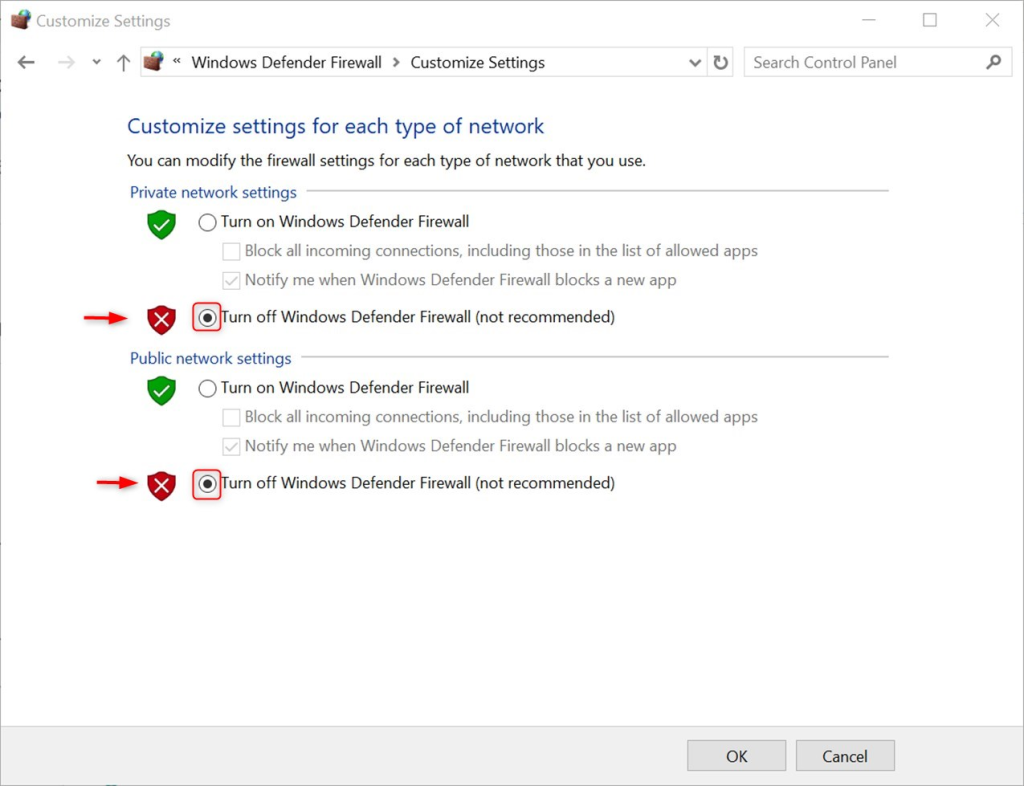
Once you’ve found the underlying issue, don’t forget to turn your firewall back on. If this method works, adjust your security software settings to allow DNS or network functions.
As a reminder, a VPN or a proxy can cause delays or introduce routing issues. If a proxy server is located farther away, the connection could time out. Even some VPNs block certain websites, meaning connections may not work. Once you switch your VPN off, your connection should work properly.
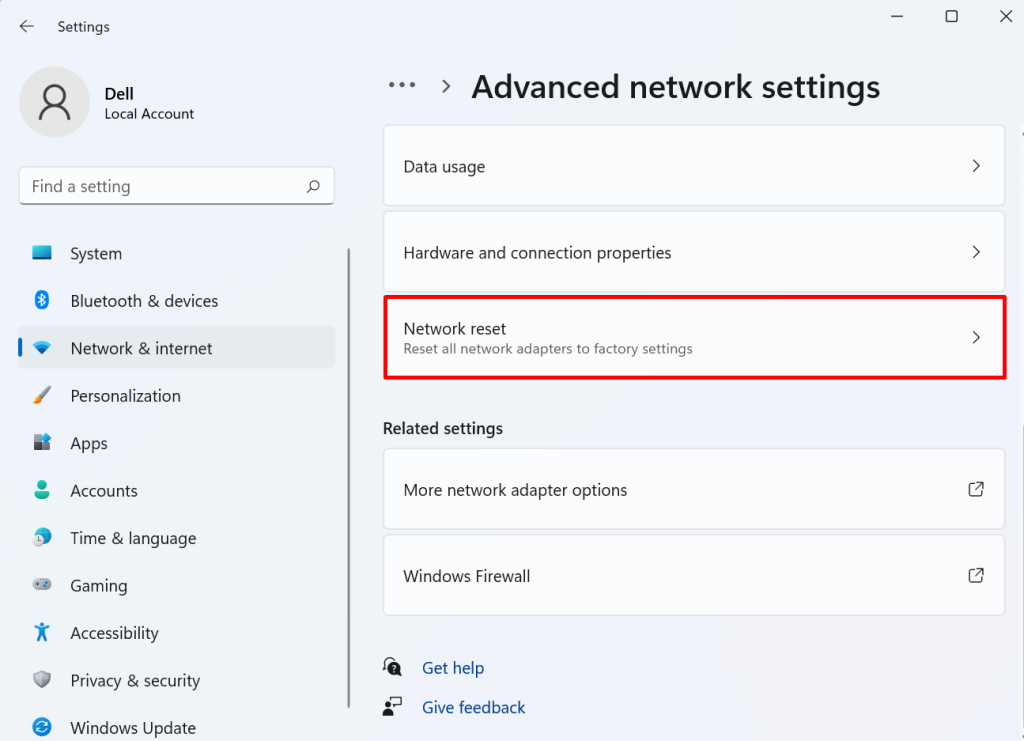
Issues with TCP/IP settings or the network stack can prevent the settings needed to properly communicate with remote network services. When you reset the network configuration, you bring the parameters back to the default settings, eradicating the issues. This is particularly evident if multiple websites are not loading, given that most people would have already checked the DNS and the firewall. This solution will help you to refresh your system communication protocols.
Instructions to Reset Your Network Configuration
If a significant number of users report timeout errors on the website, the problem could be the hosting environment or the configuration of the server.
If the CPU usage, memory, or bandwidth is at maximum level, the server is unable to respond to requests on time. In situations of maxed-out resources, requests will queue up and timeout. Usage-monitoring tools can identify which resources are heavily used. Frequent overloads indicate that you may need to increase hosting resources or optimize the application to reduce resource consumption.
Server firewalls, such as Config Server Security & Firewall, may block users when they detect them as a threat. This is especially true if there is a security event. Issues such as unresponsive ports can deter users from being able to access the site. Reviewing the firewall logs and ensuring that ports that support HTTP and HTTPS are open is important. Set the firewall rules to balance security and access.
Heavy scripts or complex database queries can exceed the server’s default execution limit. However, if scripts take a long time to run, the server will terminate the connection to the script, and that will cause a timeout. Increasing time and memory limits allows the server to complete resource-intensive tasks. Optimize performance before raising these limits.
DNS records that are incorrect can either completely halt domain resolution or misroute traffic. Users cannot reach your server if your A record points to the wrong IP address or if your nameservers are misconfigured. A common issue after migrations or hosting changes is that DNS errors often occur. Accurately configuring your DNS ensures reliable connectivity.
The problem may also be with the provider hosting your site. Data center outages, problems with routing, and DDoS shielding active in the region can all cause server response times to increase. Examining server logs and communicating with hosting support can determine if the problem is internal or connected to the provider. A reliable hosting infrastructure is essential to reducing the likelihood of timeouts.
A responsive server and stable network are the foundations of reliable hosting, coupled with the use of caching, supervision of resource consumption, and the frequent upgrading of server applications, all of which serve together to combat timeouts. Users should have stable, active internet connections and updated browsers. This keeps timeout risks as low as possible and allows users to browse sites without issues.
To prevent the occurrence of ERR_CONNECTION_TIMED_OUT errors, multiple systems must be in place, and regular testing and updating of the systems that defend against time clashes.
The ERR_CONNECTION_TIMED_OUT error mostly occurs due to a breakdown in communication between your browser and the web server. Although it may seem serious, networking and configuration issues often cause it, and you can fix them. Familiarity with causes on both the client and server sides helps to eliminate the problem in an orderly manner.
Users can fix the problem by using a stable internet connection and adjusting their DNS settings. For web owners, server optimization and good hosting help to reduce connection timeouts. Taking the right measures restores the browsing experience.
It means that your browser has been unable to reach the server and establish a connection. It may have been because the server was unresponsive or the response was very slow.
Yes. DNS servers that are slow and/or incorrectly configured can cause a delay in the resolution of the domain, which leaves the browser unable to find the appropriate server IP to connect.
Yes, a VPN can cause this error. Some VPN servers delay routing, which slows down the connection. In some cases, websites block VPN traffic. As a result, the connection attempt fails and triggers the error.
There is no risk. ERR_CONNECTION_TIMED_OUT is not a virus or security threat, but simply a warning that there is a connection that is not happening, and it requires some troubleshooting.
Corrupted cache files or outdated session data can cause this issue. Clearing the browser cache may resolve it. However, the error will continue if the problem exists on the server side.
Try Ultahost for Reliable and Affordable Web Hosting!
Get powerful shared hosting built for bloggers, small business owners, web designers, and developers. Explore our hosting plans today and pick the one that fits your needs.
WordPress Multisite is a powerful feature that allows y...
A common issue seen in WordPress often shows the error,...
Softaculous is a tool in cPanel that makes it easy to i...
Permalinks, short for "permanent links" are the URLs us...

WordPress is one of the most popular content management...