
How to Redirect HTTP to HTTPS in Nginx
Nginx is a powerful and versatile web server that provi...






Nothing ruins a good website visit quite like a full-screen red warning screaming “Go back!” at users. That trouble occurs when Chrome decides your site deserves the deceptive site ahead label. The good news? This problem is fixable. The bad news? To fix it is to understand why it happened in the first place. This guide walks you through four clear steps to remove the deceptive site ahead warning.
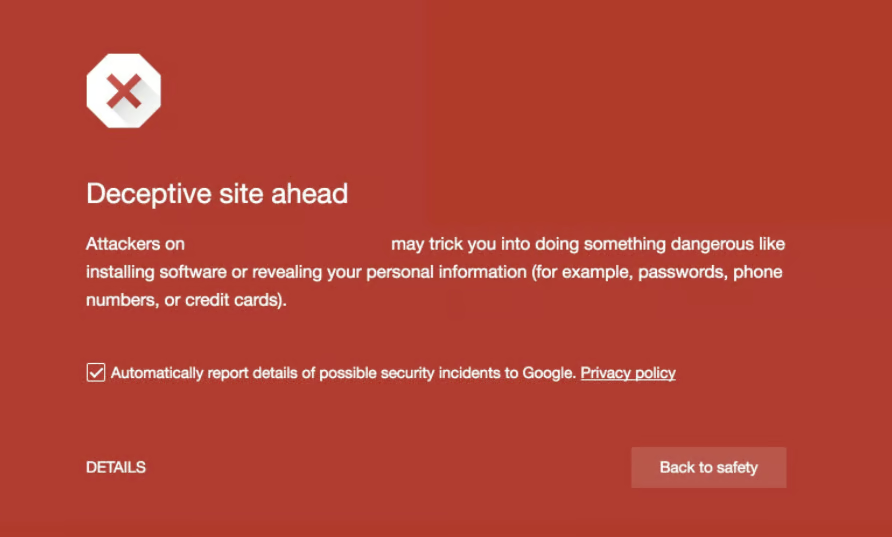
Sometimes Google is right. Sometimes Google is suspicious. And sometimes Google is just having a dramatic day.
The “Deceptive site ahead” warning often appears when malware is detected. Not always! Legitimate websites can get flagged by mistake. That would feel like being arrested because your neighbour was involved in questionable activities.
Say no to panic for now. Check whether the warning appears in other browsers. Did you recently fix security issues? Time to clear your browser cache. This is how Chrome reloads the latest version of your site instead of clinging to outdated data.
Fear not if the warning still refuses to leave. Follow the steps below to escort the error out of your website. We will focus on WordPress here. Most principles still apply to other platforms.
You cannot fix a problem if you do not know what caused it. The first mission is detective work minus the trench coat.
Start with Google Safe Browsing. That checks whether your site is associated with malware, phishing, or other digital mischief. Google is blunt at highlighting the issue if it thinks your site is unsafe.
Open Google Search Console. Find Security Issues under Security & Manual Actions. You will see whether Google detected anything suspicious. This works only if your site is connected to Search Console. If it does not connect… Well, that is a problem in itself.
Run a deep scan for website security using an online malware scanner if Google does not find anything. Tools like Quttera or SiteGuarding can crawl your site and reveal hidden threats. These tools are perfect for beginner users as they do the stressful work while you sip tea and pretend you understand cybersecurity.
You can go full hacker mode (the legal kind) if you are comfortable with code. Inspect the source code of your site. Identify unfamiliar scripts. Compare files using your hosting file manager. Suspicious third-party code is often the smoking gun.
Pay attention to recent changes! New plugins or themes are prime attack surfaces. Hackers love exploiting vulnerabilities in poorly coded add-ons. More so the ones that are downloaded from questionable sources. If your site started behaving strangely after installing something new, then congratulations! You have caught the main culprit.
Secure your site before Google flags it again!
Don’t wait for another red warning screen. Strengthen your website security today with reliable hosting and proactive protection. Experts from Ultahost are all up for the task. Give them a chance and secure your website now!
Common causes of the warning include:
There are times when your site is innocent. Your site may have been flagged by mistake if Google and malware scanners and your own inspection find nothing wrong. You will report it later when requesting a review. Not unusual with a deceptive site warning.
Create a full backup of your website. Think of it as taking a snapshot before surgery. You will have a safety net instead of a nervous breakdown if something goes wrong.
You can back up your WordPress site in several ways:
Popular WordPress backup plugins include:
Using a premium hosting environment like Ultahost means that backups are often automated and easy to restore. The primary difference between “one-click recovery” and “three hours of Googling error messages.” You can also back up using FTP or your hosting file manager and export your database through phpMyAdmin.
One golden rule is to store your backup and separate it from infected files. Keeping everything in the same place is like storing your spare keys inside the locked car.
Identified infected files or malicious code? Bingo! About time you removed them.
Security plugins make this process much easier for WordPress users. Tools like Wordfence can scan your site as well as identify threats and repair compromised files.
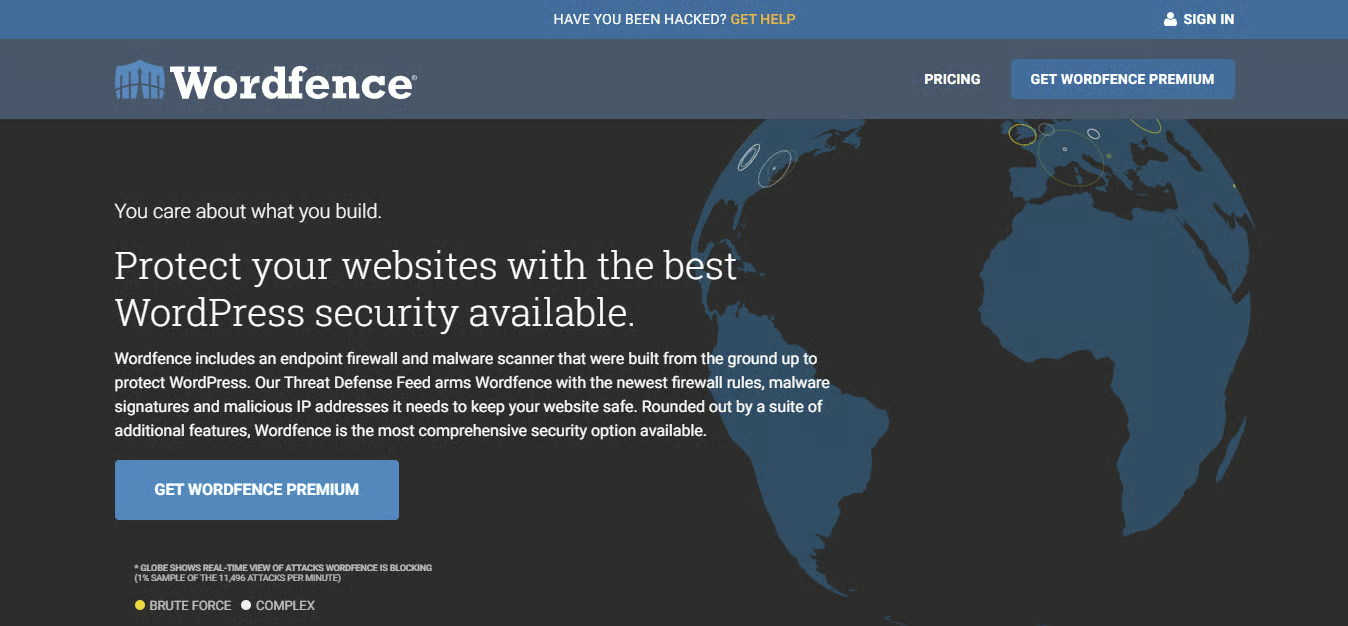
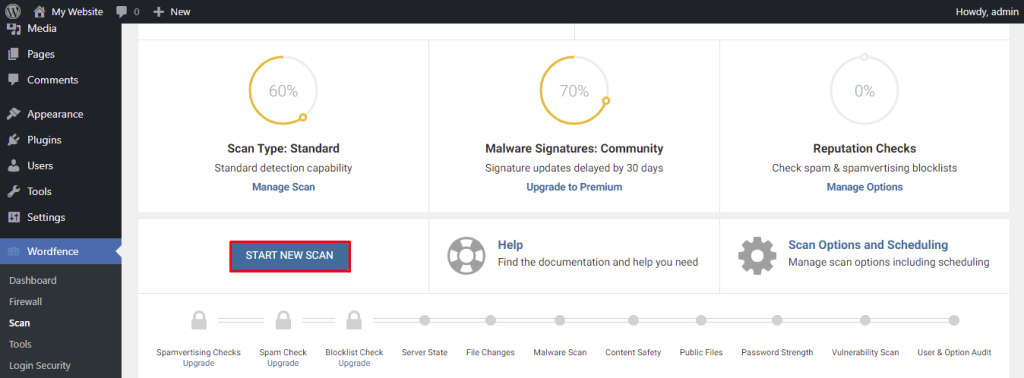
Savor a simple workflow:
You can restore it to replace corrupted files if you have a clean backup from before the infection. You can restore your site without touching code if your hosting provider stores backups. Ultahost does that in many plans.
Use a dedicated malware removal tool instead if your site runs on a different CMS. Many scanners allow cleanup with just one click.
Do not go in blind if you are not confident in your technical skills. Deleting the wrong file can break your site faster than malware ever could. Professional help will be more of damage control than a luxury in such a scenario.
Talk to Google once your website is clean and secure.
Go to Google Search Console. Navigate to Security & Manual Actions. Security Issues. Request a Review.
Explain the following in your request:
Google likes clarity and responsibility alongside evidence. It does not like vague statements such as “I think it is fixed now.” Keep this in mind when dealing with the Chrome dangerous site warning.
Review timelines vary. Malware and phishing issues often take a few days. Hacked-site reviews may take longer. Wait until Google approves your request. Your site will be removed from the blocklist. It will be re-indexed and the warning will disappear within 72 hours.
Be wary of the rejection of your review. Multiple rejections can prompt Google to flag such a site as a “repeat offender.” Your further requests can be blocked for a time. Google puts you in digital timeout like that.
This warning hurts your website and becomes a main cause of your public humiliation.
Users leave the moment they see the warning. They consider it dangerous. The traffic slows. Your bounce rate skyrockets. Your SEO suffers. Trust takes its fair share of time to rebuild even after the warning is removed.
The stakes are even higher if sensitive data is in question. A serious breach can lead to financial losses and legal consequences. That does not count reputational damage yet. Expect lost sales and angry customers for e-commerce sites.
Do not be surprised if your hosting provider suspends your account in case the infection persists. That is why secure infrastructure is more of a necessity than a luxury. It is a gear your survival rests on.
Fixing the deceptive site problem is good. Preventing it is better.
WordPress has integrated security. Not enough. Use dedicated security plugins with firewalls and malware scanners. Free versions come in handy. Premium tools operate as a far better option for deeper protection from malware attacks.
Hackers attack websites. They target servers. A secure hosting provider tackles such threats and isolates accounts. It patches vulnerabilities. This is where Ultahost focuses on the nasty work, while you focus on growth rather than crisis management.
SSL encrypts data between your site and users. Google may treat your site as unsafe without SSL. HTTPS is both a trust signal and an SEO factor alongside a security baseline.
Outdated software is an open invitation to hackers. Update WordPress core files and plugins and themes. Enable auto updates where possible. Just remember to back up your site first.
Malware often enters through infected devices or risky downloads. Avoid suspicious files and shady websites. Your website might be next if your computer is compromised.
Use strong passwords. Enable two-factor authentication. Limit login attempts. Protect sensitive directories and monitor user activity. Hackers love weak credentials almost as much as they love coffee.
The “deceptive site ahead” warning is scary for sure. You can take it as a valuable signal at that. It tells you that something in your digital ecosystem needs attention. Remove the threat. Strengthen your defences. Upgrade your infrastructure. Security can sound boring until it becomes urgent. The right tools and a reliable hosting partner like Ultahost can keep your website safe. Get it right to the point where the only red screens you will see from now on will be Netflix error messages and not Chrome accusing you of cybercrime.
Ever had that sinking feeling when Chrome throws up a big red warning on your site? No one wants to deal with that twice. Ultahost’s Linux VPS hosting takes the stress out of website security with proactive monitoring and isolated servers and reliable backups that work in the background. The result? Safe and confident browsing without any worry.
UltaAI – Smart AI Assistant for Ultahost Clients
UltaAI is your advisor for anything related to domain or hosting. Experience personalized suggestions with our Smart AI!