
Deceptive Site Ahead Error: How to Fix it The...
Nothing ruins a good website visit quite like a full-sc...






What status code is 304? It is your browser and the server having a polite conversation and agreeing not to repeat themselves. A webpage prompts your browser upon every visit. The server does its duty and checks any changes on the page since your last visit. The server then responds with HTTP 304 Not Modified if nothing new is detected. The browser then uses the cached version in such a scenario. Result? Faster loading. Fewer resources. Less drama.
The browser sends a request to the web server the moment you enter a URL. This request includes an If Modified Since header. That tells the server the date and time of the last version stored in the browser cache.
The server checks the Last Modified timestamp. Responds according to the detected information. Detection of no change pushes the server to return an HTTP 304 Not Modified response. A fine move instead of sending the full page again.
The 304 Not Modified status code means that the requested resource is unchanged. The browser loads the stored cached version. Saves it the hassle to download the page again. This reduces bandwidth usage and speeds up page loading. It minimizes unnecessary server requests.
Take control of your website’s performance today!
Partner with Ultahost and ensure your caching or redirects and server responses are configured the right way. Let our experts help you diagnose and fix HTTP status code problems so your site runs smooth and flawless.
There are five practical ways to address the 304 Not Modified HTTP status code. The issue occurs on the visitor’s side. Something the website owner cannot fix. You can still recommend the following solutions to help resolve it.
Clear the browser cache and cookies and stored browsing data. Browsers save temporary files to hasten page loading. Outdated or corrupted cache files can prevent updated content from appearing.
Cache clearance removes all stored temporary data. The browser fetches a fresh version of the page from the server. This resolves display issues and improves browser performance. Storage space is freed up in the process.
To clear the cache in Google Chrome:
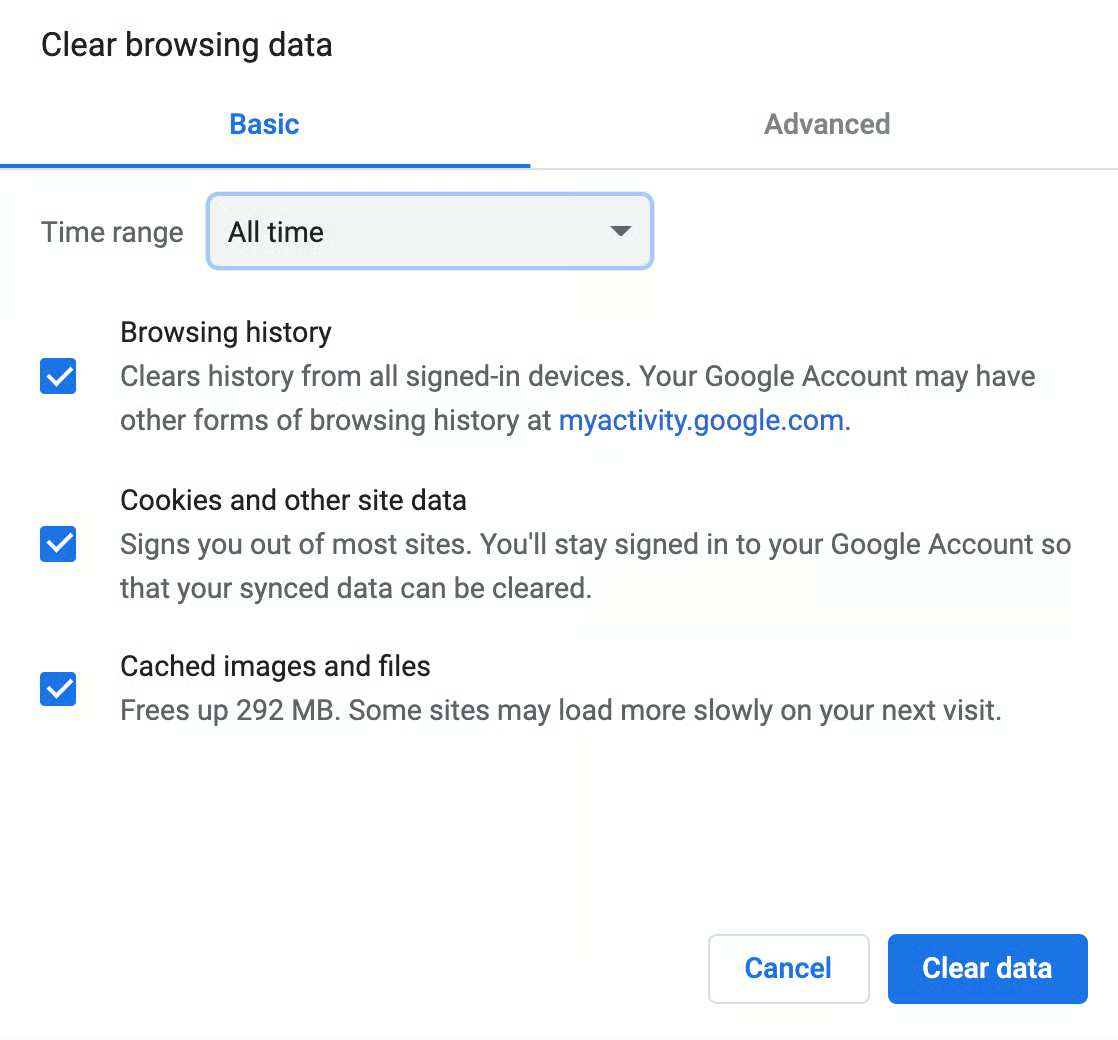
6. Click Clear data.
Steps may vary a bit by browser. Most modern browsers follow a similar process.
Operating systems also store cache data in the Domain Name System cache. This cache contains records such as hostnames and IP addresses and resource information. It allows websites to load faster on repeat visits.
Each DNS record has a validity period known as Time to Live. Bad DNS cache entries cause connection issues and security risks. They may also trigger HTTP responses like 304 Not Modified.
Flushing the DNS clears these stored records. It also forces the system to retrieve fresh DNS information.
To flush DNS in Google Chrome:
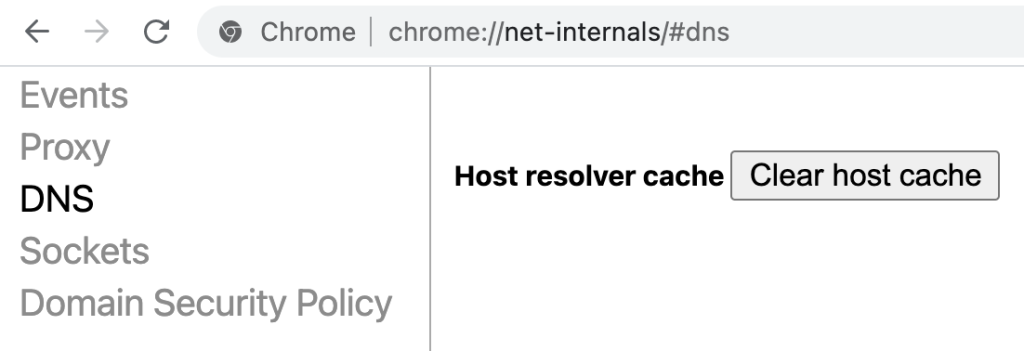
Chrome maintains its own DNS cache. It is also important to flush the DNS at the operating system level.
To flush DNS on Windows:
Commands specific to systems are used to make DNS flushing possible on macOS and Linux.
Did previous methods not resolve the issue? The problem may lie in the server configuration. More so in redirect rules.
Do not troubleshoot yet. Determine first whether your server uses Apache or NGINX:
To test .htaccess on Apache:
Review the redirect rules with a developer. Do that only if disabling the file resolves the issue. Even minor misconfigurations can cause caching or redirect conflicts.
Another potential reason for the 304 Not Modified status code is malware or a virus infection. The ones within the browser or operating system. Malicious software can interfere with request headers. Communication can be disrupted between the browser and server in this way.
Run a malware scan to help identify and remove these threats.
To scan using Google Chrome on Windows:
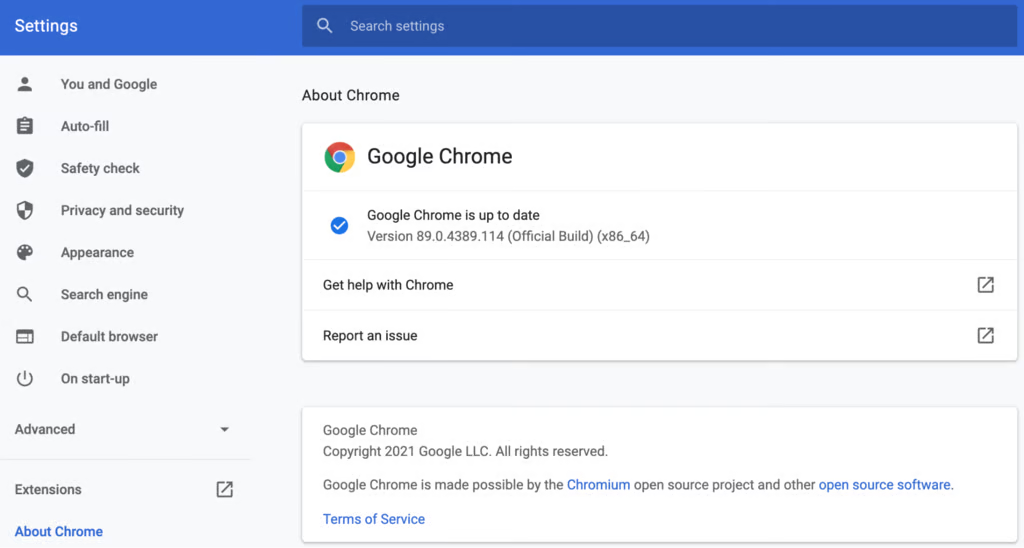
Other browsers like Firefox and Edge do not include integrated malware scanners. Use trusted antivirus software installed on your system for macOS and Linux or alternative browsers.
Browser extensions can interfere with requests and server communication. They trigger HTTP 304 responses.
Disabling extensions helps identify whether one of them causes the issue.
Steps vary by browser:
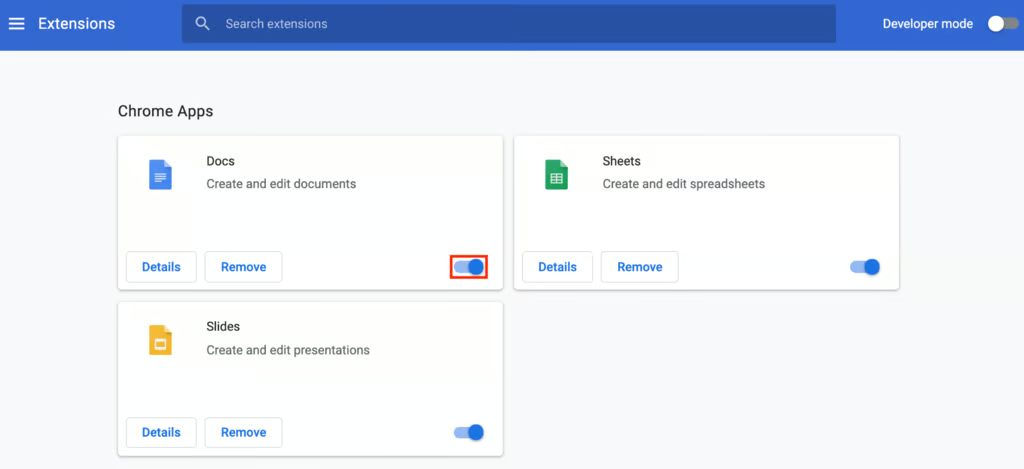
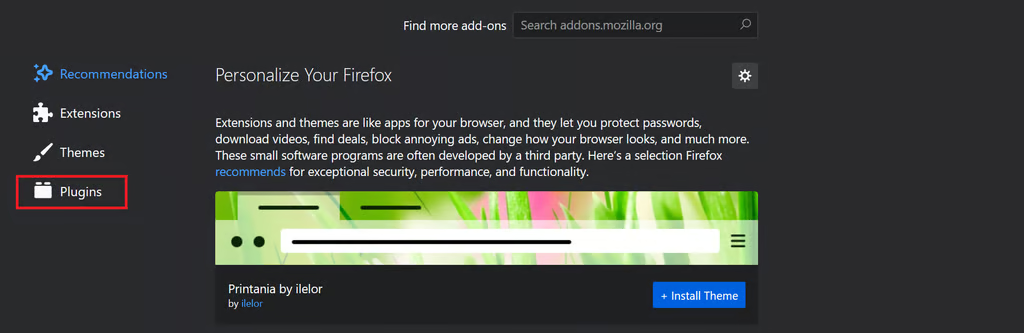
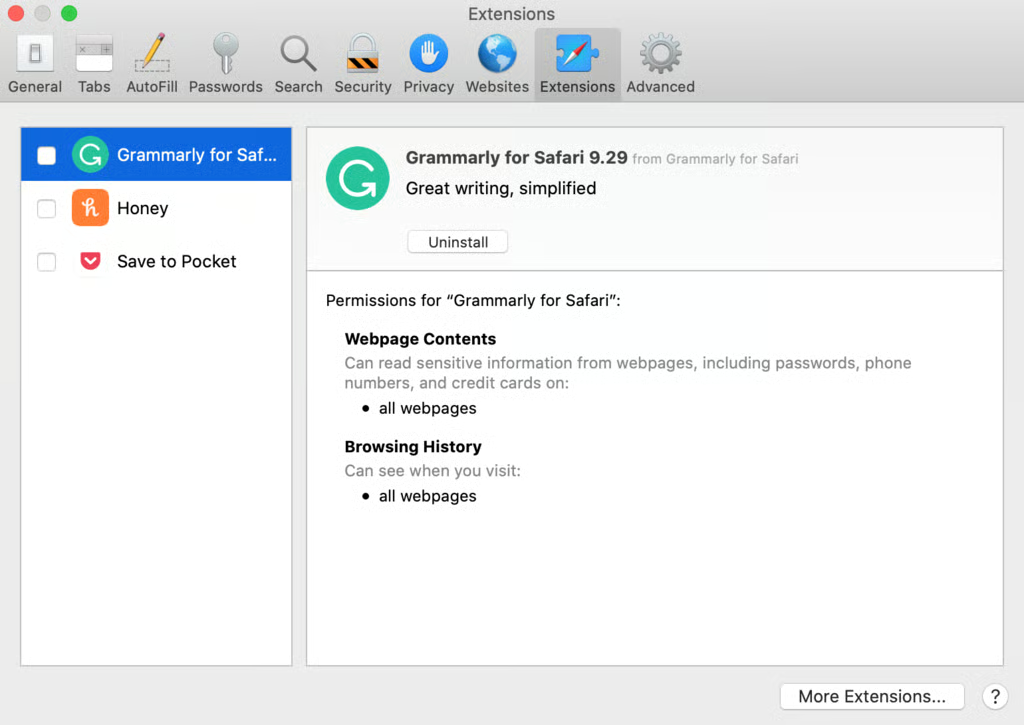
Restart the browser and revisit the affected page after disabling extensions. Enable extensions again if the issue is resolved. One at a time to identify the source of the problem.
HTTP status codes are short numeric responses. A web server sends these responses to indicate the result of a request. They tell you whether the request was successful or redirected or failed.
These codes are grouped into five main categories. Each represents a different type of response:
There are many HTTP status codes. Most users encounter a small number of them. The appearance of a response code signals that some action or investigation may be required.
An example is that 4xx codes indicate client issues like 403 Forbidden. Shows how access to the requested resource is denied. 2xx codes like HTTP 200 OK confirm that a request was processed.
3xx codes deal with redirection. Codes like 301 and 302 are used for permanent and temporary redirects. They guide browsers and search engines to a different URL.
HTTP 304 responses can improve performance by leagues and miles. More so for websites with a large number of pages. Prevention of unnecessary data transfers speeds up page delivery and reduces server load. This improves the overall user experience.
They also help search engines crawl websites. Unchanged pages do not need to be downloaded again. Search engines can focus their crawl budget on new or updated content. HTTP 304 responses can prevent users from seeing updated content when misconfigured. They make pages appear broken or outdated.
You may check out Ultahost’s vast self-help resources. Alternatively, you may contact our support team for further queries.
A 304 Not Modified response can originate from either the server or the client side. The cause lies on the user’s device rather than the server itself in most cases. It limits what site owners can fix.
Common reasons a user may receive a 304 Not Modified status code include:
Understanding these causes helps website owners fix an HTTP 304 Not Modified Status Code. It also helps them guide users toward effective troubleshooting steps even when the issue is not under their control.
Now you can answer well when someone asks what status code is 304? It is a smart efficiency signal instead of a warning sign. HTTP 304 Not Modified helps websites load faster and saves bandwidth. This improves crawl efficiency when configured well. It is a sign that caching is working as intended and something is not broken. A professional like Ultahost can always answer such queries and provide additional tips on the matter.
Want your website to load faster without breaking anything? Ultahost’s hosting solutions are designed to handle caching the right way, making sure responses like HTTP 304 work in your favor. This is how you welcome quicker load times as well as lower server stress and a smoother experience for both users and search engines.
UltaAI – Smart AI Assistant for Ultahost Clients
UltaAI is your advisor for anything related to domain or hosting. Experience personalized suggestions with our Smart AI!